An official website of the Commonwealth of Massachusetts Here's how you knowHere's how you know

TAFDC Web Applications
Every person has the right to apply/reapply for a DTA program they do not currently receive, even if they were previously denied or are unsure of their eligibility. DTA has a variety of methods for parents and caregivers to apply for benefits.
For a list of all methods of applying for DTA benefits see Application RFA
Completing a Web Application is one method for families with access to the internet to apply. This can be done on a computer at DTAConnect.com or on their cell phone using the DTAConnect Mobile App. The application screening questions will help guide the client to the correct program. Families who do not have direct access to the internet can file a Web Application using a DTA Kiosk at their local TAO or one of DTA’s community providers.
To search for a DTA Kiosk by zip code see Locations | Mass.gov
Pending EA/Combo Applications View
Economic Assistance (EA) Web Applications will populate to the Pending EA/Combo Applications view for the TAO that covers the client’s address. From this view the application will be assigned to a case manager to process.
The view will display: View/HideView/Hide
|
Field |
What is displays |
|---|---|
|
Grantee |
Grantee Name |
|
SSN |
Last 4 digits of Social Security Number if provided |
|
Program |
TAFDC or EAEDC |
|
Received |
Date Web Application was received |
|
Web ID |
Web Application Identification Number |
The tools at the top of the Pending EA/Combo Applications view include:
- The Electronic Case File (ECF)
- AU Assignment
- The Application Data Sheet
- Disposition Web Application tool for director or assistant director use only. View/HideView/Hide
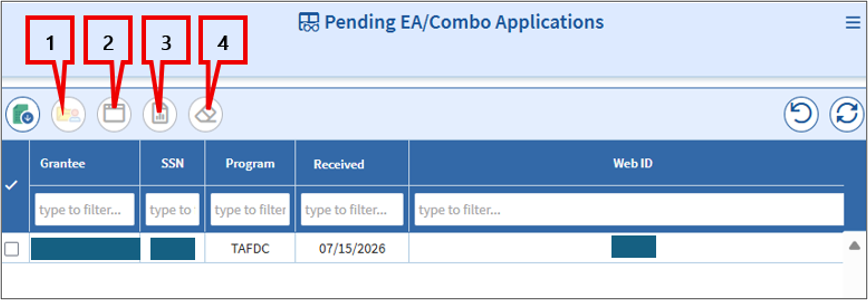
Note. The Disposition Web App tool is for directors and assistant directors to remove duplicate Web Applications. All others will drop from the view once assigned to a case manager.
Assigning the Application
Local TAO Management Responsibilities
Local TAO management teams are responsible for determining which staff member is responsible for monitoring this view and assigning applications, based on the needs of their office.
Assigning Applications with Active or Pending Economic Assistance
When a Web Application is filed, BEACON will run a check to see if the information provided matches to an existing BEACON client and whether they have active or pending economic assistance.
- If the new application is for a client with an active economic assistance program assigned to your TAO, the new application must be assigned to the existing case manager.
- If the new application is for a client with an active economic assistance program in another TAO, see Transfer a Case Overview to determine if a transfer is appropriate.
Note: To transfer a Web Application to another TAO, you must first assign the application to a local case manager. The case manager must complete the Request for Assistance (RFA) and make the transfer from there.
Assigning Applications in BEACON
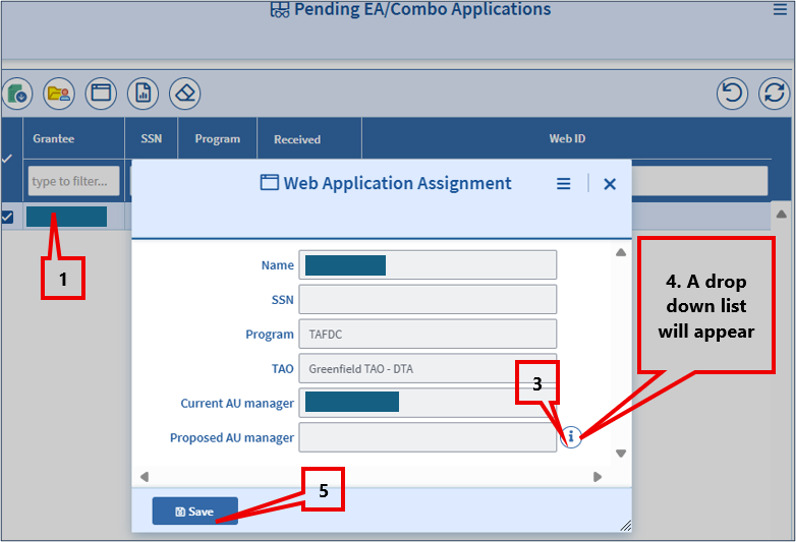
The AU Assignment tool allows the application to be assigned to a case manager directly from the Pending EA/Combo Applications view.
To assign a case manager:
- Click the check box next to the clients name,
- Click the AU Assignment tool to receive the Web Application Assignment popup box,
- Click the ICON to the right of Proposed AU manager,
- Select the case manager you wish to assign, and
- Click Save
What happens after the application is assigned?
Once the application is assigned, the client will display on the case manager’s Pending Applications/Reinstatements view.
The Pending Applications/Reinstatements view helps case managers identify next steps on cases that are in the application process or in the process of being reinstated. Applications assigned to the case manager will display on this view regardless of the application method.
An EA Web application does not automatically create an RFA. The new RFA Status column shows whether an RFA has been entered or if it is still needed. This helps identify next steps.
Note: All EA Web Applications will initially show as No RFA when assigned to the case manager. Once the case manager enters the Request for Assistance, the RFA Status will change to Completed RFA.
The view indicates whether the client has requested to apply for SNAP with the TAFDC application. This is indicated by a Yes displayed in the SNAP Combo column. View/HideView/Hide
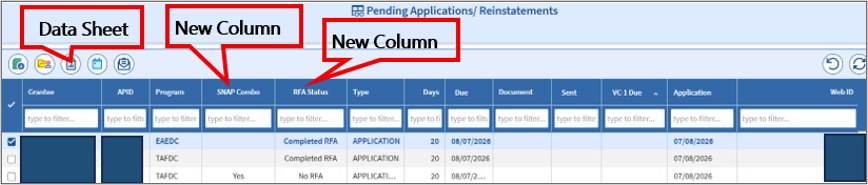
This will also be available on the Application Datasheet.
The Application Datasheet is available in a new tool on the Pending Applications/Reinstatements view.
The case manager must access the Application Datasheet to review the information and follow established procedures for completing a Request for Assistance (RFA) and scheduling an appointment for the interview. View/HideView/Hide

Completing the Request for Assistance
A Request for Assistance for an EA Web Application must always be completed using the ECF Icon associated with the client on the Pending Applications/Reinstatements view. Otherwise, the client will not drop from the view once the application is approved or denied.
When a Web Application is filed, whether the client is known to BEACON and/or whether they have an active or pending application for the same program determines the next steps. If the grantee of the Web Application is known to BEACON, when the case manager clicks on the client’s ECF on the view, the following message will display:
"This web application is associated with an existing Client ID. Please review the client's ECF."
Web Applications Matched to a BEACON Case Record
If a client provides their Social Security Number (SSN) and/or APID on the Web Application, they will be matched to any existing BEACON case record. If matched, the Electronic Case File (ECF) icon on the Pending Applications/Reinstatements view associated with the client will be the client’s ECF.
Web Applications Not Matched to a BEACON Case Record
If the SSN and/or APID are not provided on the Web Application, the ECF associated with the client on the Pending Applications/Reinstatements view will be blank. This may or may not mean the client does not have a BEACON case record.
In this case, prior to completing an RFA you must use the information provided to first complete a client search to see if an existing case record can be found.
Beacon Case Record Found During Client Search
If a BEACON case record is identified, do not enter the RFA from the ECF in the search results, instead:
- Access the blank ECF on the Pending Applications/ Reinstatements view associated with the client.
- Begin the RFA using the SSN from the client’s BEACON case record found in the search results.
- Complete a Name Clearance and match to the client.
This will link the ECF on the view to the client’s ECF where you must complete the RFA.
See Client Search-RFA and Application-RFA
Minimal Data Applications
When filing a Web Application, the applicant can choose to complete all or part of the online application. The minimum requirements for submission are name, address, and signature.
If no BEACON case record is found there was not enough information provided to complete a name clearance. Applications that are submitted without all of the information needed to complete a name clearance in BEACON are known as Minimal Data Applications.
If a Web Application is submitted with only minimal data, the case manager must attempt to reach the client to obtain additional identifying information if a phone number is provided. If unable to reach the client, the missing information must be collected as part of the application interview process. To establish the application, you must:
- Access the blank ECF on the Pending Applications/Reinstatements view associated with the client.
- Complete the Request for Assistance, entering generic information where information is missing.
- Leave the SSN field blank and check Name Clearance page to find a match, if the grantee’s SSN is not known.
- Check the box “Request System Generated SSN”. This will create an Alternate Identifier for the grantee that can be updated once the true SSN is obtained.
- Make a generic entry in the corresponding field, such as 01/01/1900 in Date of Birth and Female in Gender, if the grantee’s date of birth or gender is not known.
- Schedule an appointment for an application interview.
- Complete a detailed narrative.
Duplicate Applications
At times a client will apply for assistance when they already have active benefits for the same program. When this happens, the duplicate application must be denied.
Duplicate Applications Due to Minimal Data Provided
If a Web Application is submitted with only minimal data, and the application was established with an alternate identifier, if during the interview you determine the client is already known to BEACON, you must:
- Deny the application with the Alternate Identifier. (See below for instructions)
- Enter the Alternate Identifier in the client’s correct ECF as an Alternate SSN.
- Complete a new RFA in the correct ECF with the original application date.
- Attached the Application Data Sheet to the correct ECF.
- Complete a detailed narrative in each ECF.
Duplicate Applications Matched to an Active or Pending TAFDC Client
When the grantee of the Web Application is the grantee for an active case of the same program, you will receive one of the following messages when attempting to create the RFA:
-
Duplicate Program Creator Capability
“This grantee is already the grantee of a Pending or Active AU for the same Program. Since you have a user capability of ‘Duplicate Program Creator’ you may continue. Follow the instructions in the Online Guide for processing a duplicate application. Important: if you do not want to create a duplicate application, it must be denied on the same day.”
-
No Duplicate Program Creator Capability
This grantee already has a pending or active AU for the same program. Because you do not have a user capability of ‘Duplicate Program Creator’, you cannot continue. Notify a supervisor immediately so appropriate action can be taken on this case.
Denying the Duplicate Application
- On the Apply for Assistance page, select the grantee for the newly created pending case, indicate that they are applying.
- On the AU Mandatory Responsible page, highlight the case that needs to be denied and click Applying No and Mandatory Inclusion No for all other members, and click Save.
- On the AU Composition Results page, highlight the case that needs to be denied. Select “Reason Category: Program Rules” then, “Reason: Required to be in another TAFDC AU” and click save.
- On the Interview Wrapup page, process the denial of the duplicate TAFDC case.
Important: You must inform your supervisor that they must also authorize the denial on the same day.
Related Topics
Pending Applications/Reinstatements View and RAPID Report
Last Update: October 22, 2026
|
|
|
||
| Digital Accessibility Statement | Privacy Policy | Site Policies | Public Records Requests |
|
© 2026 Commonwealth of Massachusetts. Mass.gov is a registered service mark of the Commonwealth of Massachusetts. |
|||