An official website of the Commonwealth of Massachusetts Here's how you knowHere's how you know

DTA Connect Online
Overview
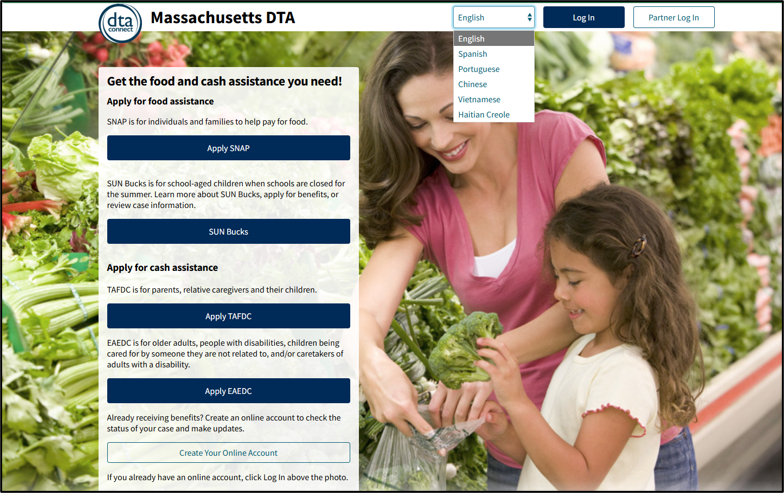
DTA Connect Online is available as a website at DTAConnect.com. It was created to help clients who do not own smart devices or prefer to review and update case information using an internet browser on a computer. It also offers functionalities to contracted outreach partners who help their clients primarily by using a computer.
DTAConnect.com automatically reformats to the user’s screen so it is accessible on computers, tablets, and other mobile devices.
The DTA Connect website includes user-friendly functionalities such as:
- a simplified SNAP, TAFDC, and EAEDC screening tool,
- an interactive online SNAP application,
- an online TAFDC and EAEDC application that includes a SNAP checkbox, allowing applicants to opt to apply for SNAP at the same time without submitting a separate application,
- workflows for clients to update their contact information,
- a selection for SNAP-only clients to reschedule their appointments immediately, and a selection for TAFDC/EAEDC clients to request to reschedule appointments based on worker availability.
- a selection for DTA and Non-DTA clients to assist with their SUN Bucks case.
- a client portal for clients who were pending, active, denied, or closed within the past 60 days, and
- a provider portal for contracted outreach partners to access pertinent case information for clients in their respective caseload.
Clients can also select their language of choice using the drop-down selection at the top right side of DTAConnect.com and/or change their preferred language under the “My Info” page in their DTA Connect account (e.g., for text communications and written notices). DTA Connect is available in English, Spanish, Portuguese (Brazilian), Chinese (Simplified), Vietnamese, and Haitian Creole. View/HideView/Hide
Screening Tool
The DTA Connect Screening Tool is an optional service for potential SNAP, TAFDC, and/or EAEDC applicants to determine possible program eligibility.
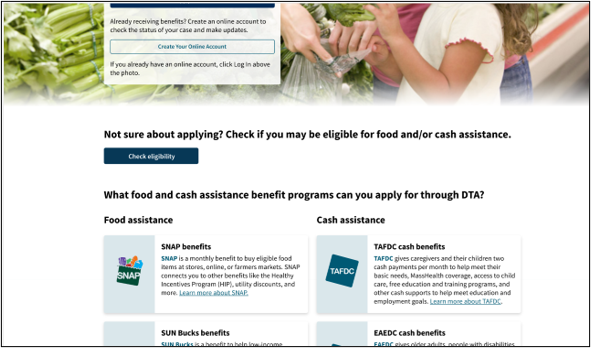
Potential applicants or clients can use the Check eligibility button below the picture on DTAConnect.com; or View/HideView/Hide
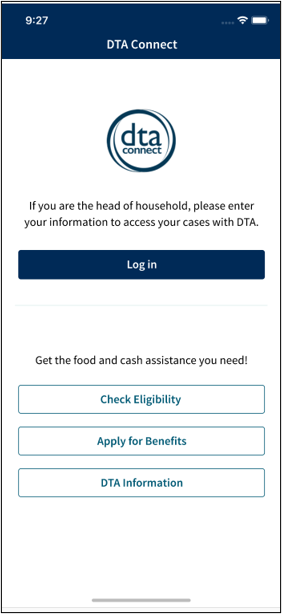
on the Log in screen of the mobile app. View/HideView/Hide
Regardless of screener results, potential applicants are informed of their right to apply for SNAP, TAFDC, and/or EAEDC benefits.
The Screening Tool Asks 7 Questions (required):
- How many people are you applying for?
- Is anyone under 19?
- How old is the oldest person?
- Does anyone have a disability?
- Is anyone pregnant?
- Do you care for a child who is not your adoptive or biological child?
- What is the total gross income for you and other people you are applying for?
The screening tool will apply gross income standards based on the household size along with other nonfinancial criteria. Personal information is not collected by the screening tool.
Online Application for SNAP, TAFDC, and EAEDC Benefits
DTAConnect.com offers an online application for SNAP, TAFDC, and EAEDC. Account creation is not required but is encouraged so applicants may monitor case status and access additional self-service features. Applications submitted through DTAConnect.com are electronically signed.
The SNAP online application is interactive. Questions displayed to the applicant are based on prior responses entered during the application process. For example, if a SNAP applicant indicates they are a household of one, additional questions regarding household members, income, or expenses for other individuals will not display. Helpful navigation and guidance are also provided throughout the SNAP application process.
For SNAP applications submitted through DTAConnect.com, all questions presented to and answered by the applicant during the online application process will display on the Application Datasheet upon submission. The Application Datasheet is available in the Electronic Case Folder (ECF) under the Client Communications tab.
At this time the TAFDC and EAEDC online applications are not interactive in the same manner as the SNAP application. Information submitted through the TAFDC and EAEDC online applications does not automatically populate BEACON workflows. Upon submission, the information provided by the applicant is available in the Application Datasheet located in the Electronic Case Folder (ECF) under the Client Communications tab.
Case managers must review the Application Datasheet in its entirety and manually enter all applicable information into BEACON. Staff must ensure that all information contained in the datasheet is accurately reflected in BEACON.
SNAP Web Applications and Datasheets
The SNAP web application is designed to be intuitive and interactive, with helpful guidance and navigation provided throughout the process. Questions are dynamically tailored based on the applicant’s responses to ensure relevance. For example, if an applicant indicates they are a household of one, questions about income and expenses for other household members will not be asked.
Responses provided by the client are sent to the corresponding BEACON page in the clients ECF along with a SNAP Web Application datasheet. The datasheet contains all the SNAP application questions asked and the responses provided by the applicant at the time of submission. The datasheet is also the client’s record of their SNAP Application should they choose to download and save a copy to their computer or print a copy.
TAFDC/EAEDC Web Application and Datasheets
Unlike SNAP applications, TAFDC and EAEDC applications submitted online do not automatically transmit data into BEACON or initiate a Request for Assistance (RFA). Instead, a Web Application datasheet is generated and routed to the TAFDC/EAEDC Web Applications view in BEACON for the appropriate TAO, where it is assigned to a case manager for manual processing.
Staff must review the datasheet in full and ensure that all information is accurately entered into BEACON as part of creating and completing the RFA.
The TAFDC/EAEDC Web Application datasheet will display a Yes or No response value under the last field: “Do you wish to apply for SNAP?” The datasheet displays the response in the final row. View/HideView/Hide

If the datasheet displays Yes as the response, both programs must have the same application date in BEACON (see Interview Page (TAFDC) and Interview Page (EAEDC) for detailed instructions.
Important: Before initiating a SNAP Request for Assistance (RFA), you must determine whether the TAFDC/EAEDC applicant is already a grantee on an active SNAP case. If so, a new SNAP application must not be created.
If the applicant is an active member (non-grantee) of an existing SNAP case, you must follow the procedures in Completing SNAP Applications for Active or Pending Clients.
DTA Connect – Client Portal
The DTA Connect client portal offers clients access to their case information through the internet. The website automatically formats to the device being used, so it is mobile friendly without needing to have the mobile app downloaded.
To use the DTA Connect client portal, the client must be the Head of Household, set up an online account, and link it to their case record. This will enable them to utilize all available functions of DTAConnect.com.
To set up the account, they must provide an email address, verify their email address with a verification code, provide their first and last name, and create a password.
After that is complete, the account must be linked to the case record by using their first and last name, date of birth, and either their Agency ID or EBT Card number.
Important: Do not block online services for a client without first discussing it with them. If a client reports they are having difficulty linking their DTA Connect account it may be due to having online services blocked. You must review BEACON and discuss with the client if they would like the block on online services removed.
My Info Page
During case maintenance periods, clients can use DTA Connect to update their primary language, address, phone number, and e-mail address. Clients can also use DTA Connect to lock and unlock their EBT card.
For more information, see DTA Connect: My Info Page.
Note: If a residential address change is made, clients will be asked further questions about their new shelter and utility costs. However, clients have the option to not answer.
For FAW cases the DTA Connect – Optional Shelter SUA VC-1 action will be created whenever a client reports a residential address change on DTA Connect during their case maintenance period. The action will be generated regardless of whether the client reported their new shelter and utility costs on DTA Connect as verification of the shelter and utility cost is required.
If a client chooses not to answer the shelter and utility questions on DTA Connect, BEACON will directly remove any of their previous shelter/utility expenses in BEACON.
The new shelter and/or utility costs may only be credited once verification is received.
For TAFDC, EAEDC, or combo cases, a change in residential address and any reported answers to the shelter and utility questions via DTA Connect will continue to appear on the Client Info Update DTA Connect view (My Office > Views > Daily Priority Actions).
Submitting an Interim Report
Clients who log in to DTAConnect.com and are within the 45-day window from the date the paper version of the form is mailed will see an alert to complete the process. This alert displays unless/until the client completes the process online or the workflow is initiated in BEACON.
Important: If a client is due to complete an Interim Report but the case closes, the interactive Interim Report process will not be available. You must inform the client that they can complete their Interim Report telephonically, as this will be the fastest way to reopen their case. If the client declines, you must advise the client that they can print a copy of the form, manually complete it, and upload it using their DTAConnect.com account or mobile app. Clients may also go into a local office. Clients should not complete a new SNAP application.
When a client submits an Interim Report through DTAConnect.com:
- FAW staff will receive a Process Online Interim Report Action
- Economic Assistance case managers will see submissions in the Reevaluations Due View
All questions asked will display on the Interim Report Datasheet which is stored in the Client Communications tab. Most data elements will transfer into BEACON, but staff must review the entire datasheet.
Submitting a Recertification
Clients who log in to DTAConnect.com and are within the 45-day window from the date the paper version of the form is mailed will see an alert to complete the process. This alert displays unless/until the client completes the process online or the workflow is initiated in BEACON.
Important: If a client is due to complete a Recertification but the case closes, the interactive Recertification process will not be available. You must inform the client that they can complete their Recertification telephonically, as this will be the fastest way to reopen their case. If the client declines, you must advise the client that they can print a copy of the form, manually complete it, and upload it using the DTAConnect.com account or mobile app. Clients may also go into a local office. Clients should not complete a new SNAP application.
When a client submits a Recertification through DTAConnect.com:
- FAW staff will receive a Process Online Recertification Action.
- Economic Assistance case managers will only see the SNAP submissions in the Reevaluations Due View. At this time, this functionality is not available for TAFDC and EAEDC Reevaluations.
All questions asked will display on the Recertification Datasheet which is stored in the Client Communications tab. Most data elements will transfer into BEACON, but staff must review the entire datasheet. Unlike Interim Reports, at Recertifications, staff must review all data that is in the case record.
If data was available in the case record and is not asked on the Recertification form, staff must follow up with the client during the interview (if required) or through a VC-1.
DTA Connect – Provider Portal
The DTA Connect Provider Portal allows contracted outreach partners to view and modify certain case information for clients who have signed a Permission to Share Information (PSI) form. This form grants partners access to most client case information that is accessible to clients via DTA Connect for their SNAP and/or TAFDC/EAEDC cases. Contracted outreach partners can update certain SNAP-related information such as contact, address, etc.
Note: Partners cannot lock/unlock EBT cards.
Administrative Office staff are responsible for granting and updating contracted outreach partner access when the required systems security forms are received. When you receive a call from a contracted outreach partner who has completed a Permission to Share Information form from a client, you must provide the requested client information with that contracted outreach partner.
A Client Can Revoke Access Verbally or in Writing
If the client indicates that they wish to revoke access verbally or in writing, you must end the Permission to Share Information from the Assisting Person page in BEACON using the applicable reason (based upon the information provided by the client).
Last Update: June 1, 2026
|
|
|
||
| Digital Accessibility Statement | Privacy Policy | Site Policies | Public Records Requests |
|
© 2026 Commonwealth of Massachusetts. Mass.gov is a registered service mark of the Commonwealth of Massachusetts. |
|||

