An official website of the Commonwealth of Massachusetts Here's how you knowHere's how you know

DTA Connect: My Info Page
Overview
A feature of DTA Connect is the My Info page, available both through an online portal or mobile app. The DTA Connect My Info page is available anytime, allowing clients to initiate certain updates to their case record with minimal staff intervention and at their convenience. As such, clients may use DTA Connect to update the following items:
- Residential Address
- Mailing Address
- Phone Number
- Preferred Language
- E-mail Address
- Shelter Expenses (only when residential address is updated)
- Utility Expenses (only when residential address is updated)
Clients can make these updates whether their case is SNAP-only, TAFDC- or EAEDC-only, or a combo case.
DTA Connect My Info page displays households’ current contact information, preferred language, and income on record in BEACON.
When clients for any DTA program use DTA Connect to update their phone number, e-mail address, and/or preferred language, BEACON will automatically update the case.
For certain changes made via DTA Connect by a SNAP-only client in the FAW model, BEACON will create an Action.
For TAFDC, EAEDC, and combo cases, most changes reported through DTA Connect will generate a BEACON action on the Client Info Update DTA Connect view (My Office > Views > Daily Priority Actions). These updates always require case manager review and will not auto wrap.
This also applies to SNAP-only households that remain assigned to their previous case manager because a TAFDC or EAEDC case closed within the prior 30 days.
For more information on using DTA Connect to update address, shelter, and/or utilities, view the separate Online Guide pages linked below:
Datasheet
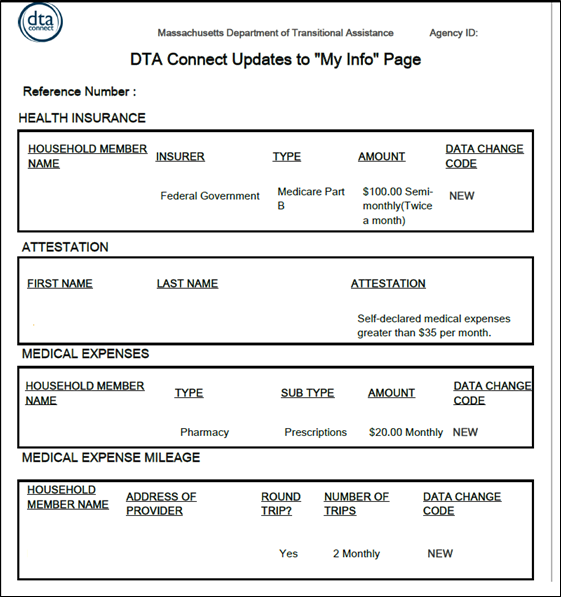
To establish a written record of what the client reported via DTA Connect (web portal or mobile app), BEACON will create a datasheet whenever a client uses DTA Connect to edit their contact information or residential address. If a client reported new shelter and/or utility costs alongside a residential address change, the datasheet will also display the client’s shelter and/or utility responses in respective sections.
Once generated from DTA Connect, the datasheet(s) will be available in the Client Communications page in BEACON.
Below is a sample datasheet: View/HideView/Hide
When Changes are Entered for TAFDC, EAEDC, or Combo Cases
TAFDC, EAEDC, and combo case clients can use DTA Connect to update case information at any time. When a client reports a change on DTA Connect, BEACON will create a record for the client alerting the case manager to review the change(s). These records will appear on the assigned case manager’s Client Info Update DTA Connect (My Office > Views > Daily Priority Actions) view. Each reported change will create a separate record on the view. Clients reporting multiple changes will result in multiple records appearing on the view for the same client. When this occurs, case managers must review each change.
BEACON will place a revisit pencil on pages requiring review based on the information reported by the client. Staff must review all applicable BEACON pages and manually update the case information, as needed.
Once a case manager chooses a record on the Client Info Update DTA Connect view, they can then enter the client’s Electronic Case Folder (ECF) clicking the “ECF” button on the far left-hand side of the view.
For each reported change, the case manager must:
- review the entire case to determine if any additional questions arise based on the reported changes,
- review datasheet created for the change(s),
- review all the necessary BEACON pages,
- review all available documents in the Electronic Case File (ECF) (if necessary),
- verify all updates on the verification tab (if required),
- send VC-1 (if necessary), and
- document all changes in the narrative.
When all of the above steps have been completed, the client’s case must be wrapped up in the Interview Wrap Up page in BEACON. Before exiting the Interview wrap up page, you will receive a pop up asking “Would you like to clear all changes listed on the Client Info Update DTA Connect view? Select yes to disposition all”.
- Choosing “Yes” to this pop up will allow for each record(s) to be auto-dispositioned as completed on the Client Info Update DTA Connect view as well as clearing the record(s) from the view. The record(s) will be cleared upon successful release of the wrap up.
- Choosing “No” to this pop up means you must disposition each record on the Client Info Update DTA Connect view individually. No auto-dispositioning will take place. Only choose “No” if you are unable to clear all tasks due to needing additional verification information.
Action: DTA Connect – Caseload to FAW Review
When TAFDC or EAEDC case closes, and the SNAP case remains open, the case remains with the assigned cash case manager for 30 days. This means that the associated task(s) will continue to appear on the assigned case managers Client Info Update DTA Connect view. However, if 30 days elapse and their case transitions to the FAW model while the associated task(s) are on the Client Info Update DTA Connect view, BEACON will automatically create the Action: DTA Connect – Caseload to FAW and then remove the task(s) from the case manager’s Client Info Update DTA Connect view.
If you receive this Action, you must follow these steps:
- Enter the client’s case and open the datasheet(s) in the Client Communication tab to view the change(s) that the client reported on DTA Connect.
Caseload to FAW Review: Reported Change in Residential Address
- If the reported change was in residential address, send a VC-1 for shelter and utility costs. Follow the procedures in DTA Connect: Updating Address if:
- the residential address was not validated by USPS,
- the residential address has the type “Other”, and/or
- the residential address is outside Massachusetts.
Caseload to FAW Review: Reported Change in Mailing Address
- If the reported change was only in mailing address, you can wrap the case only if the client is not currently flagged as part of the Address Confidentiality Program (ACP). If they are, follow the procedures in DTA Connect: Updating Address.
Caseload to FAW Review: Reported Change in Phone Number, Preferred Language, or E-mail Address
- If the reported change was only in phone number, preferred language, and/or e-mail address, no further action is required.
When a SNAP-Only Client Enters Multiple Changes on DTA Connect
A SNAP-only client in the FAW model may report multiple changes simultaneously or at different times during the same benefit issuance month. When multiple changes are reported for different batch cycles, each change will be reflected in a separate datasheet. However, the entries in BEACON will match the information that they last reported via DTA Connect (i.e., the information in the datasheet that is dated closest to their next benefit issuance date).
There are various possible outcomes if the multiple reported changes occur during case maintenance. Each outcome depends on the timing of each reported change, whether any of the changes result in an Action, and/or whether the changes pertain to the same item or different items.
Anytime a FAW worker pulls an Action, they must remember to check for any Outstanding Actions. If there are Actions associated with the case assigned, the FAW worker must self-assign all the Outstanding Actions to assess the case in its entirety, take any required action, and wrap the changes that do not require any additional verification.
When Multiple Entered Changes Result in Multiple Actions
If a client reports multiple changes via DTA Connect, it may result in more than one Action. Anytime a FAW receives an Action, they must self-assign all Outstanding Actions related to the case that they are working on, whether the action(s) is a DTA-Connect-related action or some other action pending for the assigned case.
Example: Mariah (she/her) reports via DTA Connect a new residential address that is not validated by USPS, and also selects “Other” for address type. This produces two Actions: Validate Address and DTA Connect – Housing Type Other. The first Action that is received by a FAW is Validate Address. The FAW must then select Outstanding Actions and self-assign the DTA Connect – Housing Type Other. The FAW must follow the applicable procedures for completing both Actions.
When a SNAP-Only Client Makes an Update on DTA Connect During Application, Interim Report, or Recertification Period
Clients can use DTA Connect to update certain parts of their case at any time, including when their case is at application, IR, or recertification.
If a SNAP-only client in the FAW model makes an update on DTA Connect during their application period, 45-day recertification period, or 45-day IR period, BEACON will create the Action: DTA Connect – Reported Change. When this occurs, BEACON will add a pencil to revisit the page(s) pertinent to what the client reported on DTA Connect, if the reported change was to residential address, shelter expenses, and/or utility expenses.
If you receive this Action, you must apply the procedures detailed in the DTA Connect – Reported Change section in SNAP Application Processing, Simplified Reporting – Recertification, or Simplified Reporting – Interim Report.
BEACON will only create this action if the household has no existing Reported Change action.
Example: A pending SNAP applicant reports on DTA Connect that their residential address and rent changed. Because of this, BEACON creates the action: DTA Connect – Reported Change. A few hours later, the applicant logs back into DTA Connect, adds an apartment number to their residential address and reports that they have new utility expenses. For the second change, BEACON does not create another Reported Change action because the existing one has not been completed by a FAW.
In cases of multiple reported changes, you must address every change that the client reported. You must review the datasheet(s) in the BEACON Client Communication tab. If a client reports multiple changes via DTA Connect at different times during a reporting period, there will continue to be multiple datasheets (but only one DTA Connect – Reported Change action pending at a time).
Using DTA Connect to Update Cases in a Closed/Denied Status
For cases that are closed or denied, clients will only be able to use DTA Connect to update their phone number, e-mail address, preferred language, and/or mailing address.
Besides phone number, e-mail address, preferred language, and/or mailing address, clients cannot make any other updates to a closed/denied case.
If a client uses DTA Connect to update their case while it is active but the case has a pending closure that releases, the changes will feed into BEACON, but there will be no Actions.
Reporting/Changing Address Confidentiality Program (ACP) Address While Closed or Denied.
If a client with a closed/denied status uses DTA Connect to update their mailing address, BEACON will automatically check the Address Confidentiality Program checkbox on the Address page if the client reports the ACP mailing address.
Conversely, if the client’s mailing address on record is the ACP address and they use DTA Connect to update their mailing address to a non-ACP address, BEACON will update the mailing address and automatically uncheck the ACP checkbox. BEACON will not create the Action: DTA Connect – ACP Ended Update Residential for an inactive case.
Reporting Change via DTA Connect While Closure is Pending
If the client uses DTA Connect to report a change while there is pending release to close the BEACON case, the system will create another batch related to the change reported on DTA Connect.
For SNAP-only cases in the FAW model: If the pending closure releases first, DTA Connect will not create an Action. The information reported via DTA Connect will be fed into the applicable BEACON page. If the change is residential address, shelter expenses, and/or utility expenses, BEACON will create a pencil to re-visit the page if the case goes back into a pending status.
For TAFDC or EAEDC cases with an assigned case manager: If the client uses DTA Connect to report a change while there is pending release to close status, the grantee will still appear on the Client Info Update DTA Connect BEACON view of the assigned case manager, and will remain for 30 days after case closure within this view. The information reported via DTA Connect will be fed into the applicable BEACON page and there will be a pencil to revisit the page if the case goes back into a pending status.
Case Closed While DTA Connect Action is Outstanding
If BEACON creates an Action based on a change reported on DTA Connect but then the case is closed/denied while the Action is outstanding, BEACON will dismiss the Action. However, if there are any pencils to re-visit the page(s) associated with the change(s) reported on DTA Connect, BEACON will retain them so that staff can review the change(s) if the case is reinstated or the client reapplies.
Using DTA Connect to Lock and Unlock EBT Card
Clients can now lock and unlock their EBT cards on the My Info page when using DTAConnect.com. See DTA Connect Locking and Unlocking EBT Card for more information.
Restrictions on Bay State CAP Households
Households on Bay State CAP (BSC) will have limited view and edit capabilities on the DTA Connect My Info page. For BSC households, the My Info page will only display the household members, agency ID, contact information, and address.
BSC households will only be able to edit their contact information and mailing address. Any other changes that BSC households may report to DTA (see Bay State CAP – Reporting Requirements During Case Maintenance) cannot be reported through the My Info page.
Last Update: June 1, 2026
|
|
|
||
| Digital Accessibility Statement | Privacy Policy | Site Policies | Public Records Requests |
|
© 2026 Commonwealth of Massachusetts. Mass.gov is a registered service mark of the Commonwealth of Massachusetts. |
|||

