An official website of the Commonwealth of Massachusetts Here's how you knowHere's how you know

The ABAWD Clock Page
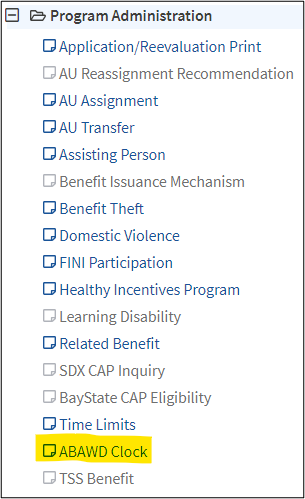
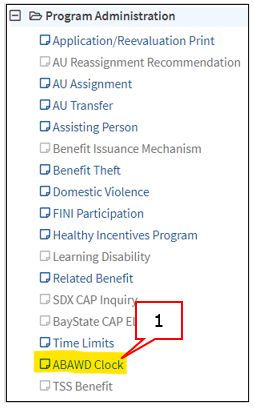
The ABAWD Clock page in BEACON records and manages a client’s strike history. This page can be accessed under the Program Administration workflow: View/Hide View/Hide
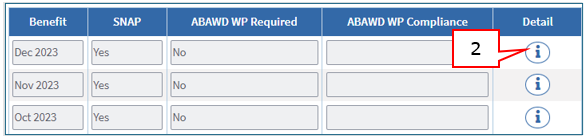
The ABAWD Clock page displays the following: View/HideView/Hide
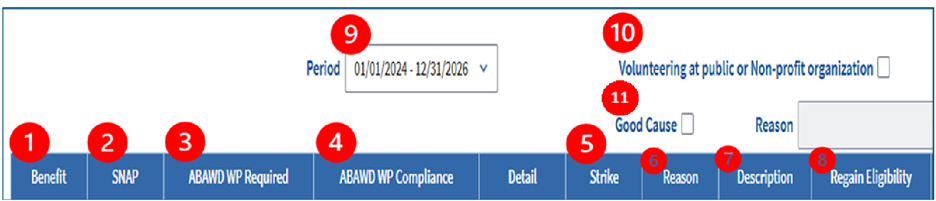
- Benefit – displays the month in which the client may have had to meet the ABAWD Work Rules (WR)
Important: The ABAWD Clock page displays duplicate benefit month entries when a client was part of more than one case during the current ABAWD clock period. This is intentional, since the ABAWD batch adds the full 36-month period for each AU.
- SNAP – displays whether the client received SNAP benefits for a full month
- If the client received SNAP benefits for only part of the month, the field will say “Partial”
- You cannot apply strikes to partial benefit months. Partial months are not countable months.
- If the household had an active SNAP case with a $0 benefit level, the field will say “Yes-zero benefit”
- If the client did not receive SNAP benefits for the entire month, the field will be blank
- If the client received SNAP benefits for only part of the month, the field will say “Partial”
- Member SNAP Status – displays the client’s status of cases they were and/or are a household member of and the effective date of that status. This column helps to identify the case for which a strike may need to be removed
- For the case the client moved out of, the Member SNAP Status will show Closed, and the effective date will be the date the client closed out of that case, even if the case itself remains active.
- For the case the client moved into, the Member SNAP Status will show Active, and the effective date will be the date the client became active in that case, even if the case was previously active.
- ABAWD WP Required – displays whether the client had to meet the WR for the month listed under the Benefit column
- ABAWD WP Compliance – if the client was required to meet the WR, displays whether they met them
- The field will say “Meet” if the client met the WR.
- The field will say “No Meet” if the client did not meet the WR.
- Strike – displays whether the client got a strike for the month listed under the Benefit column
- The field will say “Yes” if the client got a strike.
- The field will say “Exception” if the month was a second or third Exception Month.
- The field will say “No” if a strike was removed.
- Months with no strike history will be blank.
- Reason – displays the reason for the addition or removal of a strike.
- The field will display “Add a Strike” or “Out of State” if you apply a strike manually.
- If you remove a strike, the field will display one of the following removal reasons:
- Late proof of exemption
- Late proof of meeting
- Administrative/System Error- Exempt
- Administrative/System Error- Met
- Fair Hearing
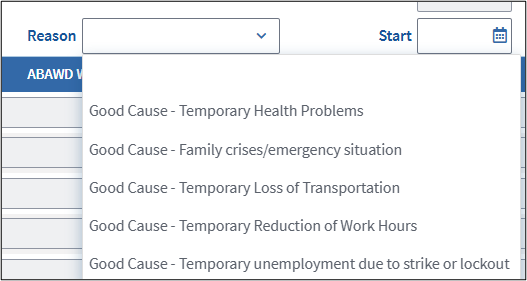
- Good Cause – Temporary Health Problems
- Good Cause – Family crises/emergency situation
- Good Cause – Temporary Loss of Transportation
- Good Cause – Temporary Reduction of Work Hours
- Good Cause – Temporary unemployment due to strike or lockout
- Description – if the client has an active strike for the month, displays the strike level; if the client used Exception Months, displays the Exception Month number.
- The field will display one of the following descriptions:
- ABAWD First Strike
- ABAWD Second Strike
- ABAWD Third Strike
- Exception Month 1
- Exception Month 2
- Exception Month 3
- ABAWD Ineligibility Strike
- The field will display one of the following descriptions:
- Regain Eligibility – displays whether a client regained eligibility during a particular month after getting three strikes
- This field will display:
- Participation, if the client regained by meeting the rules; or
- Exemption, if the client regained by becoming exempt.
- The field will be blank for any month in which the client did not regain.
- This field will display:
- Period – displays the current 36-month ABAWD clock. Includes a dropdown list for viewing previous ABAWD clocks.
- Volunteer Checkbox – used to indicate if a client is meeting the ABAWD WR through community service. You must check this box if a non-exempt client verifies community service participation or their intent to participate through volunteering.
- For more information on this checkbox, see Tracking Community Service Participation.
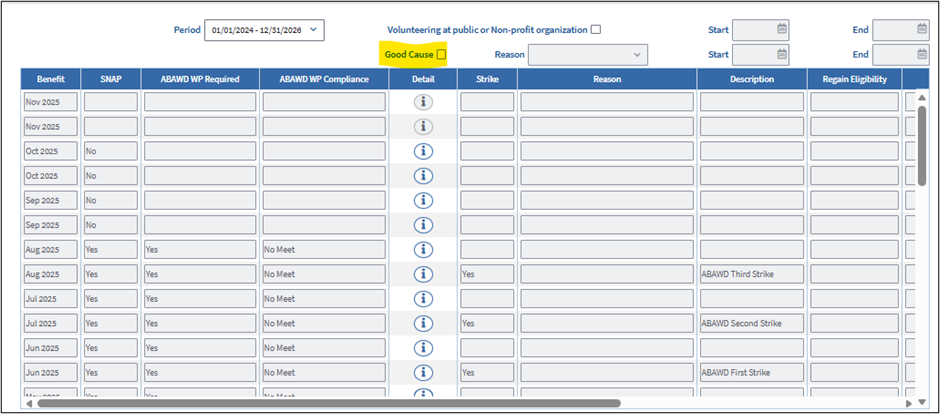
- Good Cause Checkbox – used to indicate if the client will have good cause for future months. You must check this box if a non-exempt client verifies that they will have good cause for a future month(s).
- For more information on this checkbox, see Entering Good Cause for Future Months.
ABAWD Clock Detail
The ABAWD Clock Detail displays information about an individual participation month. You must use the window to add or remove strikes. You can access this page from the ABAWD Clock page by clicking the magnifying glass icon underneath the Detail field: View/HideView/Hide
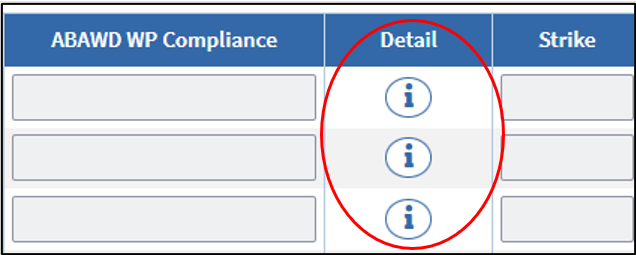
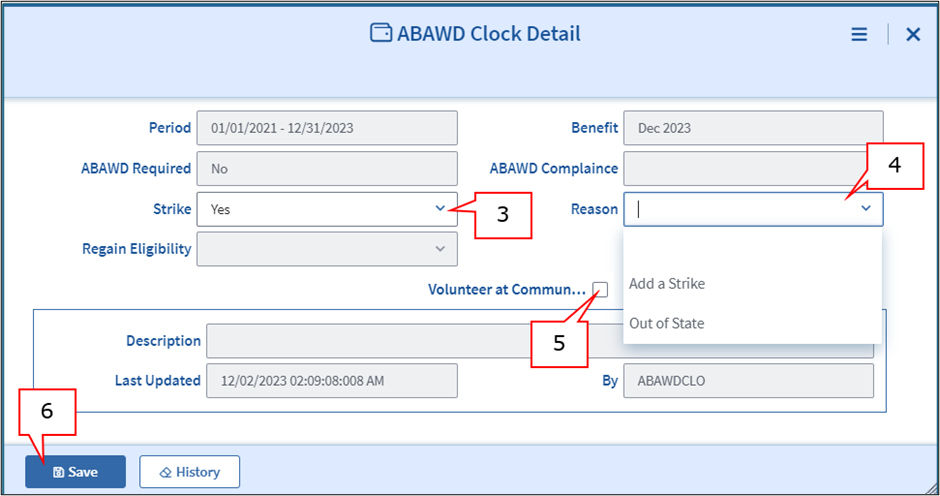
Clicking the icon for the corresponding month will open that month’s ABAWD Clock Detail. The ABAWD Clock Detail includes the following fields: View/HideView/Hide
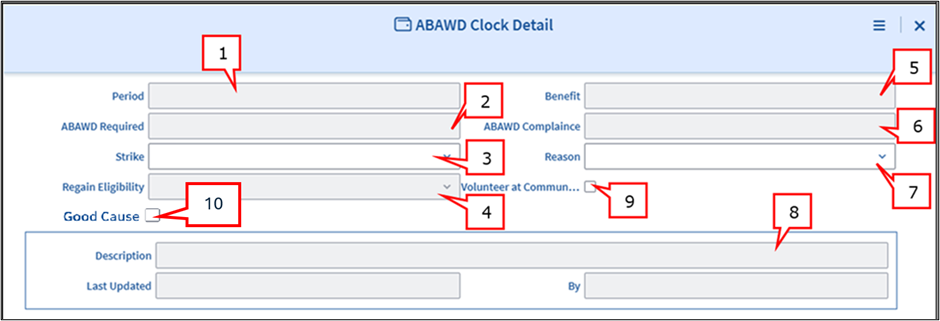
- Period – displays the applicable 36-month ABAWD clock
- ABAWD Required – displays whether the client was required to meet the WR for the month displayed in the Benefit field
- Strike – displays whether an active strike applies to the month
- The field will be blank if the client did not receive a strike.
- The field will say “No” if a strike was removed.
- Months with no strike history will be blank.
- The field will say “Exception” if the month was the second or third Exception Month.
- Regain Eligibility – displays whether a client regained eligibility during a particular month after getting three strikes
- The field will say “Participation” if the client regained by meeting.
- The field will say “Exemption” if the client regained by becoming exempt.
- Benefit – displays the month to which the ABAWD Clock Detail applies
- ABAWD Compliance – if the client was required to meet the WR, displays whether they met them for the participation month to which the ABAWD Clock Detail applies
- If the WR were met, the field will say “Meet”
- If the WR were not met, the field will say “No Meet”
- Reason – displays the reason for addition or removal of a strike
- If a strike was manually applied, displays whether the strike occurred in Massachusetts (“Add a Strike”) or another state (“Out of State”).
- The field will be blank if a strike was applied by BEACON.
- Displays the removal reason if a strike was removed,
- Description – if the client has an active strike for the month, displays the strike level; if the client used Exception Months, displays the Exception Month number
- The field will display one of the following descriptions:
- ABAWD First Strike
- ABAWD Second Strike
- ABAWD Third Strike
- Exception Month 1
- Exception Month 2
- Exception Month 3
- ABAWD Ineligibility Strike
- The field will display one of the following descriptions:
- Volunteer Checkbox – if the client is meeting the ABAWD Work Rules by volunteering, indicates whether they volunteered for the month.
- For more information on this checkbox, see Tracking Community Service Participation.
- Good Cause Checkbox – indicates whether the client has good cause for the not meeting the ABAWD Work Rules during the month. BEACON will check this box automatically if a client is granted good cause in advance of the month (Example: if the client establishes in March that they will have good cause in April).
- For more information on this checkbox, see Entering Good Cause for Future Months.
Entering and Removing Strikes
The manual removal and/or addition of strikes must be done through the ABAWD Clock page.
Adding Strikes for Non-Compliance with Work Rules
To manually add a strike, you must:
- open the ABAWD Clock page View/HideView/Hide
- for the month in which the strike was incurred, click the icon under the Detail field to open the ABAWD Clock Detail page. If the client was previously in another case, there will be multiple rows for a given month. You are to select the icon that corresponds with the correct month and Member SNAP Status. Active is the case the client is currently an active household member of. Closed is the case the client was previously a household member of. View/HideView/Hide
- in the Strike dropdown, select Yes
- in the Reason dropdown, select:
- Add a Strike if the strike was incurred in Massachusetts
- Out of State if the strike was incurred in another state
- if the Volunteer and/or Good Cause checkboxes are marked, uncheck them
- click Save View/HideView/Hide
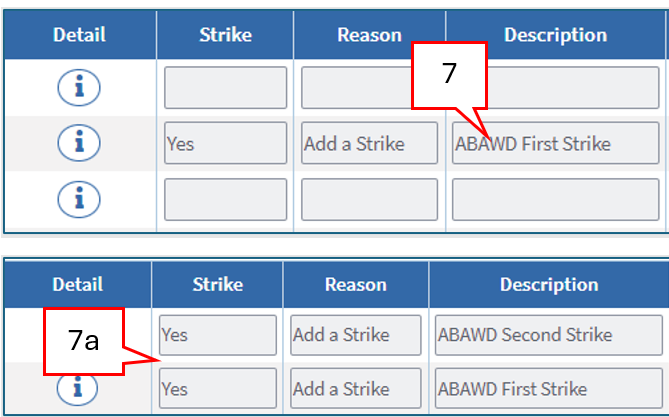
- if the strike you are adding is the first strike, the Description in the ABAWD Clock page will be automatically set to “ABAWD First Strike”
- if the first strike is already added and you are adding a second one, BEACON will set the Description to “ABAWD Second Strike.” (BEACON will automatically reorder existing strikes if the added strike impacts the strike order.) View/HideView/Hide
- if the first strike is already added and you are adding a second one, BEACON will set the Description to “ABAWD Second Strike.” (BEACON will automatically reorder existing strikes if the added strike impacts the strike order.) View/HideView/Hide
- click Finish View/HideView/Hide
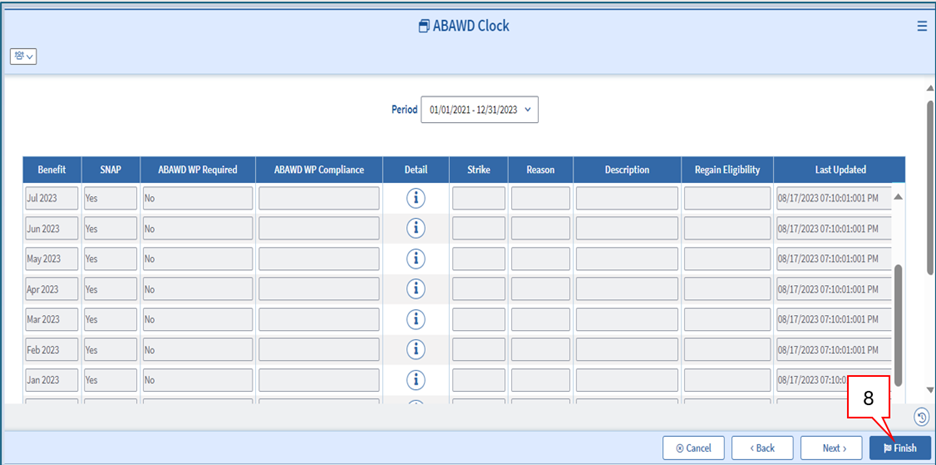
- if the added strike causes the client to be ineligible due to being:
- Strike 3, or
- an Ineligibility Strike,
- a popup message will appear reminding you to visit the AU Composition Results page. Click OK View/HideView/Hide
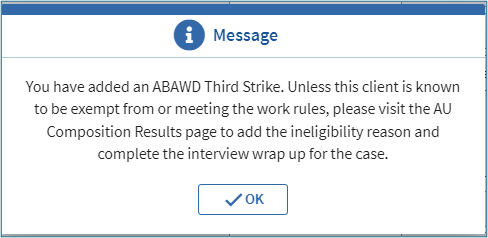
- a popup message will appear reminding you to visit the AU Composition Results page. Click OK View/HideView/Hide
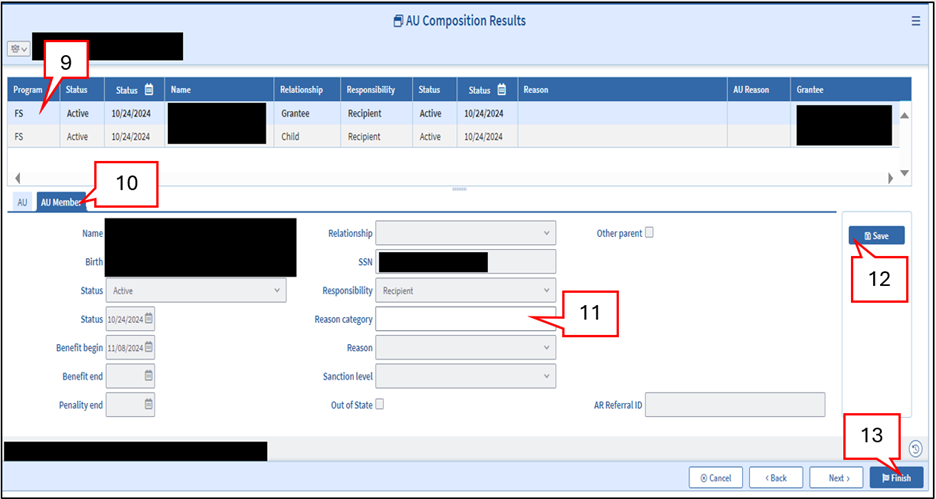
- if the client is ineligible due to the added strike, open the AU Composition Results page View/HideView/Hide
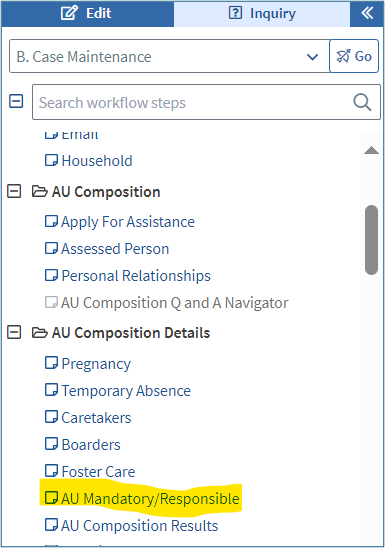
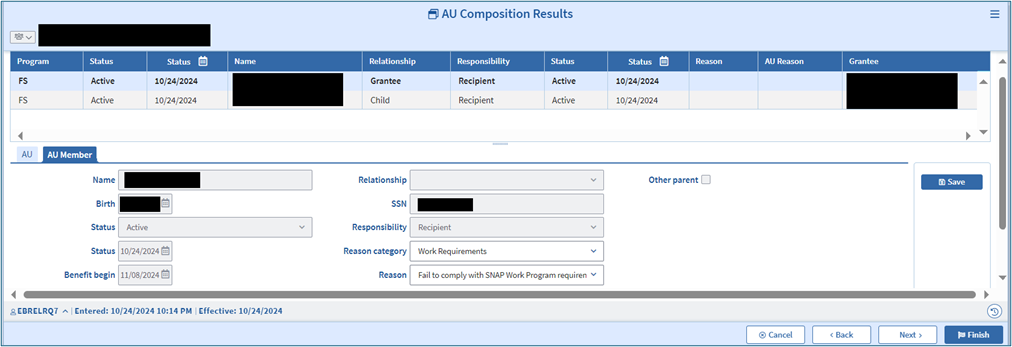
- click the checkbox of the client who incurred Strike 3 or the Ineligibility Strike
- open the AU Member tab
- in the Reason category dropdown, select Work Requirements
- in the Reason dropdown, select Fail to comply with SNAP Work Program requirements
- click Finish View/HideView/Hide
-
Important: When applying a strike retroactively, consider whether the client’s eligibility needs to be updated first. For example, do not close the case if the client will turn 65 before the closing will be effective.
-
- authorize the case to wrap up the changes that were made
-
Important: If you learn that a client was subject to and failed to comply with the work requirement during a month for which compliance has already been recorded, you must retroactively apply the appropriate strike(s).
-
Out of State ABAWD Work Rules Noncompliance
You must ask all ABAWD clients if they received strikes for WR noncompliance in another state. A verbal response from the client is sufficient. You must not ask clients to give verification.
If a client indicates that they got a strike in another state, enter the strike for the applicable month by selecting Out of State from the Reason dropdown in the ABAWD Clock Detail page: View/HideView/Hide
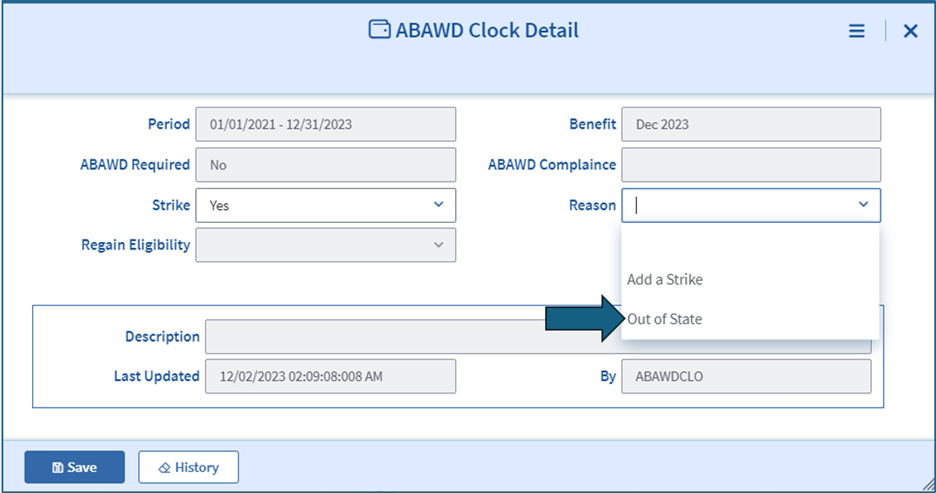
You must explore when the client got the strike(s) in another state. If the strike was not received during the current ABAWD clock (displayed in the Period field in the ABAWD Clock Detail page), you must not record the strike. The strike is non-countable.
Removal of ABAWD Work Rules Strikes
You must remove strikes only if you verify that they were incorrect. For example, you must remove a strike if you verify that the client met the rules during the strike month.
You can select the following removal reasons in the ABAWD Clock Page:
| Removal Reason | When to Use | Examples |
| Late Proof of Exemption | The client gets a strike but later verifies that they were exempt from the WR during the strike month. | Client got a strike for November. Three months later, the client verified that they were in substance abuse treatment during the strike month. |
| Late Proof of Meeting | The client gets a strike but later verifies that they met the WR during the strike month. | Client got a strike for January. In March, the client verified that they worked for 80 hours during the strike month. |
| Administrative/System Error - Meet | Client meets the rules but gets a strike due to DTA error. | Client verified that they were volunteering. However, client got a strike because DTA was late coding the information as verified in BEACON. |
| Administrative/System Error - Exempt | Client is exempt from the rules but gets a strike due to DTA error. | Client verified that they entered a substance abuse treatment center. However, client got a strike because DTA was late coding the client as exempt in BEACON. |
| Good Cause – Family crises/emergency situation | The client gets a strike. During the strike month, the client has a family crisis/emergency that they can only attend to during work hours. | A client got a strike for April. The client sends a doctor’s note stating that their father is chronically ill and requires round-the-clock care. The note indicates that this situation was true in April. |
| Good Cause – Temporary Health Problems | The client gets a strike. During the strike month, the client has a temporary health issue that prevents them from working regular hours. | A client got a strike for June. The client sends a doctor’s note stating that they were unable to work in June due to pneumonia. |
| Good Cause – Temporary Loss of Transportation | The client gets a strike. During the strike month, the client has a temporary transportation problem. This prevents the client from participating in E&T. | A client got a strike for August. The client sends a letter from their mechanic. The letter says that the client’s car was not operating in August due to a transmission problem. |
| Good Cause – Temporary Reduction of Work Hours | The client gets a strike. During the strike month, the client’s hours were temporarily reduced below 20 per month. | A client got a strike due to working less than 20 hours in September. The client sends verification that the office building was closed for two weeks due to a bedbug infestation. |
| Good Cause – Temporary unemployment due to strike or lockout | The client gets a strike. During the strike month, the client’s workplace had a strike or lockout. that their workplace experienced a strike or lockout. | A client got a strike due to not working in October. The client sends verification that they could not work in October because THEIR union went on strike. |
| Fair Hearing | The client appeals a strike/disqualification and wins the appeal. The fair hearing decision says that DTA must remove the strike(s). | A client appealed their case closing due to not getting three strikes. The Hearings Division rules that the client must continue receiving SNAP before the appeal. DTA reinstates the case and removes the third strike. |
Reminder: When a client would have met through Employment and Training (E&T) but missed some hours for a good cause reason, you must credit the good cause if:
- the absence from work is temporary, and
- the individual retains their job or E&T placement.
To remove a strike, you must:
- open the ABAWD Clock page
- for the strike month in which the strike incurred, click the icon under the Detail field to open the ABAWD Clock Detail page. If the client was previously in another case, there will be multiple rows for a given month. You are to select the icon that corresponds with the correct month and Member SNAP Status. Active is the case the client is currently an active household member of. Closed is the case the client was previously a household member of.
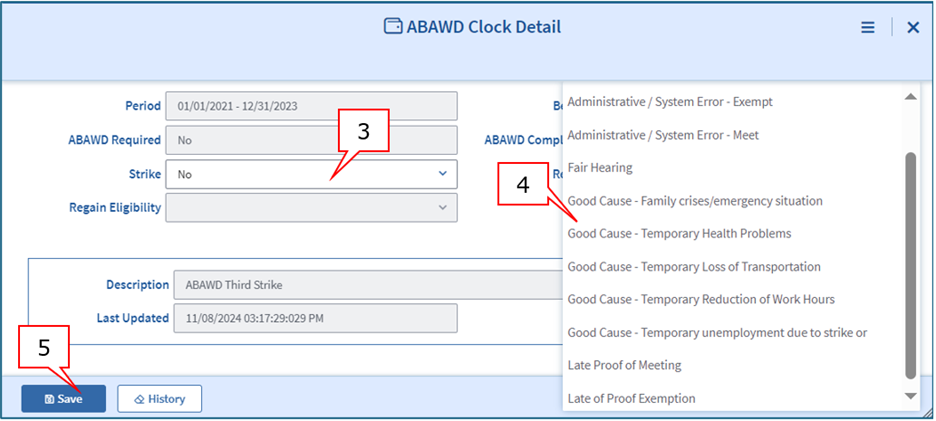
- in the Strike dropdown, select No
- in the Reason dropdown, select the applicable reason
- click Save View/HideView/Hide
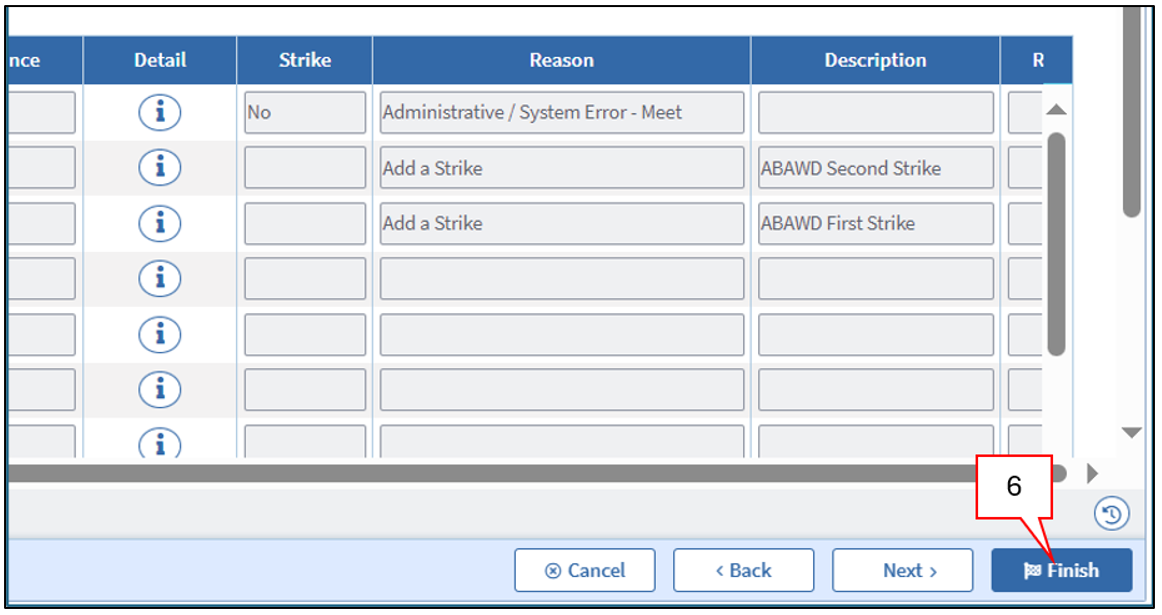
- click Finish View/HideView/Hide
- The strike field will display “No.” The removal reason will display in the Reason field. Existing strikes will automatically reorder if the removal reason impacts the strike order.
- if the removed strike was:
- Strike 3, or
- an Ineligible Strike,
- a popup message will appear reminding you to visit the AU Composition Results page. Click OK View/HideView/Hide
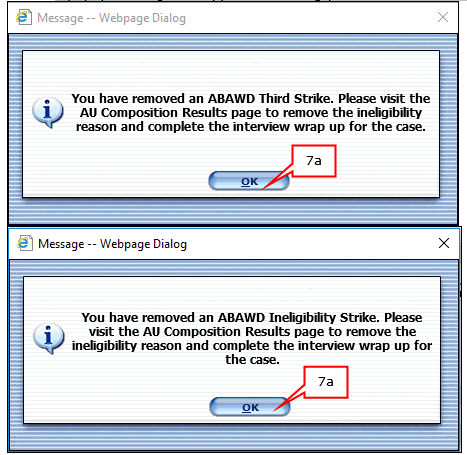
- a popup message will appear reminding you to visit the AU Composition Results page. Click OK View/HideView/Hide
- if the client regains eligibility due to the strike removal, open the AU Composition Results page
- click the checkbox of the appropriate client
- open the AU Member tab
- in the Reason category dropdown, deselect Work Requirements
- click Save.
- The Reason category and Reason dropdowns should now appear blank.
- click Finish View/HideView/Hide
- authorize the case to wrap up the changes that were made
Tracking Community Service Participation
If a client verifies that they will meet or continue meeting the ABAWD Work Rules by volunteering, you must follow these steps:
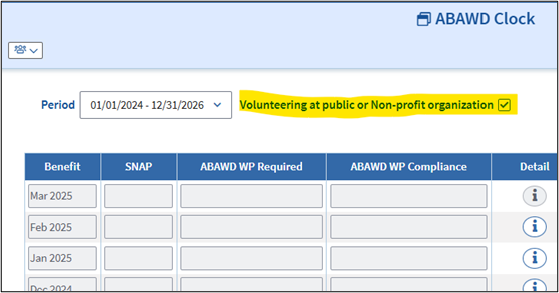
- Open the ABAWD Clock page.
- Mark the Volunteer checkbox. View/HideView/Hide
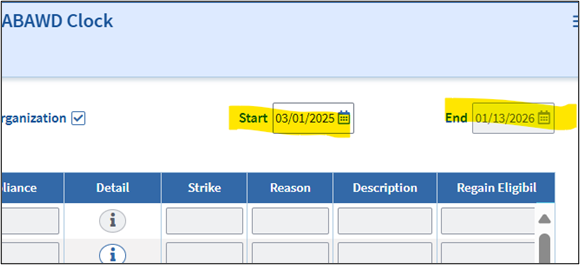
- BEACON will enter the first of the current month for Start Date and reevaluation end date for End Date. If the client started volunteering earlier, you can change the start date. You cannot change the end date. View/HideView/Hide
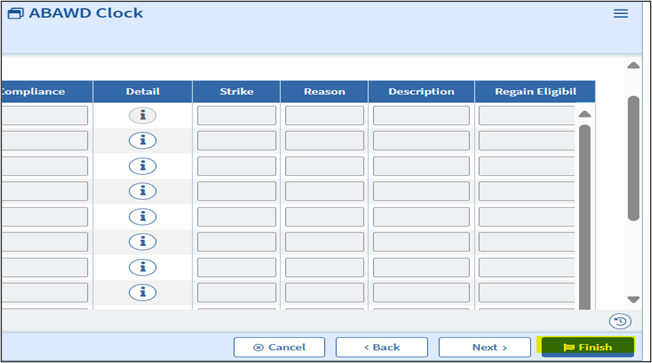
- Click Finish. View/HideView/Hide
- Wrap the case.
If a client verifies that they are volunteering, it is crucial that you follow these steps. If you do not, BEACON will incorrectly issue strikes for non-compliance with the ABAWD Work Rules.
Once you set the start date, BEACON will check off the Volunteer box in the ABAWD Clock Detail for each month until the end date.
The Start Date cannot be prior to a month for which the client has a strike. If you find out that the client started volunteering before they got the strike, you must remove the strike before setting the Start Date. You must follow the procedures in the section of this page: Removal of ABAWD Work Rules Strikes. The strike in this scenario would be incorrect because the client met the rules during that month.
Example: Jeffrey (he/him) is actively receiving SNAP benefits. He has a strike for January 2025. In February, Jeffrey submits a letter from a community service site verifying that he has been volunteering since December 15. A FAW opens the ABAWD Clock page and marks the Volunteer checkbox, but is unable to enter December 15, 2024, for a start date. When the FAW attempts to do this, BEACON gives a pop-up saying that they must remove the strike. Once the FAW removes the strike for January, they can record that Jeffrey has been volunteering since December 15.
For more information on meeting the rules through volunteering, see ABAWD Work Rules Participation.
Entering Good Cause for Future Months
If a non-exempt client tells you that they will have good cause for a future month, you must follow these steps:
- Open the ABAWD Clock Page
- Check the Good Cause box: View/HideView/Hide
- In Reason, choose the good cause reason from the drop-down list. View/HideView/Hide
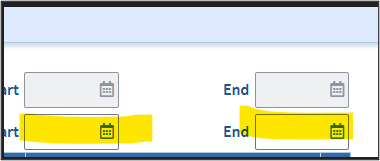
- For Start Date, enter the date the client says the good cause begins.
- For End Date, enter the date the client says the good cause will end.
- If the client does not know when it will end, enter a date 6 months after the start date. View/HideView/Hide
- If the client does not know when it will end, enter a date 6 months after the start date. View/HideView/Hide
- Click Finish.
Note: After you check Good Cause and click Finish, you do not need to wrap the case. BEACON will pick up the good cause when it runs the monthly batch to track participation.
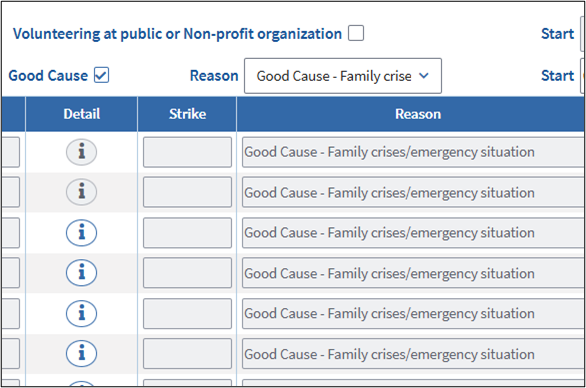
Once you enter the dates, BEACON will automatically check the Good Cause box in the ABAWD Clock Detail for each month up to the end date. View/HideView/Hide
Display of Future Months in the ABAWD Clock Page
BEACON does apply good cause for future months, but those months do not show on the ABAWD Clock Page until that month arrives. The ABAWD Clock Page only shows ABAWD months up to the current month.
Example:
- Current month: November 2025
- Good cause start date: 10/01/2025
- Good cause end date: 03/31/2026
In November, you will only see through November 2025 on the ABAWD Clock page.
When December arrives, you will be able to see the December clock details, and they will include the good cause you already entered. Same applies to January, February, and March.
If You Cannot Use the Good Cause Checkbox Because of a Prior Strike(s)
The good cause start date cannot be prior to a month that already has a strike.
If you learn that the client had good cause before they got the strike, you must remove the strike first, then set the good cause start date. Follow the steps in Removal of ABAWD Work Rules Strikes.
Example: Johann (he/him) is getting SNAP benefits. He has a strike for February 2025. In March, he reports a family crisis that started January 10, 2025, and will last until the end of May. A FAW opens the ABAWD Clock Page and checks Good Cause, but cannot enter 01/10/2025 as the start date. BEACON shows a pop-up saying the strike must be removed first. After the FAW removes the February strike, they can enter good cause so that Johann has good cause through May 31, 2025.
Time Limits of Start and End Dates
- The Start Date cannot be more than 90 days in the past. It also cannot be earlier than the Application or Recertification start date.
- The End Date can be no more than 6 months after the Start Date. It also cannot go past the current 36-month clock period.
If the good cause start or end date falls after the first day of a month, BEACON will still apply good cause for the whole month.
Example:
- Start date: 09/17/2025
- End date: 11/03/2025
Good cause will apply for all of September, all of October, and all of November.
For more information on Good Cause, see Good Cause Criteria for Not Complying with the ABAWD Work Rules.
Explaining Future Good Cause to Clients
When approving Good Cause for future months, you must tell the client that:
- They will not get any strikes during the good cause period; and
- Once the good cause ends, they must meet the rules or BEACON will begin issuing strikes, which can lead to a loss of SNAP.
If you are not on the phone with the client when you determine that the client has good cause for future months (for example, if the client reports this only by submitting a letter or other verification), you must attempt to cold call the client to explain this information.
You must indicate in the narratives that you explained this information to the client, or that you attempted to call the client to explain but the client did not answer.
Below is a sample script you could use (if you reach the client):
“You’re approved for Good Cause for the ABAWD Work Rules from [start month/year] through [end month/year]. During these months, you don’t have to meet the ABAWD Work Rules and you won’t get any strikes. After [end month/year], this Good Cause ends. Starting then, you’ll need to either meet the ABAWD Work Rules or let us know if something is still going on so we can see if you still qualify for Good Cause or an exemption. If you don’t meet the rules and don’t have Good Cause after that, you’ll start getting strikes on your SNAP, and three strikes can stop your benefits.”
How to Remove Exception Months
If a client regains eligibility by meeting but subsequently does not meet the rules, the client will not be disqualified right away. DTA will grant the client an additional three months in which they can be on SNAP without meeting the rules. These additional months are called “Exception Months.” See ABAWD Work Rules Disqualification and Regaining Process for more information.
To remove Exception Months, you must:
- open the ABAWD AU Clock page
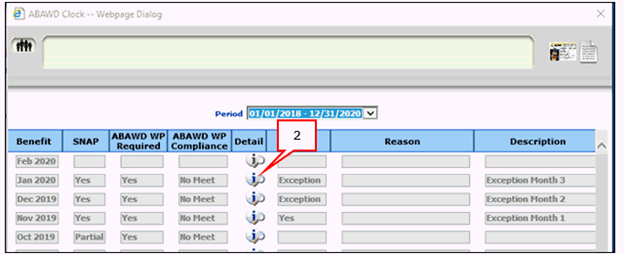
- click the icon under the Detail field to open the ABAWD Clock Detail for the applicable Exception Month View/HideView/Hide
- in the Strike dropdown, select No
- in the Reason dropdown, select the applicable removal reason
- click Save View/HideView/Hide
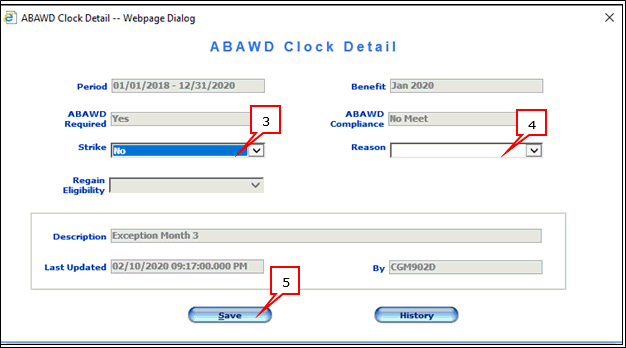
- Repeat Steps 1 through 5 with all three Exception Months.
- If you attempt to exit the ABAWD Clock page without removing all three Exception Months, BEACON will prevent you from exiting and display the following popup message: View/HideView/Hide
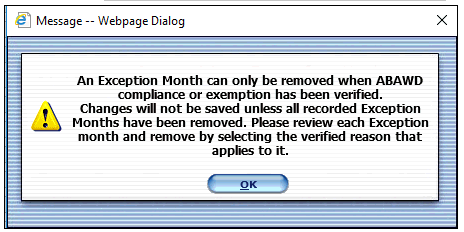
- If you attempt to exit the ABAWD Clock page without removing all three Exception Months, BEACON will prevent you from exiting and display the following popup message: View/HideView/Hide
- authorize the case to wrap up the changes that were made
Last Update: September 9, 2026
|
|
|
||
| Digital Accessibility Statement | Privacy Policy | Site Policies | Public Records Requests |
|
© 2026 Commonwealth of Massachusetts. Mass.gov is a registered service mark of the Commonwealth of Massachusetts. |
|||

