An official website of the Commonwealth of Massachusetts Here's how you knowHere's how you know

Unemployment Compensation (UC)
Defining Unemployment Compensation Types
Regular Unemployment (UI)
This is the traditional unemployment benefits program for people who work for an employer and have earned at least $5,400 in the past year. You are able to view this unemployment income on the Employment Modernization and Transformation (EMT) system and are to follow existing procedures on how to enter this income. Regular UI clients will be identified in the Account Type column in the Claim Accounts tab in the Benefits section of the claimant’s EMT profile. It will be displayed as UI Claim.
Section 30
This is a type of unemployment benefit for certain claimants who are enrolled in a full-time, approved training program. These claimants collect regular unemployment compensation while enrolled in their training program. Section 30 clients will be identified in the Account Type column in the Claim Accounts tab in the Benefits section of the claimant’s EMT profile. It will be displayed as Section 30.
Retraining Extended Duration (RED)
Extended benefits for unemployment recipients who seek additional benefits due to professional training opportunities. These benefits are an extension of Section 30 unemployment benefits. RED clients will be identified in the “Account Type” column in the Claim Accounts tab in the Benefits section of the claimant’s EMT profile. It will be displayed as RED.
Trade Readjustment Act (TRA)
If a company is downsizing and needs to lay off some of their employees as a result of foreign trade, employers can provide their employees with the means to attain competitive and marketable skills for the increasing competitive work environment. Employees are eligible for unemployment benefits as long as they are participating in the trainings.
Disaster Unemployment Assistance (DA)
If a federal Major Disaster Declaration is awarded to an effected area, clients can receive unemployment benefits and re-employment services if they have become unemployed as a result of a major disaster and are not eligible for regular State unemployment assistance.
High Unemployment Period Extended Benefits (HUP EB)
These unemployment benefits are available for certain eligible regular unemployment claimants who have exhausted all rights to regular UI under Massachusetts law.
Accessing Client Information in EMT
To determine and verify a client’s active or terminated UI income, you must access the Employment Modernization and Transformation (EMT) system and search for their case. To do this:
- log into EMT: https://emt.eol.mass.gov/MWP/SSO/
- click “Logon With Single Sign-On”
- sign in using your mass.gov email address and your active directory password
- from the New Manager window access the Search manager View/HideView/Hide
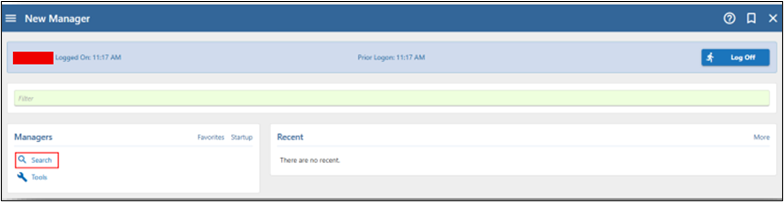
Figure 1: Image of New Manager window with Search button highlighted. - click on the Claimant Department of Transitional Assistance (DTA) Verification hyperlink. A window will display for you to choose how you would like to search.
- use the ID Type drop-down field to search by either Social Security Number or Claimant ID View/HideView/Hide
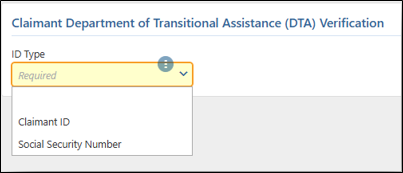
Figure 2: Image of ID Type drop-down field. - enter the Social Security Number or Claimant ID into the appropriate field and then click the Search hyperlink View/HideView/Hide

Figure 3: Image of ID Type drop-down field with SSN drop down selected. - the results of the search will now be displayed
You will now be able to view the following information for the claimant:
- Claimant panel: includes the claimants’ full legal name and home address.
- Claim panel: displays claim history such as claim status, benefit begin and end dates, maximum benefit amount, benefits remaining, weekly benefit amount, weeks allowed, and weeks remaining for each claim. View/HideView/Hide
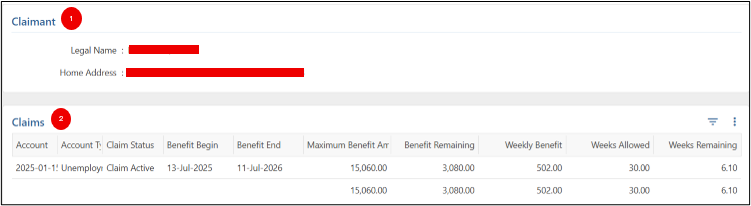
Figure 4: Image of Claimant and Claims panels.
Note: The values for benefits remaining will update as benefits are claimed.
- Weeks panel: a summary of each week the claimant filed. On this panel, you can view the status of the week (e.g., whether it was paid, excess earnings were reported, etc.), the benefit amount, reported earnings, any adjustments (e.g., if the payment was reduced for waiting week, earnings, etc.), intercept amounts (typically for tax or child support withholdings), and the actual payment they received, including the date it was received.
- Applies To column: helps staff differentiate between current and historic claims when the client has more than one claim on file.
- Earnings panel: any reported earnings, the related week, and the employer the earnings were from. View/HideView/Hide
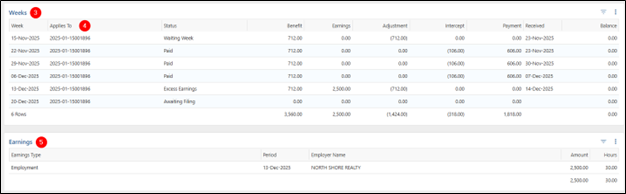
Figure 5: Image of the Weeks panel highlighting fields from numbers 3-5 above. - Transactions panel: lists all financial impacts such as state or federal tax withholdings, child support, and all other interception types.
- Filter icon: Used to display a green filter field
- Green Filter field: used to narrow the information down. For example, you can filter to make transactions visible for a specific week. View/HideView/Hide
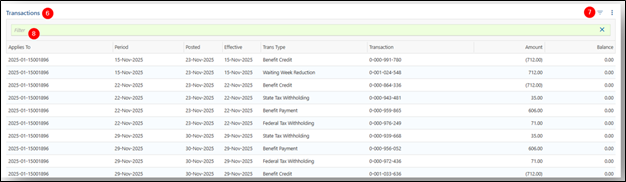
Figure 6: Image of the Transactions panel highlighting fields from numbers 6-8 above. - Employment panel: displays employers included on the client’s claims
- Start Date: helps you determine start date of claim the employment applies to
- Last Day: helps you determine last day of claim the employment applies View/HideView/Hide

Figure 7: Figure 6 Image of the Employment panel highlighting fields from numbers 9-11 above.
Important: When logged into EMT, be sure to maximize the browser window as important data columns can be hidden from your view when the screen is minimized or resized for a split-screen view.
Sorting Panel Data
All unemployment claims and their data will be displayed when a claimant is searched. In order view the most recent claims data, staff must hover over the applicable column header and click to sort in ascending or descending order.
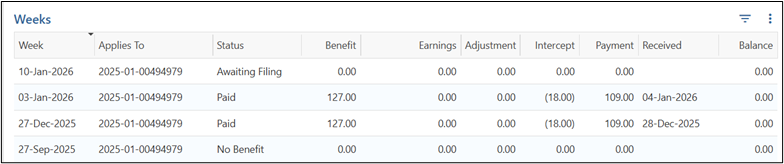
Example: In the screenshot below, to view the most current week, scroll to the Weeks panel and click the highlighted Week column. This will sort the weeks in descending order (most recent weeks will appear first). Sorting can be applied to any column. View/HideView/Hide

When no Claimant is Found
There may be times when a client reports unemployment income, but no record is found in the EMT system. View/HideView/Hide
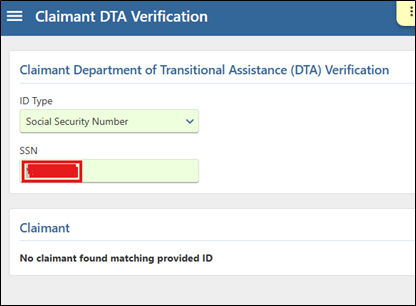
In this situation you must:
- verify that you have entered the client’s correct Social Security Number or Claimant ID
- if the information entered is correct yet no claim is generated; issue a VC-1 for proof of Unemployment Income.
Processing Unemployment Compensation for SNAP and TAFDC
Entering Unemployment Income in BEACON
When entering unemployment income, you must enter the income in BEACON based on the date in the Received column on the Weeks panel. This is the actual date the client received the income, not when the client requested the claim be paid to them. View/Hide View/Hide

For example: In the screenshot above, you must use the date from the highlighted Received column for the applicable week.
Reminder: When logged into EMT, be sure to maximize the browser window as important data columns can be hidden from your view when the screen is minimized or resized for a split-screen view.
Benefit Amount
When entering unemployment income, the weekly benefit amount found in the Benefit column on the Weeks panel must be used when the client has no adjustments or intercepts. This benefit amount represents the client’s pre-taxed benefit without any adjustments added or intercepts taken. However, when the client has adjustments or intercepts to their UC payments, you must extract the appropriate information from the Transactions panel to calculate the client’s gross UC benefit amount. For these clients, please refer to the Using The Transactions Panel to Calculate a Client’s Gross UC Benefit section below. View/HideView/Hide

For example: The screenshot above confirms that the client receives $542 as their weekly Benefit (pre-taxed amount). The amount in the highlighted Benefit column for the applicable week is the benefit that must be used in BEACON when the Adjustment and Intercept columns are 0.00.
However, there are times when clients may have additions and/or deductions included in their unemployment amounts.
In EMT additions are listed as Adjustments and Deductions are listed as Intercepts. In these circumstances additional calculation may be required.
Important: If a client is determined eligible for UC, they are not eligible for EAEDC.
When There Are Additions (Adjustments) to the Client’s Unemployment Compensation Amount
Clients may be eligible for additional income that is not included in their weekly Benefit amount, such as a dependency allowance. Additions are not already added to the client’s benefit amount on the Weeks panel. To determine if the client has any additions you must:
- go to the Weeks panel,
- look at the column titled Adjustments and:
- if the client has a dollar amount other than zero (0.00) in this column it means they receive additional income.
- if the client has a dollar amount of zero (0.00) it means they receive no additional income.
If the client has an adjustment listed in the Weeks panel, before entering the income in BEACON you must:
- review the Transactions panel for the addition(s) and
- add all additions for the week being calculated to the base Benefit amount found in the Weeks panel, or alternatively the Benefit credit amount found in the Transactions panel. This will represent the total gross/ pre-taxed payment amount the claimant receives.
Reminder: In EMT an addition is listed as an adjustment, in the Weeks panel. If the client receives additional income, it will be listed under the Adjustment column. The amount in the Adjustment column represents additional income that must be added to the client’s weekly benefit when calculating their gross income.
How to Interpret the Weeks Panel
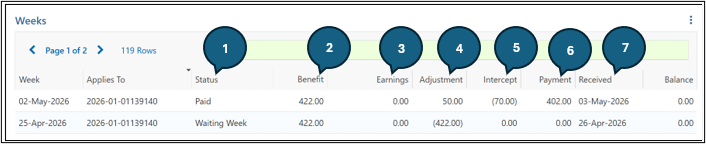
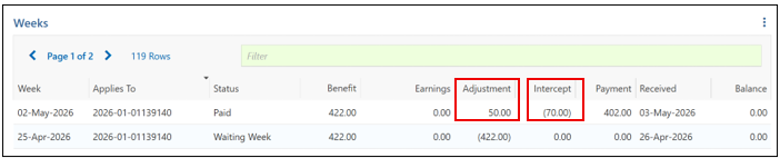
The screenshot above is of the Weeks panel. It shows us the following information for the week of May 2nd:
- Status column: The client was paid their weekly benefit.
- Benefit column: The client was approved for a base benefit of $422 weekly.
- Earnings column: The client had no earnings for the week of May 2nd.
- Adjustment column: The client received an additional $50 in addition to the $422 listed in the Benefits column.
- Intercept column: The client has $70 in deductions from their base benefit listed in the Benefits column.
- Payment column: The client received a net income of $402 for the week.
- Received column: The client received the payment on May 3rd.
Dependency Allowance
When processing cases with unemployment income, it is important to review the claim for a dependency allowance. A dependency allowance may be given to eligible claimants who prove they have one or more dependents under the age of 18. The claimant can receive a dependency allowance of $25 per child, per week (up to a cap).
The dependency allowance is considered countable income and is included as part of the claimant’s gross unemployment income.
To determine if a client is receiving a dependency allowance, staff must visit the Transactions panel. There, staff will find a transaction type of Dependent Credit if the allowance has been given. View/HideView/Hide

For example: The screenshot above confirms that the client received $539 as their weekly Benefit Credit and an additional $25 Dependent Credit. These two amounts must be added together to ensure all income is being counted. The client’s weekly UC must be entered as $564 in BEACON ($539 + $25) as this is their gross UC benefit amount.
Please refer to the Using The Transactions Panel to Calculate a Client’s Gross UC Benefit section below.
Important: To avoid overpayments, is crucial that you review the Transactions panel for additions that would increase the base Benefit Credit payment.
When UC Lists Dependent Credit(s) and an Earnings Deduction
When a client has an Earnings deduction, you must use the Transactions panel to correctly calculate the gross benefit.
When a client has an Earnings Deduction, the worker must add the Benefit Amount and Dependent Credit(s) that are in parenthesis for the same date in the Period column. If there are any Earnings Deductions, this must be subtracted from the total for that same period to determine the client’s gross Unemployment benefit amount.
Note: Federal and State Taxes must not be deducted from the total as these are not allowable deductions and must be included in the gross benefit amount.
To determine claimant’s gross unemployment income with Earnings deductions you must go to the Transactions panel and perform the following calculation:
Benefit Credit + Dependent Credit(s) – Earnings Deduction = Total Gross Benefit

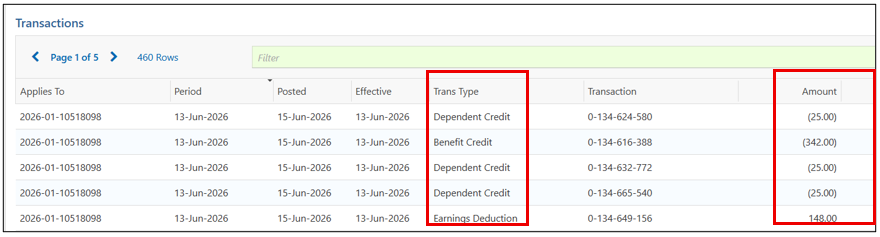
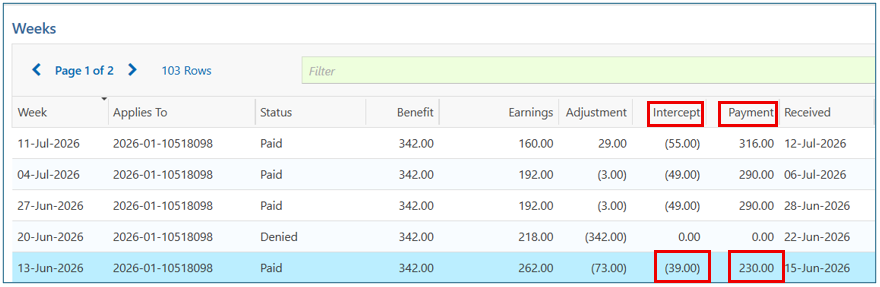
In the example above, for week June 13th the client has a Benefit Credit of $342, Dependent Credits totaling $75 and an Earnings Deduction of $148.
In this example, the client’s weekly gross income to be entered into BEACON is calculated by adding $342 (weekly benefit credit) + $75 (total of the clients three $25 dependent credits) - $148 (earnings deduction) = $269 (for payment posted on June 15th).
Tip: To check your math for accuracy, review the Weeks panel and view the Payment column (see image below). Here you will see that the client was paid a net income of $230. When you add the intercepts (state and federal taxes) from the Intercept column ($39) to the net income, the total should equal the gross you calculated which in this case is $269. View/HideView/Hide
Adjustment (Additions) Chart
|
Adjustment Type |
Program |
How to enter in BEACON |
|---|---|---|
|
Dependent Credit |
SNAP & TAFDC |
Combine the base Benefit Credit and all Dependent Credits found for the specific week in the Transactions panel together. Enter the combined gross total for the week into BEACON (after also reviewing intercepts). |
|
Earnings Deduction |
SNAP & TAFDC |
Combine the base Benefit Credit and the Adjustments found for the specific week in the Transactions panel together then subtract the earnings deduction. Enter the combined gross total for the week into BEACON (after also reviewing intercepts). |
When There are Deductions or Intercepts in the Client’s Unemployment Compensation Amount
For most types of unemployment income on EMT, a user is able to view the addition and/or deduction details on the Transactions panel and can determine the weekly gross unemployment benefit amount.
Clients also have the option to authorize deductions from their weekly unemployment compensation. This can include child support expenses, taxes, and if the client is subject to an intentional or unintentional overpayment that must be repaid.
Important:
For TAFDC, child support expenses are the only allowable deduction.
For SNAP, child support expenses and intentional/unintentional overpayments are the only allowable deductions.
Child Support
If the deduction on EMT is indicated as a child support expense, you must enter in the Pre-Tax Authorized Amount in BEACON and enter in the amount of the child support expense deduction in the Support Expenses window in the workflow. DTA has confirmed that DUA only deducts child support expenses if the client previously verified the legal obligation. You must also ask the client the name(s) of the child(ren) for whom the child support is paid. A verbal self-declaration is sufficient followed by a narrative entry. If a (child) is included in the SNAP household of the parent paying child support for that child, the deduction cannot be applied as this income would be countable to the child(ren) for whom it is paid. No additional verification from the client is needed. For more information about entering child support expenses in BEACON, please review Entering Child Support Expenses Data.
To determine if a client is having child support expenses deducted from a UI payment, visit the Transactions panel where the details of all withholdings of any type are listed. Child support deductions will say “Child Support Intercept” or “Out of State Child Support Intercept”. These are allowable deductions for both TAFDC and SNAP.
Overpayments
If the deduction is due to an intentional/unintentional overpayment, you must disregard the overpayment amount and count the net unemployment income amount. No additional verification is needed from the client. If the client has verified both a child support expense deduction and an overpayment deduction, you must subtract the overpayment amount from the Benefit (pre-taxed) amount and enter the difference in BEACON as the UC amount. Then, you must enter in the amount of the child support expense deduction in the Support Expenses window in the workflow.
To determine if a client is having overpayment recoupments deducted from a UI payment, visit the Transactions panel where the details of all withholdings of any type are listed. Overpayment deductions will say “Fraud Denial Deduction” or “Overpayment Deduction”. These are allowable deductions only for SNAP.
Important: To avoid payment errors, is crucial that staff review the Transactions panel for allowable SNAP and/or TAFDC deductions.
Intercept (Deductions) Chart
|
Intercept Type |
Program |
How to enter in BEACON |
|---|---|---|
|
Federal taxes |
SNAP & TAFDC |
Enter the pre-tax gross amount. |
|
State taxes |
SNAP & TAFDC |
Enter the pre-tax gross amount. |
|
Child Support |
SNAP & TAFDC |
Note: child support must not be entered if the child is in the SNAP or TAFDC household. |
|
Overpayment |
SNAP: Allowable TAFDC: Not allowable |
For SNAP: Disregard the overpayment amount by subtracting it from the client’s gross income. For TAFDC: Count the full gross amount before the overpayment was taken. |
Important: There may be times when a client receives multiple types of intercepts. You must take the time to review all transaction types to ensure the correct UC income is counted in BEACON.
Using The Transactions Panel to Calculate a Client’s Gross UC Benefit
The Transactions panel must be used to calculate a client’s gross UC benefit when there are adjustments or intercepts.
In the example below, the client has an adjustment of $50 and an intercept of $70 for the week of May 2nd. Because the Weeks panel does NOT list what the adjustment or intercept is for; you must scroll down to the Transactions panel to determine both what the adjustment and intercept is for and the correct UC benefit amount.
The Transactions panel will list the payment effective date, the transaction type (Trans Type), and the Amount of each Transaction type.
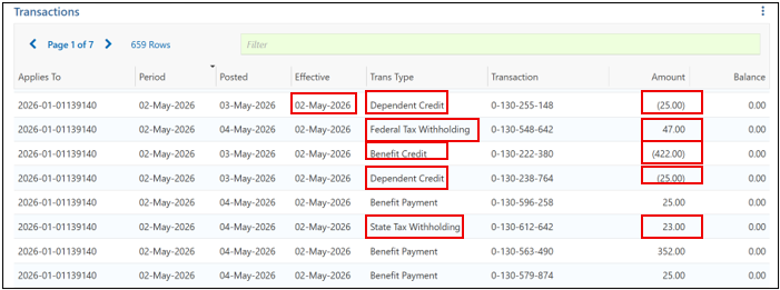
The Transactions panel above shows the following information highlighted in red:
- The payment date was effective May 2nd.
- The client received two Dependent Credits of $25 Each for the week of May 2nd
- The client had $47 in federal taxes withheld.
- The client had a base benefit credit of $422 for the week.
- The client also had $23 withheld for state taxes.
The information above tells us that we must enter the gross income of $472 for the week of May 2nd in BEACON.
Calculating the Gross Benefit
To calculate the gross benefit based on the above week the benefit credit and all adjustments must be added. Note that the $47 withheld for federal taxes and the $23 withheld for state taxes are not being subtracted because they must be counted as part of the client’s gross income:
| Benefit Credit: | $422 + |
| Dependent Credit: | $25 + |
| Dependent Credit: | $25 = |
| Total Gross Benefit: | $472 |
Note: Trans Type of “Benefit Payment” represents the net UC benefit amount received by the client after intercepts for that week and is for informational purposes only.
Terminated Unemployment Compensation at Application – SNAP
If a client is applying for SNAP and was previously receiving unemployment compensation and it has been ended, you must count any terminated unemployment compensation that falls within the client’s initial cyclical month by verifying the amounts and payment dates displayed on EMT. You must enter and calculate all terminated income as monthly in BEACON.
You must create a follow-up action the next day to remove the terminated income from being counted in the ongoing calculation of SNAP benefits.
Remember: Terminated income is no longer countable at Recertification or Case Maintenance.
Terminated Unemployment Compensation at Application – TAFDC
If a client is applying for TAFDC and was previously receiving unemployment compensation and it has been ended, you must not count any terminated income. The case manager must end the income in BEACON and move the effective date of the application to the date after the last unemployment compensation payment was received.
Reported Earnings
At times, a client may have Reported Earnings listed in their unemployment claim. Claimants are entitled to a disregard of their portion of their gross earnings. You must not use the Reported Earnings for proof of earned income. However, you must explore with the client if they are working. For more information on how to handle unemployment scenarios with Reported Earnings, see Simplified Reporting Examples.
Important: The Division of Unemployment Assistance (DUA) Match/data source is used to verify unemployment insurance claims, and, in limited circumstances, job terminations. The DUA Match does not verify wages or earned income.
Processing Unemployment Compensation Matches or Client Reports Unemployment Compensation Has Ended
There will be times when an employer name is listed in EMT when a client’s UC has changed. This is considered significantly conflicting information and must be acted on according to the client’s certification type as outlined below:
Simplified Reporting/Former EDSAP
If the household is on Simplified Reporting or Former EDSAP, and the new wage information when added to the existing income puts the household over 200% of the FPL (if subject to an FPL, meaning no elderly or federally certified as disabled household member), you must:
- perform two cold calls to the client to confirm the wage information.
If the client answers and confirms they are working
- check The Work Number to confirm the job listed on EMT and for any other active wages.
- If the wages found in The Work Number match the income reported by the client, enter wages from The Work Number, and recalculate benefits.
- If the wages from EMT are not found in The Work Number or the wages from EMT are found in The Work Number but the client disputes the wages, issue a mandatory VC-1 for wages.
If the client does not answer, you must
- issue a mandatory VC-1 for wages.
- enter a detailed narrative about the steps taken.
EDSAP
If any wages are found on EMT for an EDSAP household, you must:
- perform two cold calls to the client to confirm the wage information.
If the client answers and confirms they are working
- check The Work Number for active wages.
- If the wages found in The Work Number match the income reported by the client, enter the wages from The Work Number, and recalculate the benefits.
- If the wages from EMT are not found in The Work Number or the wages from EMT are found in The Work Number but the client disputes the wages, issue a mandatory VC-1 for wages.
If the client does not answer, you must
- issue a mandatory VC-1 for wages.
- enter a narrative detailing the steps taken.
Recertification (Change Reporting Households)
If the wages displayed on EMT is new income not previously listed in BEACON, or the income is known but has changed by more than $100, you must:
- perform two cold calls to the client to confirm the wage information.
If the client answers and confirms they are working
- check The Work Number to confirm the job listed on EMT and for any other active wages.
- If the wages found on The Work Number match the income reported by the client, enter wages from The Work Number, and recalculate benefits.
- If the wages from EMT are not found in The Work Number or the wages from EMT are found in The Work Number but the client disputes the wages, issue a mandatory VC-1 for wages.
If the cold calls are not successful,
- issue a mandatory VC-1 for wages.
- enter a narrative detailing the steps taken.
Important: Staff must be mindful not to make contact if the wages would not be countable based on the household member’s role. For example, if it is an ineligible non-liable TAFDC caregiver whose wages are not countable, or a high school student under 18 years old for whom we have school verification and the wages would not be countable for the SNAP case they are a part of.
Ended UC & Determining if Net Income Reduced to Zero
There are times when a client’s unemployment claim will be inactive, ended in BEACON by staff, and wrapped with a net income reducing to zero. A related benefit must NOT be automatically issued on these cases. The action taken in regard to a related benefit will vary based on the below scenarios.
Unemployment Compensation PI Checklist Match
When a client’s unemployment income ends and their net income reduces to zero, a related benefit must not be issued automatically. This is to ensure that clients are not overpaid SNAP benefits.
After removing the unemployment income from BEACON, due to a Review PI Match action, no related benefit is to be issued even when net income is reduced to zero. You must:
- check The Work Number to see if the client has any wages now that they are no longer in receipt of UC.
- If there are no wages available in The Work Number, no further action is required.
- If there is an active Work Number match with wages received within the last 30 days, you must:
- perform two cold calls to the client to confirm the wage information.
- if the client answers and confirms they are working, you are to review the wages available in The Work Number and if the client confirms they are accurate, they are to be used and SNAP benefits recalculated.
- if the client disputes the data, a mandatory VC-1 must be sent for verification of wages.
- if the cold calls are not successful, a mandatory VC-1 must be sent for verification of wages.
- enter a narrative detailing the steps taken.
Determining if a Related Benefit is Due When a UC Match Ends
If the client contacts the Department within 60 days of the Department removing their UC income and reports previous failed attempts to reach DTA to report that UC had ended, a related benefit must be issued IF it is confirmed that the client’s net income was reduced to zero when UC ended. To confirm that net income was reduced to zero, you must:
- ask the client if they have any additional income that DTA does not have on file.
- If the client reports they have an employment that is not in The Work Number, you must issue a mandatory VC-1 for wages and not issue a related benefit. Once verification is received, the worker must determine if a related benefit is owed due to net income being at zero.
- check databases to confirm that the client has no income. This includes EMT, Work Number, and RAPID (if applicable, i.e., the client has minor or adult children in the household, or the client previously reported receiving child support arrearage payments).
- if no income is found on the databases and the client does not report having any income that would cause their net income to be greater than zero, no additional proof is needed. You must issue a related benefit to the client back to the month when the UC ended.
- if income is found on any of the databases, confirm the income with the client.
- If client agrees, enter the wages and wrap the case.
- If the client disputes wages, you must issue a mandatory VC-1 for wages and not issue a related benefit. When verification is received, the worker must determine if a related benefit is owed due to net income being at zero.
- enter a detailed narrative about the steps taken.
Client Contacts DTA to Report That Unemployment Compensation Ended
If a client contacts the Department (in-person, telephonically, or via EDMC) to report that their UC has ended before DTA receives the UC Match, staff must follow the steps below to determine if the client’s net income has been reduced to zero. To confirm that net income was reduced to zero, you must:
- ask the client if they have any additional income that DTA does not have on file.
- If the client reports they have an employment that is not in The Work Number, you must issue a mandatory VC-1 for wages and not issue a related benefit. Once verification is received, the worker must determine if a related benefit is owed due to net income being at zero.
- check databases to confirm that the client has no income. This includes EMT, Work Number, and RAPID (if applicable, i.e., the client has minor or adult children in the household, or the client previously reported receiving child support arrearage payments).
- if no income is found on the databases and the client does not report having any income that would cause their net income to be greater than zero, no additional proof is needed. You must issue a related benefit to the client back to the month when the UC ended.
- if income is found on any of the databases, confirm the income with the client.
- If client agrees, enter the wages and wrap the case.
- If the client disputes wages, you must issue a mandatory VC-1 for wages and not issue a related benefit. When verification is received, the worker must determine if a related benefit is owed due to net income being at zero.
- enter a detailed narrative about the steps taken.
If a client submits verification of ended UC through EDMC, staff must follow the steps below to determine if the client’s net income has reduced to zero. To confirm that net income was reduced to zero, you must:
- perform two cold calls.
- if the client answers, ask the client if they have any additional income that DTA does not have on file.
- If the client reports they have an employment that is not in The Work Number, you must issue a mandatory VC-1 for wages and not issue a related benefit. Once verification is received, the worker must determine if a related benefit is owed due to net income being at zero.
- check databases to confirm that the client has no income. This includes EMT, Work Number, and RAPID (if applicable, i.e., the client has minor or adult children in the household, or the client previously reported receiving child support arrearage payments).
- if no income is found on the databases and the client does not report having any income that would cause their net income to be greater than zero, no additional proof is needed. You must issue a related benefit to the client back to the month when the UC ended.
- if income is found on any of the databases, confirm the income with the client.
- If client agrees, enter the wages and wrap the case.
- If the client disputes wages, you must issue a mandatory VC-1 for wages and not issue a related benefit. When verification is received, the worker must determine if a related benefit is owed due to net income being at zero.
- if the client does not answer, you must not issue a related benefit.
- enter a detailed narrative about the steps taken.
For more information on issuing related benefits, see Related Benefit.
For more information on when net income reduces to zero, see Department Responsibility to Take Timely Action.
Standard Unemployment Income Scenarios
Scenario 1: Client Reports Receiving Unemployment Compensation
At Application, Recertification, and Reevaluation
SNAP and TAFDC: You must enter the Pre-Tax Authorized amount that is reported on EMT. Be sure to check for any acceptable deductions.
For Ongoing Cases (Case Maintenance)
TAFDC only: You must enter the Pre-Tax Authorized amount that is reported on EMT. Be sure to check for any acceptable deductions and process the case.
SNAP only: If the client verbally reports their unemployment income, you must determine if the income will put the case over the income limit for the household size by asking the client what their weekly gross unemployment amount is.
If the unemployment income will not put the household over, you must not count the income due to Simplified Reporting rules. Do not check EMT. Make sure to write a detailed narrative.
If the income will put the household over their income limit, you must check EMT and enter the income in BEACON for the case to be denied appropriately. Be sure to write a detailed narrative.
If the client provides documentation of the unemployment (i.e. the benefit award letter or some other document from DUA) regardless of the amount, you must review EMT and enter the income as it would be considered verified upon receipt.
Scenario 2: DTA Receives a PI UC Match
At Application, Recertification, and Reevaluation
SNAP and TAFDC: You must enter the income that is reported on EMT. Be sure to check for any allowable deductions.
For Ongoing Cases (Case Maintenance)
SNAP and TAFDC: You must enter the income that is reported on EMT as it is verified upon receipt. Be sure to check for any acceptable deductions.
Scenario 3: Client is Receiving Partial Regular UC and is not Receiving UC Income some Weeks as Wages Exceed Benefit Rate
At Application, Recertification, and Reevaluation
SNAP and TAFDC: You must review the unemployment income on EMT. If the Current Week Status column indicates Not Paid with a reason of Exceeded Benefit Rate, the client did not receive their unemployment income for that week. You must enter $0 in BEACON for that week.
You must review EMT and enter the unemployment income shown there. Earnings must also be entered. If the client reports earnings and the wages are available in the Work Number, you must enter the wages from the Work Number.
If the Work Number does not have the wage information for the client’s job, you must cold call the client two times. If the client states they are no longer working, the client can provide a telephonic self-declaration stating their employer name, the last day worked, and the last day paid. If the client does not answer send a mandatory VC-1 for the client’s wages.
TAFDC only: If the client does not answer, you must send a mandatory user-entered VC-1 for Additional Verification entering in the Details field: “Wage Information”. In the Document(s) of evidence field enter:
“You indicated that (household member name) had no earned income. Our data sources show they may be receiving earned income. Please provide proof of your last 4 weeks of earnings by sending the Department wage stubs, screenshots of your gross income, or a letter from your employer showing your weekly gross amount and number of hours. If you are no longer working, proof of termination.”
If the client cannot verify wages using documentary evidence, we will accept the best available information including a written self-declaration, for both programs.
For SNAP and TAFDC: Once verification is obtained, you must enter both the wages and unemployment income. The prospected wages and unemployment income may include $0 for the weeks the client did not receive wages or unemployment income. If the client provides proof of termination, the wages must not be included.
For Ongoing Cases (Case Maintenance)
TAFDC only: If the client reports that their regular unemployment income has decreased due to earnings, you must explore with the client which weeks they did not get paid. You must request verification of wages and once received, update and recalculate the income in BEACON.
SNAP only: During the certification period, if the client verbally reports that their unemployment income has changed due to receiving partial earnings, you must explore with the client if their total income has increased or decreased. If their unemployment income has decreased due to earnings or vice versa, you must make sure that the total income the client is receiving from their earnings and unemployment income will not put them over the income limit for their household size. If the income will put the household over income, you must send a mandatory VC-1 for their earnings and enter the unemployment information as it is displayed on EMT. If the unemployment income and earnings will not put the client over the gross income limit for their household size, you must tell the client that they do not have to report the change in income until their next reporting period, or if their total income has decreased, they can submit verification of their unemployment and earnings for a higher SNAP benefit amount.
If staff receive a PI Checklist for an Unemployment Compensation match and it is determined that the client is receiving partial unemployment income due to earnings, you must update the case with the unemployment income as it appears on EMT, as this information is verified upon receipt. Leave any existing wages in BEACON and process the case. You must enter a narrative detailing that earned income must be verified at their next reporting period. If the case would be denied for excess income based on unemployment and previously reported wages, you must issue a mandatory VC-1 for wage verification.
Related Topics
Other Income Policy and Procedures – SNAP
Last Update: August 13, 2026
|
|
|
||
| Digital Accessibility Statement | Privacy Policy | Site Policies | Public Records Requests |
|
© 2026 Commonwealth of Massachusetts. Mass.gov is a registered service mark of the Commonwealth of Massachusetts. |
|||

