An official website of the Commonwealth of Massachusetts Here's how you knowHere's how you know

The Work Number
Overview
The Department subscribes to Equifax Workforce Solutions, a verification service, called The Work Number. The Work Number provides access to employment data, wage verification, and employment-related pension income from participating employers. The information is considered to be from a trusted source and can be used in eligibility determinations with no additional verification required.
Inquiry access to The Work Number Express service (also known as The Equifax printout) is available to supervisors and managers, and may include more detailed information regarding the Work Number match.
Employment and pension information for over 2500 employers, 220 million records and over 1/3 of the US workforce is available through The Work Number website. It must be noted that even if a match is not found, it does not mean that the client is not employed or receiving a pension.
The Work Number and BEACON Functionality
BEACON functionality was added to integrate the work number process in the following workflows:
- Request for Assistance (RFA)
- Application;
- Case Maintenance (for Economic Assistance and SNAP Change Reporting households only);
- Adding a person;
- Reevaluation/Recertification;
- Extension Request, and;
- Reinstatement.
Upon entering the workflows the following automated activities occur:
- A real-time, web-service request is made to The Work Number database for all pending, active and ineligible clients over the age of 16.
- Informational messages are displayed when entering the Income and Expenses Q and A Navigator and Earned Income pages if employment information was found.
- The employment data from The Work Number database is copied and displayed on the External Agency – Earned Income page.
Existing Functionality
Client Search
Staff can view Work Number information through the Work Number icon on the Client Search tool bar to allow users to access a view-only version of The Work Number information outside of the client’s Electronic Case Folder.
ECF/Workflow Tab
When at least one client has employment data identified through The Work Number process, and that data has not been dispositioned, the following message will be displayed when a Workflow type is selected and the Go button is clicked:
“Client(s) in the Household have Employment data reported by The Work Number. Please review the data by clicking on the ‘Ext Data…’ button on the Earned Income page.”
Earned Income Page
The Earned Income page is set to Requires Reedit when Work Number data exists and the data has not been dispositioned.
Upon entering the Earned Income page, if employment data was found for any client over 16, the following message will be displayed:
“Employment data was found through The Work Number process. Please click on the Ext Data… button to view the information.”
After you review the employment data, and you determine if some, all or none of the data presented on the External Agency – Earned Income page should be copied into the Earned Income page.
Reviewing Work Number Data
To review data from the Work Number match you must click on the Ext Data button from the Earned Income page. View/HideView/Hide
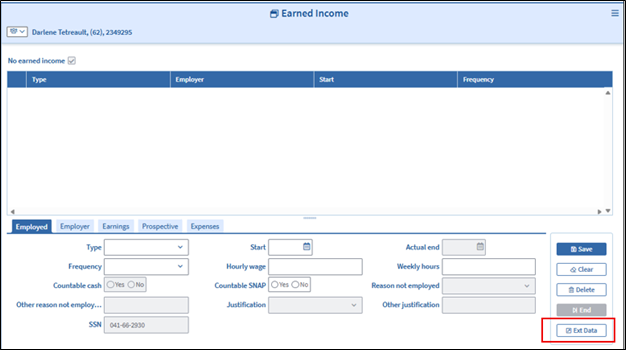
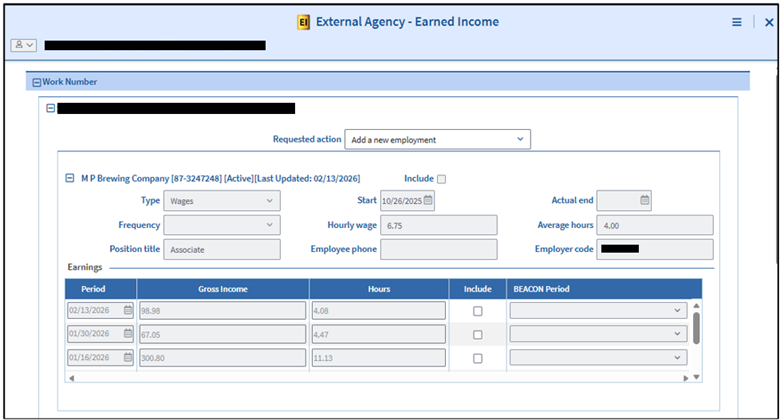
Clicking the Ext data button will open the External Agency- Earned Income page. On this page you can view employment information such as:
- Employer name and FEIN
- Employment status
- When the record was last updated
- Employment start and end date
- Hourly wages, and
- Earnings details such as the dates of last 10 pay periods, Gross Income, and hours.
Please see chart in the External Agency-Income page section below for a full breakdown of information available on the External Agency-Income page. View/HideView/Hide
Entering Work Number Data
If you have determined that the Work Number data found must be entered into BEACON, you must: View/HideView/Hide
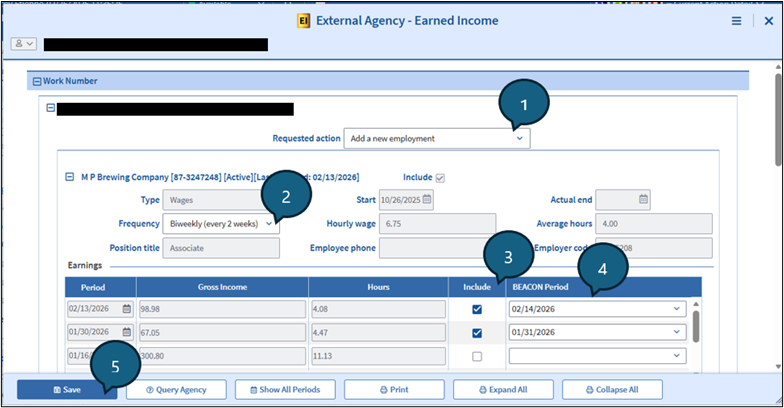
- Select Add a new employment from the Requested Action drop down menu.
- Select the appropriate pay frequency.
- Select Include to enter the applicable pay periods.
- Select the date that corresponds with the pay period selected from the BEACON period drop down.
- Click Save.
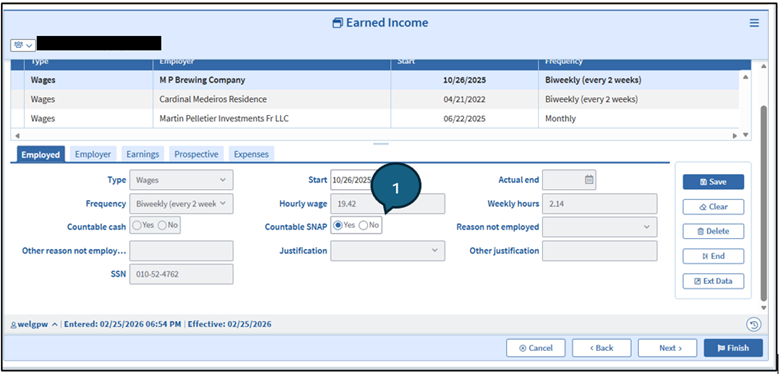
Clicking Save will bring you back to the Earned Income page. Once back on the Earned Income page you must:
- Select Yes or No indicator for the applicable program in the Employment tab View/HideView/Hide
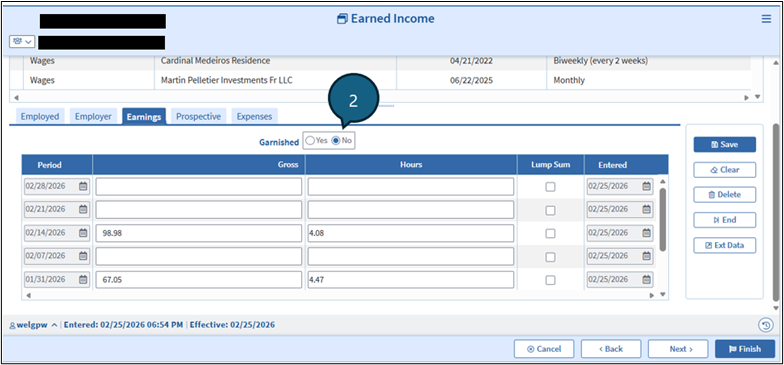
- Select Yes or No indicator for Garnishment on the Earnings tab View/HideView/Hide
- Click Refresh on the Prospective tab View/HideView/Hide
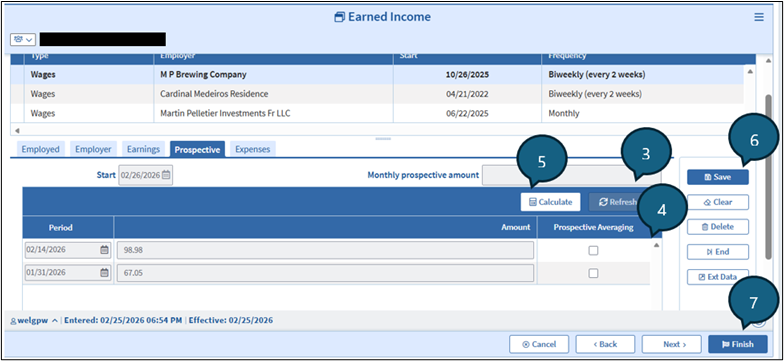
- Select the weeks you need to prospect under Prospective Averaging
- Click Calculate.
- Click Save.
- Click Finish.
Terminating Work Number Data
If during your review you have determined that the Work Number source is no longer applicable or is inactive, you must terminate the source. To terminate the source you must: View/HideView/Hide
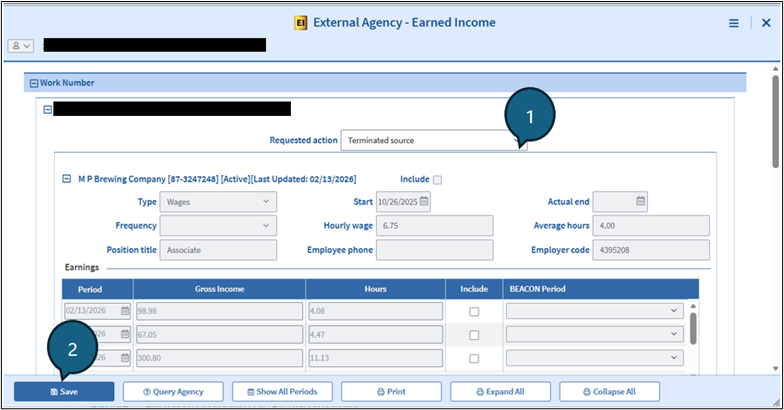
- Select Terminated Source from the Requested Action drop down menu.
- Click Save.
Work Number Data Already Known
If during your review, you find that the Work Number Data is already known, and no additional action is required you must: View/HideView/Hide
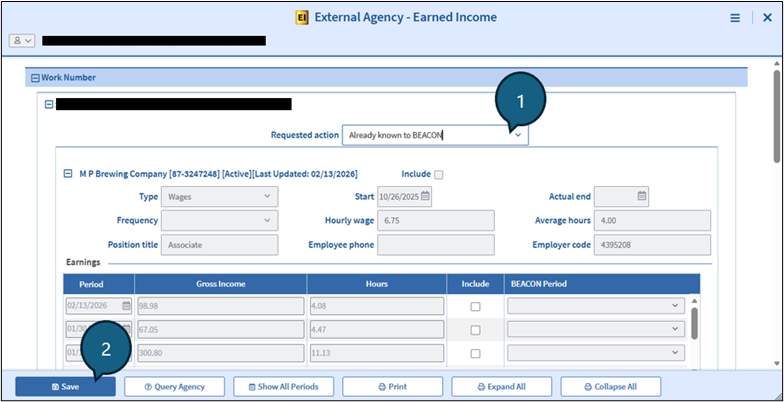
- Select Already Known to BEACON from the Requested Action drop down menu.
- Click Save.
External Agency – Earned Income Page
Upon opening the page, if no employment data was found, the following informational message will be displayed:
- “No data found."
If employment data is found, the following data will be displayed on the page:
| External Agency – Earned Income | Functionality |
|---|---|
| Work Number | Name of the External Agency from which data was received. |
| Requested Action | Values:
The Add or Update values will be filtered based upon the case manager’s action. |
| Name, DOB, SSN | Identifying client information for which employment data was found. |
| Employer Data | |
| Employer Name, FEIN, Employer Phone, Job Status | Identifying employer information for which employment data was found. The Employer name, FEIN (uses Fed ID Number) and Employer Phone Number will be copied to the Employer tab for new employments. Values for Job Status:
Note: Only data for Active jobs will be copied. |
| Include (checkbox) | You must Click on Include to add a new employment or update an existing employment, before hitting the Save button.
|
| Type | Always default to Wages and will be copied to the Employed tab for new employments. |
| Start | Uses the Most recent hire date from The Work Number database and will be copied to the Employed tab for new employments. |
| Actual end | This field will be blank for all employments. |
| Frequency | The Frequency field needs to be selected prior to copying data, and will display monthly, weekly, etc. The field is enabled by clicking on the Include checkbox. You must select a value based upon the Earnings data that is displayed below. The Frequency will be copied to the Employed tab for new employments. |
| Hourly wage | Displays the Rate of Pay amount from The Work Number. The Hourly wage will be copied to the Employed tab for new employments. |
| Average hours | Displays the Average Hours from The Work Number database, and copies that amount to the Average hours field on the Earned Income page, for new employments. |
| Position title | Displays the title on The Work Number. Since the values are different in BEACON, this data will not be copied. |
| Employee phone | The Employee phone field will be populated by The Work Number’s Employee Phone number and will be copied to the Employer tab for new employments, if it is displayed on the match. |
| Employer Code | The Employer Code is an internal Work Number value that will not be copied. |
| Earnings Data | |
| Period | Displays the Work Number’s Pay Date. You must determine the Frequency that is entered above, based on these dates. The page will initially show the first 10 Pay Periods for all Active and Inactive jobs on the Work Number database. If the Show All Periods button is clicked, all pay periods will be displayed. |
| Gross Income | Displays The Work Number’s Gross Earnings Amounts. |
| Hours | Displays the Work Number’s Hours. |
| Include (checkbox) | Click each pay period that should be copied to the Earned Income Earnings tab. |
| BEACON Period | Based upon the Frequency selected by you, the dropdown list will display all BEACON Pay Period Dates from the Start Date (descending).You must select a date for each row. Data will only be copied over for Periods displayed on the Earned Income page. |
| Data not shown | |
| Health insurance offered | To be updated when The Work Number database has an indication that Medical Insurance was available. This will be copied to the Employer tab for new employments. |
| Address | Updated when The Work Number has an address in its Work location fields. The address will be copied to the Employer tab for new employments. |
| Garnished | Defaults to No. |
| Buttons | |
| Save | Save the requested action(s) on the page |
| Query Agency | Performs another search of The Work Number database. |
| Show All Periods |
|
| Prints a hard copy of the expanded employment data. | |
| Expand All | Displays all data on the page. |
| Collapse All | Displays data contained at the + level of the data hierarchy. |
Any other Earned Income data not specifically referenced in the chart above will not be copied over into BEACON and needs to be added by staff on the Earned Income page.
Interview Wrapup
Staff will be prevented from completing the Interview Wrapup process until The Work Number data has been dispositioned.
Supervisors and TAO managers with the capability of External Agency Data Disposition Overrider can override the Interview Wrapup edit.
AR Referral
You can click on the External Agency – Earned Income button to open the External Agency – Earned Income page to view employment information. If The Work Number data was used in the referral, you should select Used Work Number data checkbox.
Notices
EBC Notices include language instructing the client to contact Equifax Workforce Solutions when the client believes the employment data provided is discrepant. This language is displayed when a notice is generated as a result of income changes that are verified by Electronically validated by The Work Number.
Overpayment Notices include language instructing the client to contact Equifax Workforce Solutions when the client believes the employment data provided is discrepant. This following language is displayed when the Accounts receivable (AR) overpayment referral’s Used Work Number data box is checked.
“The Department’s decision about your benefit eligibility was based on wage information from Equifax Workforce Solutions, a consumer reporting agency. Equifax Workforce Solutions did not make the decision and cannot tell you about the Department’s decision. You have the right to a free copy of your report if you ask for it from Equifax Workforce Solutions within 60 days of the date of this letter. You have the right to question Equifax Workforce Solutions about your report. Contact Equifax Workforce Solutions directly at: Equifax Workforce Solutions, 11432 Lackland Road, St. Louis, MO 63146-3516 Tel# 1-800-996-7566 (toll free).”
Work Number Procedures for TAFDC, EAEDC and SNAP Applications
For all applications: If a client reports earned income and the wages are available via the Work Number, you must confirm with the client during the interview whether the employer and wage information listed is correct. If the client confirms that the Work Number information is correct, the Earned Income page must be updated with the Work Number information.
Note: If the Work Number does not show current pay but the client states they are still working at the listed employer, you must ask a manager or supervisor to look up the information in Equifax. If not found, a VC-1 must be sent.
If the client indicates they are no longer employed or the wages in Work Number are not accurate, a mandatory VC-1 must be sent for the applicable item, i.e., wages or proof of termination.
If the client reports they are having a hard time obtaining information, you must attempt collateral contact. Remember to document all attempts of collateral contact in the narrative. If collateral contact is unsuccessful, a written self-declaration will be accepted as a last resort.
If a case manager is reviewing a case and Work Number has an employer that is active with no wages displayed within 30 days of the date the case manager is reviewing the case, and the client has indicated no earned income, disposition the employer as a terminated source.
If the client has indicated no earned income and Work Number data is displayed as inactive in BEACON, even if there are wages listed within the last 30 days, disposition the employer as a terminated source.
Work Number Procedures at Other Times
TAFDC and EAEDC
For TAFDC and EAEDC, all changes in income must be reported within 10 days. If you enter the case for case maintenance or a reevaluation and receive a PI Match for the Work Number, follow the same procedures as at application above to address the Work Number match.
SNAP
For the Work Number procedures at SNAP recertification, see Simplified Reporting – Recertification and Change Reporting – Recertification.
For the Work Number procedures at SNAP Interim Report, see Simplified Reporting – Interim Report.
Fraud and Overpayment Referral Screening (FORS) Unit Processing
There is a nightly batch process that triggers The Work Number search for all AR Referrals received during the day.
A Has Employment column displays the following CO views when data is found for a client:
- New Referrals,
- Pending Referrals
- Rejected Referrals.
The details of the employment will display on a view-only version of the External Agency – Earned Income page.
Automated VC-1 for Work Number Matches
An automated process has been implemented to reduce errors and ensure program integrity using the Work Number. This process utilizes data from the Work Number to identify and address certain active cases with potentially unclear or questionable wage information.
The following automated steps will occur for cases that meet the criteria for the Work Number Outreach automation:
- Current Work Number information will be pulled into the Earned Income page. The verification tab will populate with outstanding factors for the last four weeks of wages. The system will autogenerate a VC-1, giving the client 20 days to submit the required verifications.
- A batch narrative will autogenerate stating: “Verification for employment found through The Work Number requested due to unclear information based on the client's reporting requirement. VC-1 sent.”
- If verification(s) are not submitted by the established due date and there are no documents pending in the client’s ECF, systems will automatically schedule the case for closure using the reason “Fail to submit the required verifications.
Note: Cases that do not meet the criteria for an automated verification request, but with current Work Number wages that make the client’s eligibility unclear, will have additional review and outreach by specifically assigned Administrative Office staff.
Exceptions to Automation
There are some cases that are always excluded from the automated VC-1 for the Work Number. This includes cases that:
- have a certification type of Bay State Cap,
- have a certification type of TBA,
- are within their IR/Recertification period),
- have matches for household members under the age of 18 or 80 years old or older,
- are active at $0 benefit amount, and
- with known pension income.
- have potential identity discrepencies
Important: If the employer information from the Work Number is not an exact match with and FEIN or the name of the employer information in BEACON (e.g. no FEIN and “Walmart” vs, Wal-Mart”), a new employment record will be created by Batch. Staff must be diligent in carefully reviewing every case to ensure that there is not a duplicate record. If a duplicate record is found due to a name or FEIN mismatch, staff must delete the duplicate record.
The Work Number and Pension Data
While The Work Number is primarily used for employment and wage verification, there are times when it includes pension payments from former employers. DTA plans to implement system enhancements to automatically route this data to the Other Income Page; however, until these updates are made, staff must manually ensure this data is entered correctly.
If the data pulled into The Work Number is pension, not earned income, staff will see (Pension) immediately next to the employer’s name. See below: View/HideView/Hide
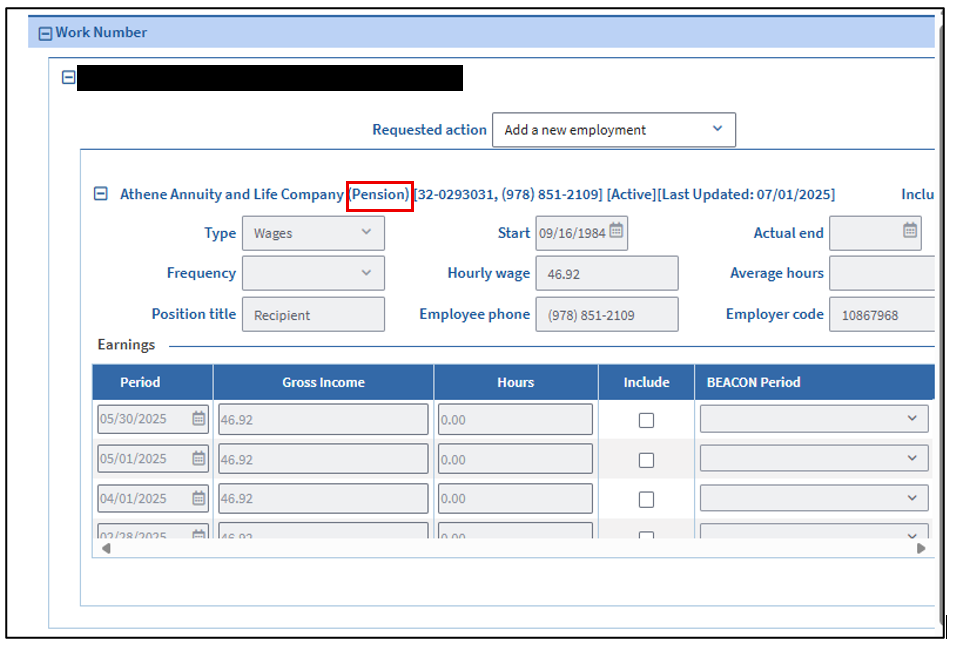
Pension data must be entered into the Other Income Page in BEACON. Staff must apply the same verification standards to Work Number pension data that they currently apply to Work Number earned income data.
Important: Clients must not be asked for additional verification of pension if they confirm the data in Work Number as being correct.
If the client disputes the income available in the Work Number a VC-1 must be sent.
The Work Number, although a trusted database, must not be used between SNAP certification periods.
Exception: In instances when there is a UC Match for ended UC or a client reports that their Unemployment Compensation (UC) has ended, please refer to the Unemployment Compensation OLG page for specific details.
Last Update: April 6, 2026
|
|
|
||
| Digital Accessibility Statement | Privacy Policy | Site Policies | Public Records Requests |
|
© 2026 Commonwealth of Massachusetts. Mass.gov is a registered service mark of the Commonwealth of Massachusetts. |
|||

