An official website of the Commonwealth of Massachusetts Here's how you knowHere's how you know

Using Video Interpreter Services
To comply with federal law, and as part of the Department’s commitment to ensuring language access for clients, interpreter services must be provided to all clients whose primary language is not English. All staff must offer interpreter services when communicating with clients with Limited English Proficiency (LEP) or who communicate using American Sign Language (ASL) when conducting DTA business.
Clients who communicate in ASL, use lip reading, or otherwise require visual contact with an interpreter, have the option to use the Video Remote Interpreter (VRI) services offered through the Department’s contracted interpreter services vendor, Lionbridge. This service can be offered in any TAO on demand, or through virtual meetings when scheduled ahead of time.
Lionbridge provides video interpreters for multiple languages, including English, ASL, Spanish, Haitian Creole, Chinese, Arabic, French, Korean, Nepali, Portuguese, Russian, Swahili, and Vietnamese.
Video Remote Interpreting (VRI) Rooms
Every TAO has a designated interview room for accessing video remote interpreters. These VRI rooms are set up to allow the client to view an interpreter on a monitor screen while a case manager performs case work on their laptop. The monitor is connected to a desktop computer configured specifically for VRI use.
Whenever a client comes to a TAO and needs an ASL interpreter, or a spoken language video interpreter, front end staff will escort them to the VRI room and connect them to an interpreter following guidelines below.
How to Connect to a Video Remote Interpreter
When a client walks into a TAO and requires a video interpreter in order to communicate, front end staff will immediately lead them to the designated VRI room and connect them to a video interpreter. If the client is meeting a case manager, staff will contact that case manager to let them know that their client has arrived and is waiting in the VRI room.
To access the VRI service, visit https://lionbridge.interpretmanager.com/ng/#/app/account/sign-in on the VRI room desktop computer. Log in using the credentials associated with your TAO or business unit found in Policy Online.
- Once logged in, click the phone icon in the upper-right corner of the screen. view/hideview/hide

- An application will pop up on the bottom-right of the screen. Select the video icon (it will turn blue) to choose video interpretation. view/hideview/hide
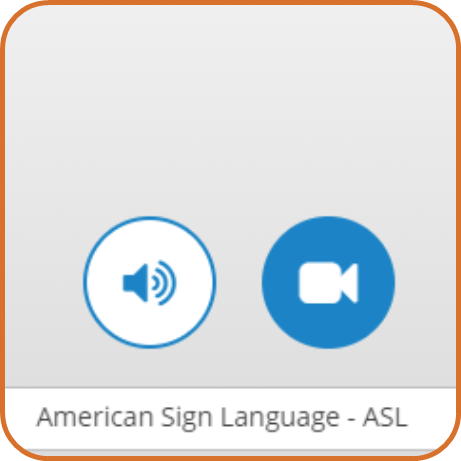
- Then, select the language you require from the drop-down menu. Click “Call.” There is no need to change the “Business” drop down.
- Once you are connected to an interpreter, their video feed will connect. Confirm that you can hear the interpreter and that they can hear you.
- Turn the monitor to face the client; staff do not need to see the screen or be on camera for VRI work.
- Introduce the client, and ask them how you can help them today. Remember to speak to the client; the interpreter will translate directly to the client.
- Set up your laptop on the desk, connect to internet via wireless or wired connection. Do not use the desktop computer for case work.
- When the meeting is over, thank the client and the interpreter, end the call, and escort the client out to the reception area. Provide a rating for the interpreter and any notes or feedback about your experience.
See: Providing Interpreter Feedback
Providing Video Interpreter Services for Virtual Meetings
Video interpreter services are available for clients with scheduled virtual meetings, but is not integrated with InterpretManager website as above. Because virtual meetings take place on Zoom, an interpreter must be given the meeting ID and passcode for the virtual meeting in order to attend. These must be requested at least 24 hours in advance to ensure an interpreter is available. Unless specifically requested by or required for the client, an audio interpreter should be used for virtual meetings.
To request a video interpreter for a virtual meeting, send a secure email to your management team with the following details:
- Language of interpreter
- Time and date of meeting
- Client APID
- Meeting link
- Meeting ID and passcode
- Estimated duration
Once the request is sent, note in the case narrative that a video interpreter has been requested for the meeting.
Note: Virtual meetings are almost always scheduled in advance. If you are scheduling a virtual meeting, and a video interpreter is required, submit a request to your supervisor or manager for a video interpreter immediately following scheduling the meeting with the client.
The manager will send this information to the contract manager for the interpreter services vendor and will receive a written confirmation of the scheduled appointment. At the time of the meeting, allow the interpreter to join and spotlight the interpreter. Remember to talk to the client, pause every two or three sentences, and allow the client to watch the video interpreter.
Related Topics
Lionbridge Video Interpreter Credentials
Connecting an Interpreter to a Virtual Meeting
Guidelines for Providing Interpreter Services
Interpreter Services Policy and Procedures
Last Update: August 3, 2023
|
|
|
||
| Digital Accessibility Statement | Privacy Policy | Site Policies | Public Records Requests |
|
© 2026 Commonwealth of Massachusetts. Mass.gov is a registered service mark of the Commonwealth of Massachusetts. |
|||

