An official website of the Commonwealth of Massachusetts Here's how you knowHere's how you know

Clients to Reschedule Appointments - SNAP
Clients have the option to reschedule an existing appointment by using the DTA Connect mobile app or the DTAConnect.com portal. This streamlines the process of rescheduling appointments saving time for both clients and staff. SNAP-only clients assigned to the SAO and FAW business groups may only reschedule their telephonic application or reevaluation interview appointments at this time.
There are times when a client will not be able to reschedule their existing appointment such as when:
- The scheduled interview is in-office or virtual
- The scheduled interview is not application or reevaluation
- The interview was already held
- The current date is less than 10 calendar days before the application due date
- The current date is less than 10 calendar days before the recertification end date
- The original appointment date is more than 45 calendar days old
- The Address type is “DDS State Operated”
- There is an accommodation for an auxiliary aid
- The client has Heightened Level of Security (HLS) or has Blocked Online Services
- BEACON is down due to system maintenance
CCMO Assigned Cases
Clients that are assigned to the CCMO Unit will not be able to automatically reschedule their appointments. These clients will be allowed to request an appointment change using DTA Connect Mobile App or the DTAConnect.com portal. They will be able to specify days of the week and time range constraints, which the worker will use to inform the rescheduling.
Once the client requests to reschedule their appointment, CCMO staff will review the “Client Requested Appointment Change” View under the group “Appointments to Reschedule.” The view will display appointment reschedule requests that were created by clients in DTAConnect.com and the DTA Connect mobile app. The request records will include information about the original appointment and the requested days and times for the new appointment. CCMO staff will use this view to create new appointments as needed. Until the request is dispositioned, appointment related adverse actions will be suspended for the case so caseworkers must reschedule appointments in a timely manner. For more information on responding to client requests to change appointments in a caseload model, please see the Clients to Request a Rescheduling of Their Appointments – TAFDC and EAEDC page.
Remember: If a client calls the DTA Assistance Line to reschedule their appointment, you must always attempt to conduct the interview during that time before rescheduling the client’s appointment.
How Clients Can Reschedule an Existing Appointment Using the DTA Connect Mobile App
- The grantee must log into their DTA Connect mobile app using their Social Security Number and their year of birth
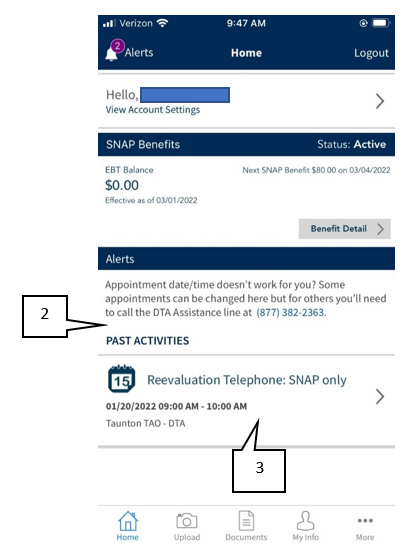
- On the DTA Connect homepage, the grantee’s existing appointment will be under the Alerts section. The grantee must click on the appointment to be brought to the Appointment Detail screen.
- Once the grantee clicks the current appointment, the Appointment Detail screen will appear. View/HideView/Hide
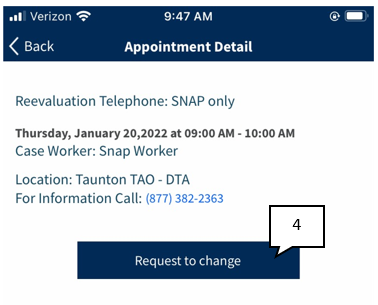
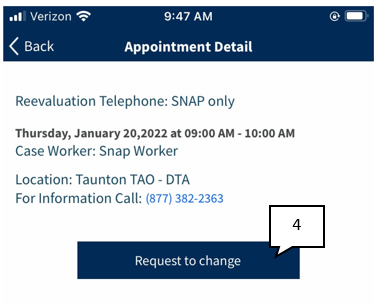
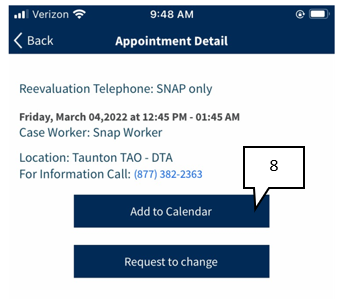
- On the Appointment Details screen, the grantee must click “Request to change” to proceed with rescheduling their appointment. View/HideView/Hide
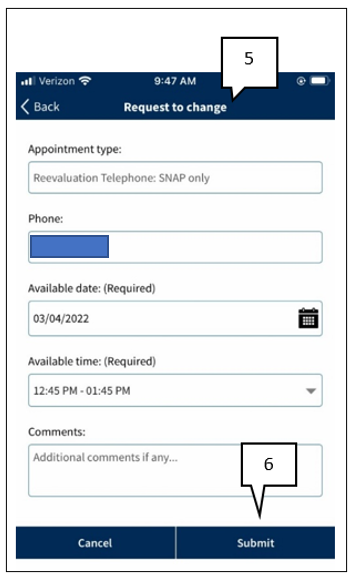
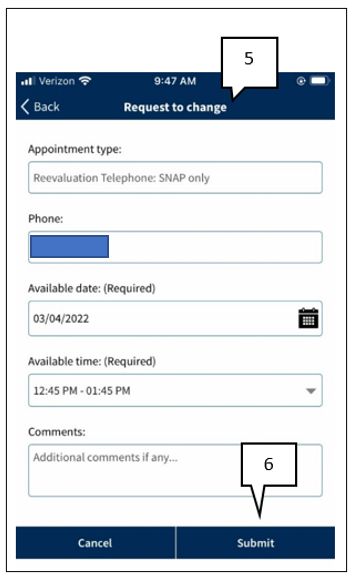
- The Request to change screen will appear. The client must select an available date and time.
Note: The appointment scheduler mirrors the BEACON appointment scheduler used by FAWs. This means that dates and times displayed on DTA Connect will be the only available dates and times the client can choose from based on availability.
- Click Submit. View/HideView/Hide
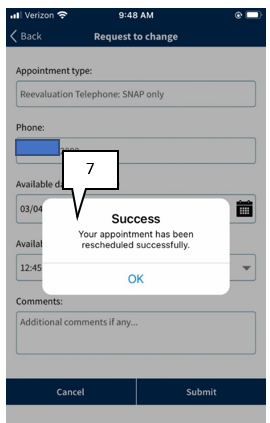
- A pop-up message will display indicating the appointment was rescheduled successfully. View/HideView/Hide
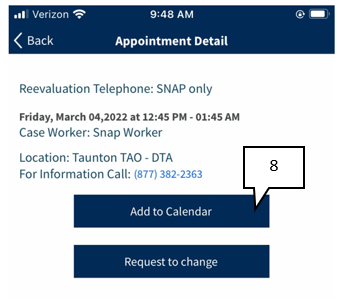
- The grantee will be brought back to the Appointment Detail screen, which will indicate the new appointment date and time. The grantee will also have the option to add the new appointment to their personal calendar. View/HideView/Hide
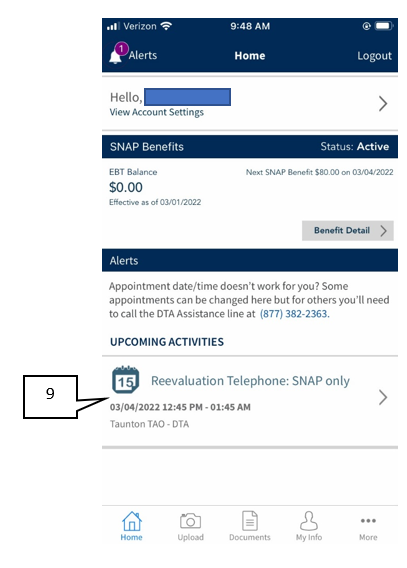
- The Alert section on the grantee’s DTA Connect homepage will show the updated appointment and time. View/HideView/Hide
How Clients Can Reschedule an Existing Appointment Using DTAConnect.com
- The grantee must log into their DTAConnect.com account using their email and password. Once logged in, the DTA Connect homepage will appear.
- On the DTA Connect homepage, the grantee must select the Activity Tab. View/HideView/Hide
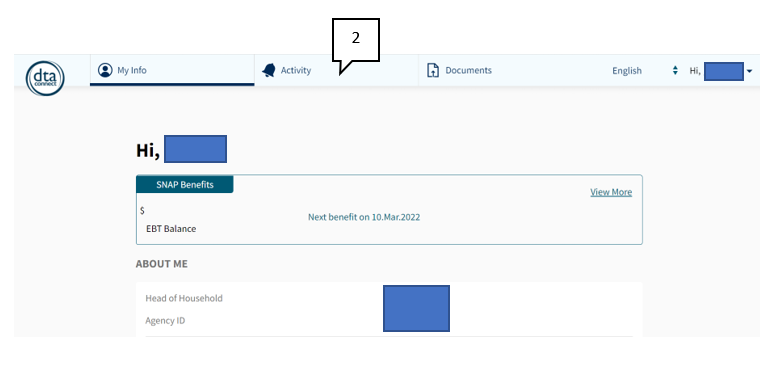
- On the Activity tab, all current and past appointments will be displayed.
- The current appointment will have the Change icon located on the right of the appointment if the appointment is able to be rescheduled. The grantee must click on the Change icon to be directed to the Request to change screen. View/HideView/Hide
- On the Request to change screen, the client must select an available date and time.
- Click Submit. View/HideView/Hide
- A pop-up message will display indicating the appointment was rescheduled successfully.
Note: The appointment scheduler mirrors the BEACON appointment scheduler used by DTA staff. This means that dates and times displayed on DTA Connect will be the only available dates and times the client can choose from based on availability.
- The grantee will be brought back to the Activity screen, which will indicate the new appointment date and time. The grantee will also have the option to add the new appointment to their personal calendar. View/HideView/Hide
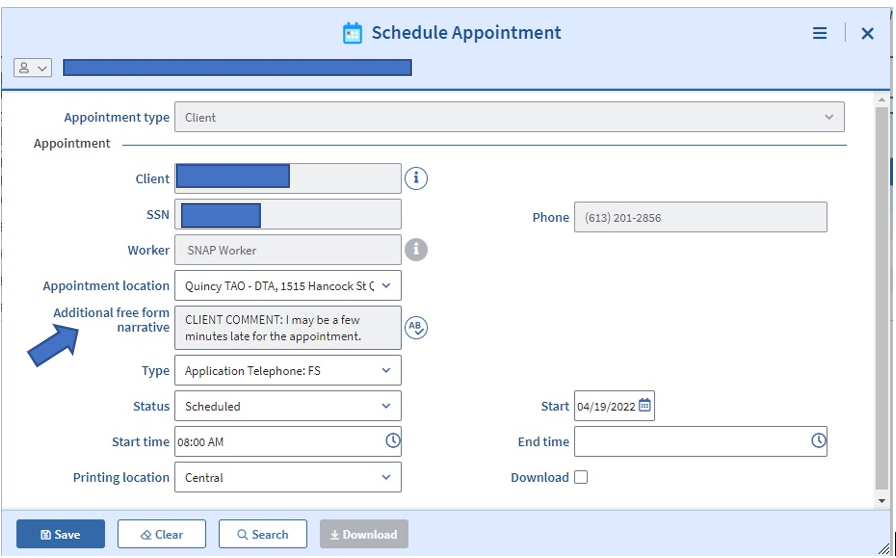
Please note: The Comments field is optional for the client to complete when rescheduling their appointment for both the DTA Connect mobile app and DTAConnect.com portal. However, if the client does enter comments, the comments will appear in the Schedule Appointment screen, under the Additional Free Form Narrative field for staff to review. View/HideView/Hide
Once the appointment has successfully been rescheduled, a Batch Narrative will be entered stating:
<Client Name> rescheduled their “<appointment type>” appointment from <date> to <date>. Initiated from DTAConnect.
Clients will receive a new appointment letter in the mail indicating the updated appointment date and time when they reschedule their appointment either on the DTA Connect mobile app or the DTAConnect.com portal. Additionally, eligible clients will be notified via text and email confirming the change.
Last Update: May 24, 2022
|
|
|
||
| Digital Accessibility Statement | Privacy Policy | Site Policies | Public Records Requests |
|
© 2026 Commonwealth of Massachusetts. Mass.gov is a registered service mark of the Commonwealth of Massachusetts. |
|||

