An official website of the Commonwealth of Massachusetts Here's how you knowHere's how you know

Clients Request to Reschedule Appointments - TAFDC and EAEDC
Clients have the option to request that an existing appointment be rescheduled by using the DTA Connect. This streamlines the process of requesting to reschedule an appointment, saving time for both clients and staff. TAFDC and EAEDC clients can request a rescheduling of all TAFDC and EAEDC appointment types, including SNAP-related appointments for combo cases.
There are times when a client will not be able to request that their existing appointment be rescheduled such as:
- The interview was already held
- The original appointment date is more than 45 calendar days old
- The client has Heightened Level of Security (HLS) or has Blocked Online Services
- If BEACON is down due to system maintenance
Note: Clients may request to reschedule their reevaluation appointment up to the reevaluation end date. If the request is made prior to the reevaluation end date you must schedule a new appointment, however if an appointment has already been missed and a closing has been initiated, do not delete the pending closing until the interview is completed. If the client requests to reschedule an appointment after the TAFDC/EAEDC has closed for the missed appointment, you must not schedule an appointment. Instead, call the client to complete the interview. The case is not to be reinstated until you are speaking with the client to complete the interview. If the client does not answer, try again later that day.
Note: Requests to reschedule an application interview made after a TAFDC /EAEDC application has been denied for two missed interviews will require a new application. Call the client to inform them they must reapply. If the client answers the phone you must offer to complete a telephone application. If the client does not want to complete a telephonic application at that time, you must inform them they can reapply online or by phone at a different time and give them the local office phone number.
How Clients Can Request to Reschedule an Existing Economic Assistance Appointment Using the DTA Connect Mobile App
- The grantee must log into their DTA Connect mobile app using their Social Security Number and their year of birth
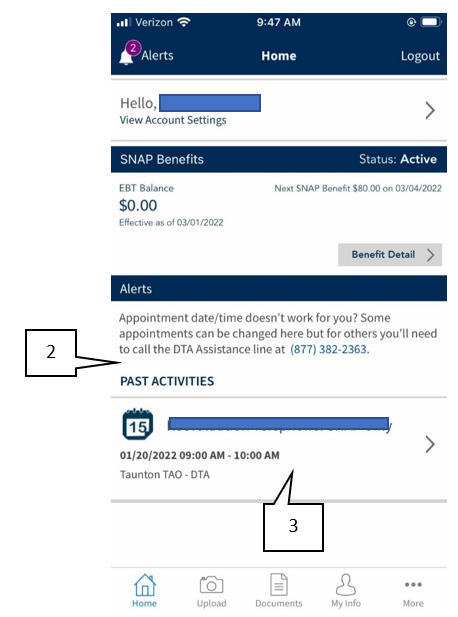
- On the DTA Connect homepage, the grantee’s existing appointment will be under the Alerts section. The grantee must click on the appointment to be brought to the Appointment Detail screen.
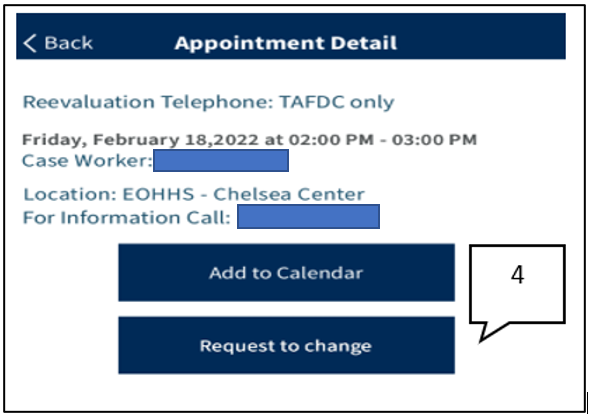
- Once the grantee clicks the appointment, the Appointment Detail screen will appear. View/HideView/Hide
- On the Appointment Details screen, the grantee must click “Request to change” to proceed with requesting to reschedule their appointment. View/HideView/Hide
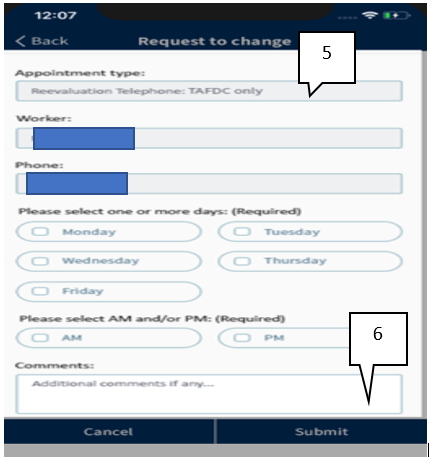
- The Request to change screen will appear. The client must select available dates and times. The Client has the option to enter comments in the comment section up to 250 characters long with a more specific appointment request.
- Click Submit. View/HideView/Hide
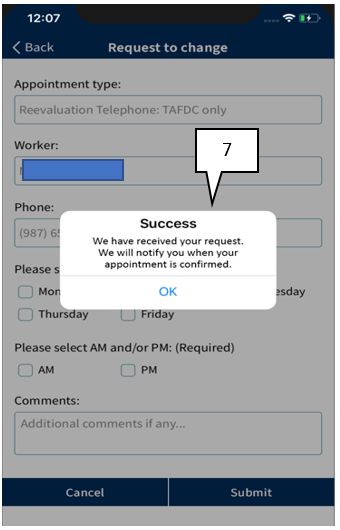
- A pop-up message will display indicating the appointment request was rescheduled successfully and that the Department has received their request and will notify them when the appointment is confirmed. Additionally, clients will be notified via text and email confirming their requested change. View/HideView/Hide
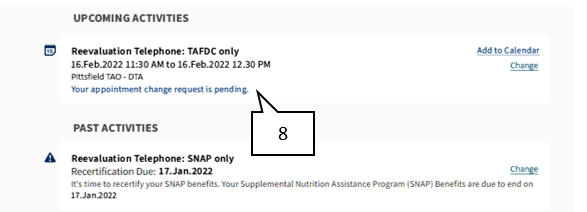
- The grantee will be brought back to the Appointment Detail screen, which will indicate that their appointment change request is pending. View/HideView/Hide
How Clients Can Request to Reschedule an Existing Appointment Using DTAConnect.com
- The grantee must log into their DTAConnect.com account using their email and password. Once logged in, the DTA Connect homepage will appear.
- On the DTA Connect homepage, the grantee must select the Activity Tab. View/HideView/Hide
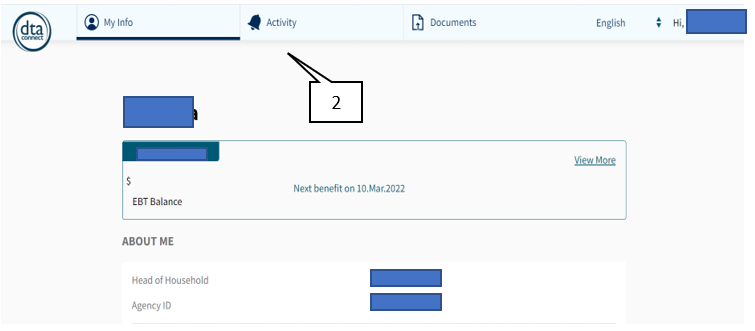
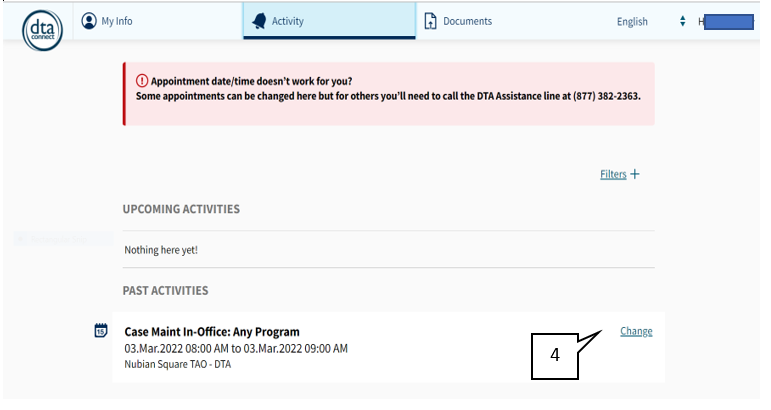
- On the Activity tab, all current and past appointments will be displayed.
- The appointment will have the Change icon located on the right of the appointment if the appointment is able to be rescheduled. The grantee must click on the Change icon to be directed to the Request to change screen. View/HideView/Hide
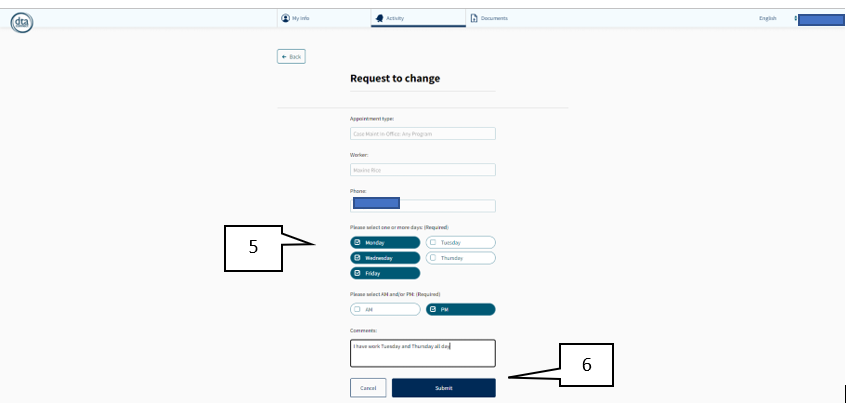
- On the Request to change screen, the client can request day(s) and time(s) that will work best for them. The client can choose multiple days of the week, from Monday through Friday as well as the times of day, morning or afternoon. The client has the option to enter a note in the Comments section up to 250 characters long with a more specific appointment request.
- Click Submit. View/HideView/Hide
- A pop-up message will display indicating that the Department has received the request and will notify them when the appointment is confirmed. View/HideView/Hide
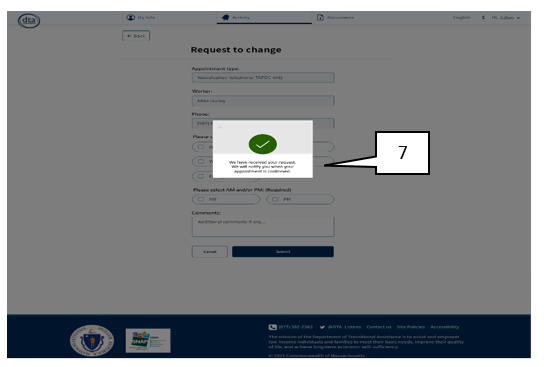
- The grantee will be brought back to the Activity screen, which will indicate that their appointment change request is pending. Additionally, clients will be notified via text and email confirming their requested change. View/HideView/Hide
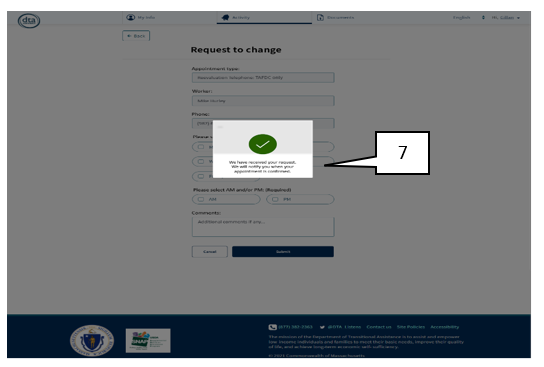
Please note: The Comments field is optional for the client to complete when they request that their appointment be rescheduled for both the DTA Connect mobile app and the DTAConnect.com portal. However, if the client does enter comments, the comments will appear in the Appointment Change Request screen in BEACON, in the Client comments field. View/HideView/Hide
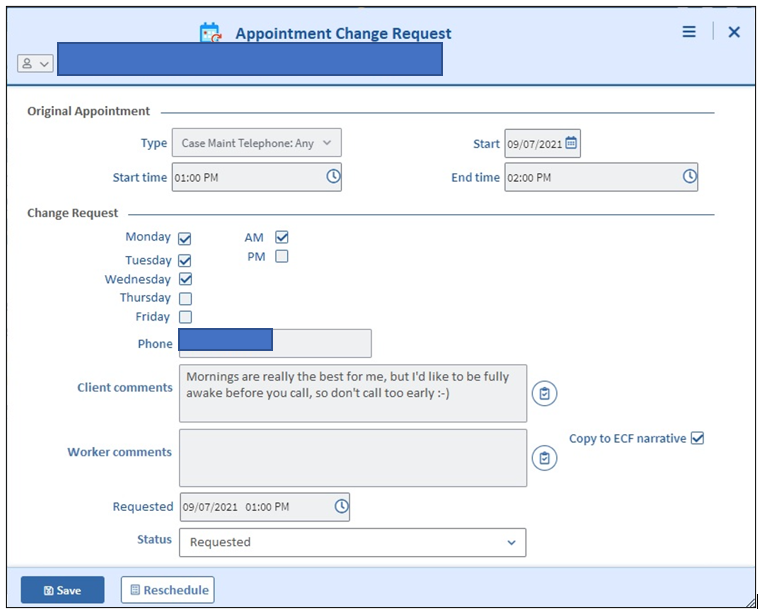
Once the client successfully requests that their appointment be rescheduled, a Batch Narrative will be entered stating:
An appointment change request has been made by <Client Name> for “<appointment type>” appointment. Client prefers < days>,<am/pm>. Initiated from DTAConnect.
Example: An appointment change request has been made by Demi Moore for Reevaluation Telephone EAEDC and SNAP appointment. Client prefers Wednesday, Thursday, AM. Initiated from DTAConnect.
Case Manager Responsibilities Once a Client Requests to Reschedule Their Appointment
After a client successfully requests that their appointment be rescheduled, the case manager will receive a BEACON notification indicating the request to reschedule their appointment on their home page. Additionally, a warning message “Client has requested to reschedule an appointment.” Will be displayed when entering the electronic case folder (ECF) of a client has an outstanding appointment change request. A BEACON generated narrative of the client request will also appear on the electronic case folder (ECF). View/HideView/Hide
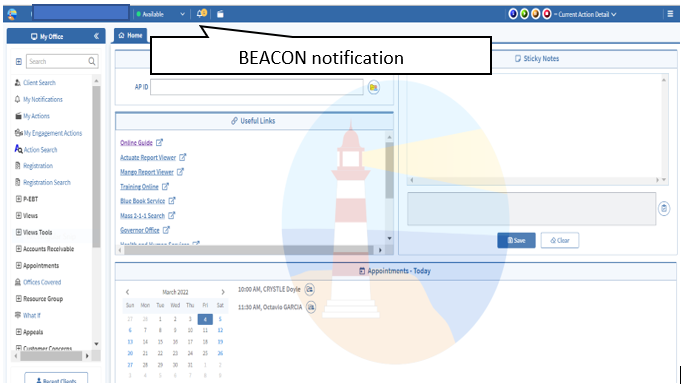
To Reschedule an Appointment From the BEACON Notification
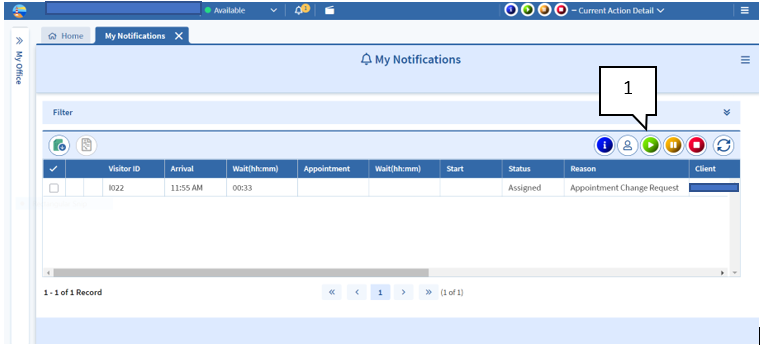
- Click My Notifications under the My Office tab and select the newly created registration for the corresponding client. Click the green play button to open the case. View/HideView/Hide
- The Appointment Change Request screen will appear. This page will display the change requested by the client from the DTA Connect mobile app or the DTAConnect.com portal. If you can accommodate the request, proceed with clicking the Reschedule button at the bottom of the page. View/HideView/Hide
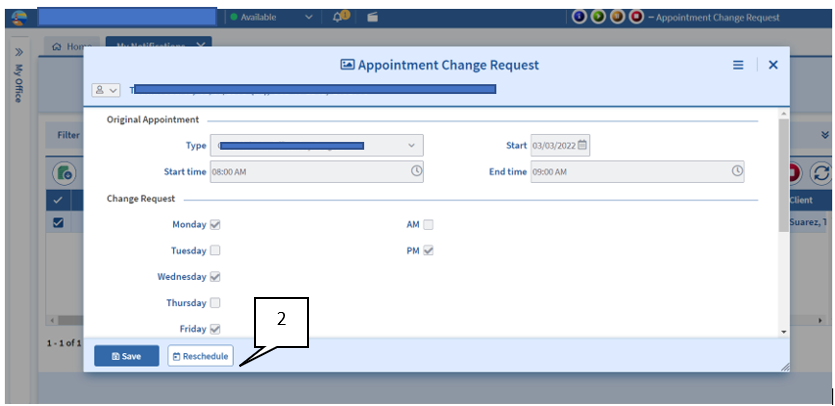
Note: You must always honor the client’s request to reschedule an appointment when possible. If you are unable to honor the client’s request, you must attempt 2 cold calls to the client to find an alternative appointment time. If cold calls are unsuccessful, you must reschedule the appointment for a time that matches the client request as closely as possible.
- Clicking the reschedule button will bring the case manager to the Schedule Appointments page in BEACON. For procedures on how to schedule/reschedule appointments, please see Schedule Appointment Page - TAFDC or Schedule Appointment Page - EAEDC.
How to Review a Rescheduling Request Using Views
In addition to completing rescheduling requests via Notifications on BEACON, client appointment rescheduling requests can also be seen in the BEACON view “Client Requested Appointment Change” under the group “Appointments to Reschedule.” This view will display appointment reschedule requests that were created by clients in the DTAConnect.com portal and the DTA Connect mobile app. The request records include information about the original appointment and the requested days/times for the new appointment. Case managers can use this view to create new appointments as needed.
Note: For all Economic Assistance cases, an Interview Wrapup will require a third level authorization (TAO Director) whenever a case is closed or denied for a reason of “Failed to keep appointment for review” and the grantee has an outstanding appointment change request.
Last Update: February 2, 2023
|
|
|
||
| Digital Accessibility Statement | Privacy Policy | Site Policies | Public Records Requests |
|
© 2026 Commonwealth of Massachusetts. Mass.gov is a registered service mark of the Commonwealth of Massachusetts. |
|||

