An official website of the Commonwealth of Massachusetts Here's how you knowHere's how you know

Non-Recurring Medical Expenses
Overview
A non-recurring medical expense is any medical bill that a client does not regularly incur, such as a bill for a one-time dental procedure. Non-recurring medical expenses are usually prorated over multiple months to maximize a client’s SNAP benefits.
DTA will credit households for non-recurring medical expenses (incurred within the last 36 months) when a person aged 60+ or an individual with a verified disability has:
- an unpaid bill that has not been claimed as a medical expense; or
- a paid bill incurred in the last three years but was not previously credited.
A client can only claim a specific non-recurring medical expense once. Anytime a client sends you a non-recurring medical expense, you must review the case record to ensure that it was not already credited. If you find that it was already credited, you must call the client to tell them either that the expense is already on record or was previously on record (and removed due to being fully credited). You must also encourage them to submit verification of any new medical expenses they incur in the meantime.
Averaging Non-Recurring Medical Expenses
When averaging non-recurring medical expenses, the non-recurring expenses must be divided by the number of months that will result in the highest total SNAP benefit amount over the remainder of the certification period.
The steps for determining this number of months are detailed in the Determining the Best Average for a Non-Recurring Expense section of this page.
Important: If a client submits multiple non-recurring medical expense verifications at the same time, you must consider them together. Although they must be entered individually in BEACON, they must be divided by the same number of months. Otherwise, the optimization process will be further complicated by the need to consider the individual durations of each expense. ExampleExample
Entering Non-Recurring Medical Expenses
To enter a non-recurring medical expense into BEACON: View/HideView/Hide
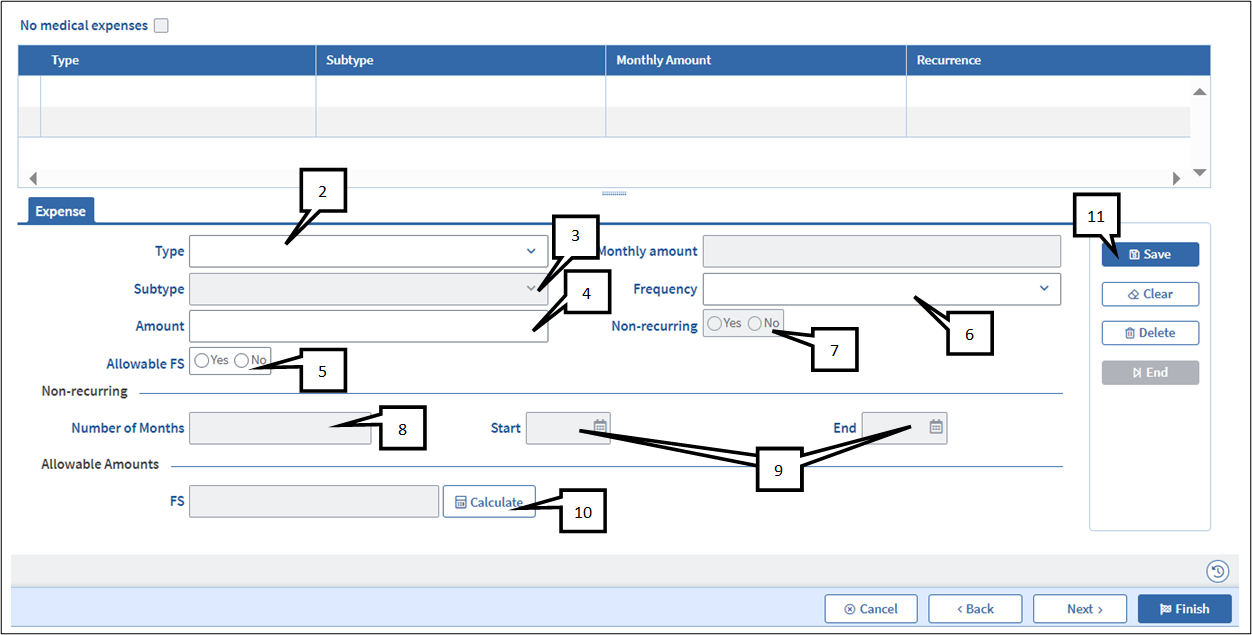
- Open the Medical Expenses page
- Select Type
- Select Subtype
- Enter the total, non-prorated cost of the expense in the Amount field
- Select Yes for Allowable FS
- Select One Time for Frequency
- The Non-recurring radio button should automatically be set to Yes
- Enter the Number of Months (to calculate the number of months, you must use the procedures in Determining the Best Average for a Non-Recurring Expense below)
- The entry for Number of Months will auto-populate the Start and End Date
- At application, the Start Date will be the application date.
- If the Start Date is after the first day of the client’s cyclical period, BEACON will credit the client with both the full month and the prorated period. Example: If a client (whose SSN ends in 0) applies on 01/09/2024 and has a non-recurring medical expense(s) that must be credited for 6 months, the expense(s) will be credited from 01/09/2024 through 07/31/2024.
- However, if the Start Date is after the first day of the cyclical period and the non-recurring expense(s) must be credited for the length of the certification period, the Number of Months must be the length of the certification period minus 1. Example: If an EDSAP client (whose SSN ends in 0) applies on 01/09/2024 and has a non-recurring medical expense(s) that must be credited for 36 months, you must enter 35 for the Number of Months for BEACON to credit the client from 01/09/2024 through 12/31/2026. (Otherwise, the end date will be past the reevaluation end date and BEACON will not allow you to credit the expense).
- At recertification or IR, the Start Date will be the effective date of the new certification period (following the completion of a recertification) or the first day of the second half of the certification period (following the completion of the IR).
- At case maintenance, the Start Date will be the first day of the next cyclical month.
- If the non-recurring medical expense at case maintenance reduces the household’s net income to $0, you must issue a related benefit for the month in which the change is reported. For more information, see Department Responsibility to Take Timely Action.
- In this scenario, the related benefit issued for the month in which the change was reported will not factor into the total proration months for the non-recurring expenses. Example: If an active client (whose SSN ends in 0) reports a non-recurring expense on 01/09/2024 and the expense must be credited for 6 months, the expense must be credited from 02/01/2024 through 07/31/2024. The client must also get the related benefit for January because the net income reduced to zero.
- At application, the Start Date will be the application date.
- Click Calculate
- Save
- The screenshot below is an example of what the page would look like once it is completed. View/HideView/Hide
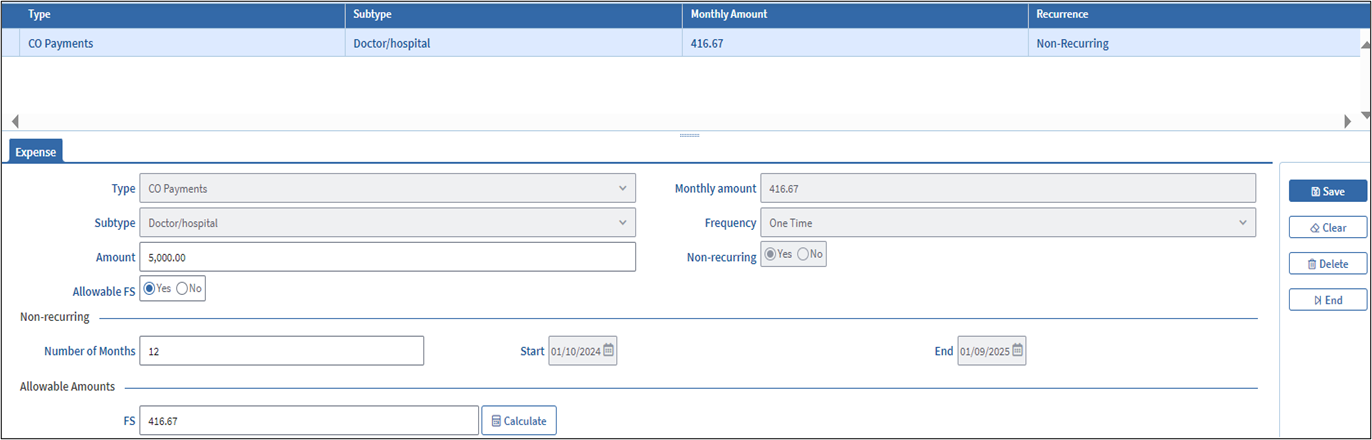
- The screenshot below is an example of what the page would look like once it is completed. View/HideView/Hide
- If the client submitted more than one non-recurring expense at the same time, repeat the steps above for each expense and be sure to enter the same Number of Months for each one. Each expense must be entered individually.
Ending Non-Recurring Medical Expenses
If a medical expense is entered in BEACON as non-recurring, BEACON will initiate the batch removal 20 days before the expense’s scheduled end date.
During case maintenance, if a client calls you because the removal of the non-recurring medical expense resulted in a decrease in the household’s benefit amount, you must tell the client that they may report new medical expenses and that they can potentially increase their benefits.
Determining the Best Average for a Non-Recurring Expense
To determine the best way for a household to average their non-recurring medical expenses, you must use the Optimal Proration Tool. The Optimal Proration Tool is a Microsoft Excel spreadsheet that eases the process of determining the best average for non-recurring medical expenses. This tool is mandatory for determining the best average for a non-recurring medical expense.
The first portion of the Optimal Proration Tool is used to document the medical expense information, both recurring and non-recurring, that the household is reporting.
The second portion of the Optimal Proration Tool is used to record the household information (which impacts the SNAP calculation) that is needed to determine the best number of months over which to prorate non-recurring medical expenses. The second portion also includes a table that displays the total amount of benefits for each possible proration scenario. The non-recurring medical expenses are entered under question 2A in the Optimal Proration Tool. When completed, this spreadsheet must be converted to PDF and attached to the BEACON narrative. Below is a screenshot: View/Hide View/Hide
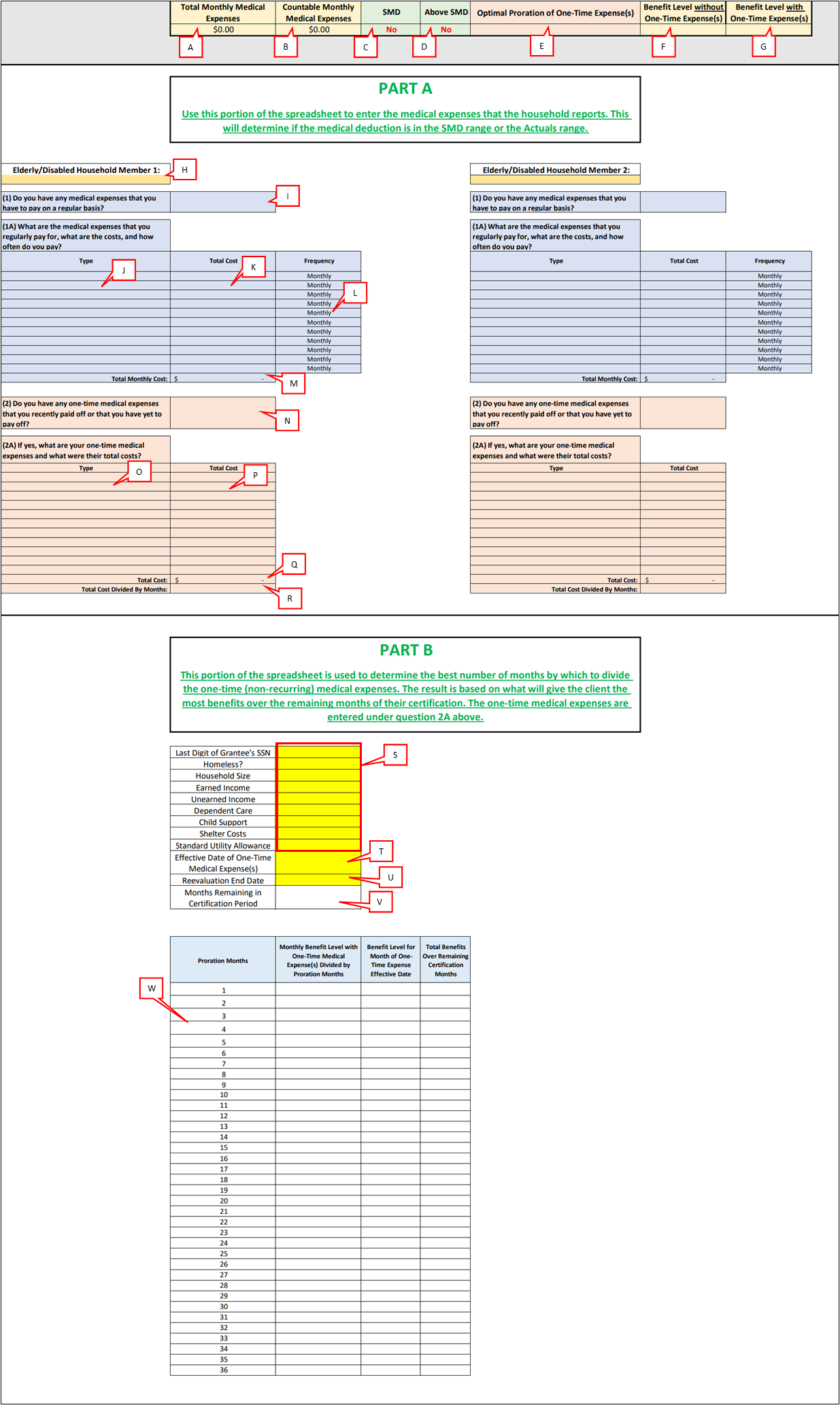
A. Displays the total value of the medical expenses entered in the spreadsheet for all household members.
B. Displays the total medical deduction for the household, i.e., Total Monthly Medical Expenses - $35.
C. Displays whether the household qualifies for the standard medical deduction of $155. If yes, the indicator will change from “No” to “Yes.”
D. Displays whether the household’s total monthly medical expenses exceed $190. If yes, the indicator will change from “No” to “Yes.”
E. Displays the best number of proration months over which to divide a non-recurring medical expense.
- If a non-recurring medical expense begins in a prorated application month, the tool will account for the fact that BEACON credits the client with the full month and the proration period. In this scenario, if the optimal number of proration months is the length of the certification period, the tool will automatically subtract 1 from the total.
F. Displays the household’s potential benefit level without crediting any non-recurring medical expenses.
G. Displays the household’s potential benefit level when crediting non-recurring medical expenses.
H. Used to record the name of the elderly/disabled individual to whom the spreadsheet information applies.
I. Yes/No dropdown for indicating whether the individual named in the Elderly/Disabled Household Member cell has recurring medical expenses.
J. Displays the various categories of recurring medical expenses.
K. Used to record the total cost of each recurring medical expense.
L. Used to record the frequency of the recurring medical expenses. Clicking the cell opens a dropdown menu with the following options: Weekly, Monthly, Quarterly, Annually.
M. Displays the total cost of recurring medical expenses.
N. Yes/No dropdown for indicating whether the individual named in the Elderly/Disabled Household Member cell has non-recurring medical expenses.
O. Displays the various categories of non-recurring medical expenses.
P. Used to record the total cost of each non-recurring medical expense.
Q. Displays the total cost of the household member’s non-recurring medical expenses.
R. Displays the average monthly cost of the household member’s non-recurring medical expenses divided by the optimal number of proration months.
S. Fields for recording the household’s case information, which is needed to determine the best number of months over which to divide a non-recurring medical expense.
T. Used to record the effective date of the non-recurring medical expense(s).
U. Used to record the household’s reevaluation end date.
V. Displays the number of months remaining in the household’s certification period based on the entries in T and U.
W. Displays the total amount of benefits that the client would receive for each proration option. The number of rows in this table will be based on how many months are remaining in the household’s certification period, i.e., the entry in V.
Enabling Macros in the Optimal Proration Tool
The Optimal Proration Tool includes features that will not be available unless you enable macros in Excel. A macro is an action or set of actions that you can run as many times as you want. Enabling macros in the current version of the Optimal Proration Tool will allow you to:
- Instantly convert the spreadsheet to a PDF file (for the purposes of saving it to the narrative).
- Clear all the data fields in one click.
- Receive informative pop-up messages.
When you open the current version of the Optimal Proration Tool, you will get the following notification: View/HideView/Hide

Enable the macros by clicking “Enable Content.”
By enabling the macros, the Optimal Proration Tool will include the following features: View/HideView/Hide
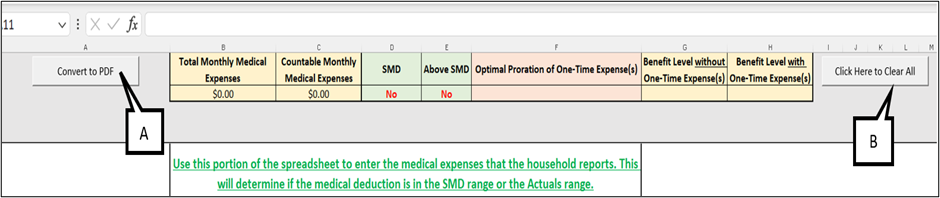
A. Clicking this button (Convert to PDF) will instantly convert the spreadsheet to a PDF file.
B. Clicking this button (Click Here to Clear All) will clear all the fillable fields in the entire spreadsheet.
Using the Optimal Proration Tool
To use the Tracker to determine the best average for a non-recurring medical expense, follow these steps:
- Open the Optimal Proration Tool. In the cell underneath the heading “Elderly/Disabled Household Member 1,” enter the name of the household member to whom the medical expenses apply. View/HideView/Hide

- Complete Question 1: Select Yes or No based on the answer. View/HideView/Hide

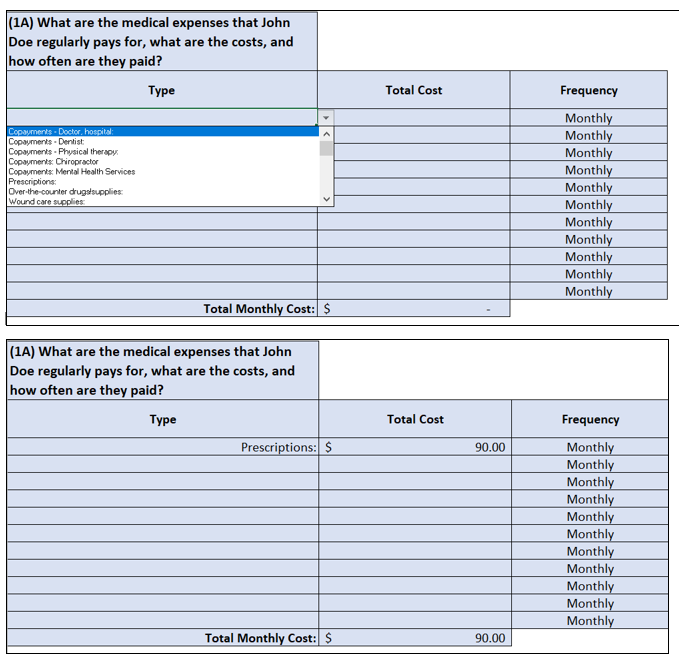
- If yes, complete Question 1A. Based on the answer, select the appropriate dropdown option and fill in the total cost and frequency. View/HideView/Hide
- As you key in medical expenses, the Optimal Proration Tool will display information at the top of the spreadsheet. If the total medical expenses are in the SMD range, then “SMD” will change to Yes. If the total medical expenses are above $190, then “Above SMD” will change to Yes: View/HideView/Hide
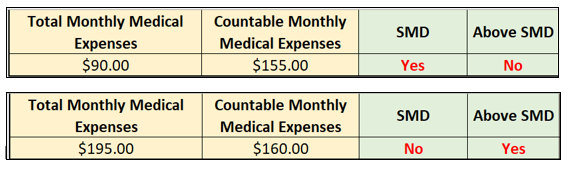
- As you key in medical expenses, the Optimal Proration Tool will display information at the top of the spreadsheet. If the total medical expenses are in the SMD range, then “SMD” will change to Yes. If the total medical expenses are above $190, then “Above SMD” will change to Yes: View/HideView/Hide
- Complete Question 2. Select Yes or No based on the answer: View/HideView/Hide

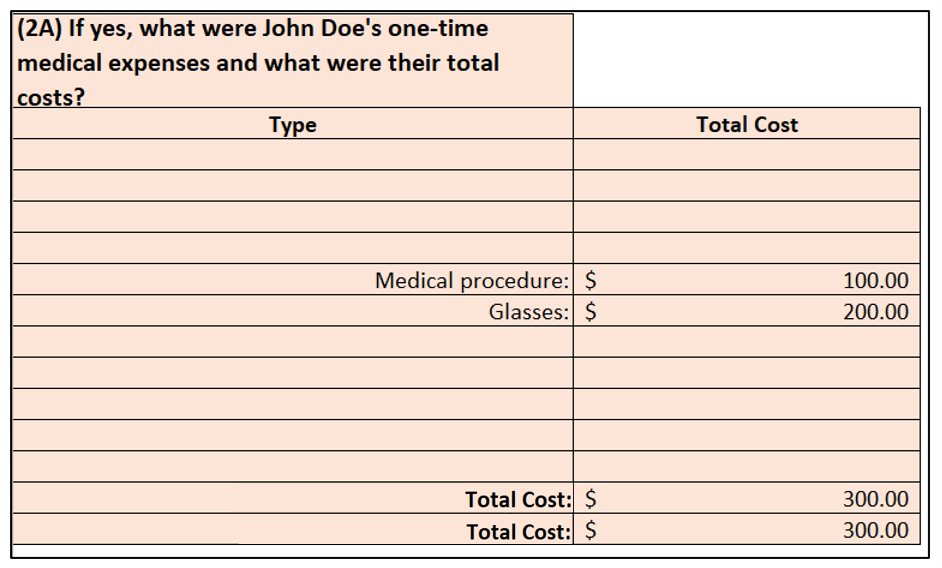
- If yes, complete Question 2A. Based on the answer, select the appropriate type and enter the total cost. The total monthly cost (D) will display below: View HideView Hide
- If there is another elderly/disabled member in the household, enter their name in the cell underneath the heading “Elderly/Disabled Household Member 2” and repeat steps 2 through 5. View/HideView/Hide
 e
e - Fill out the table at the bottom of the spreadsheet.
- View/HideView/Hide
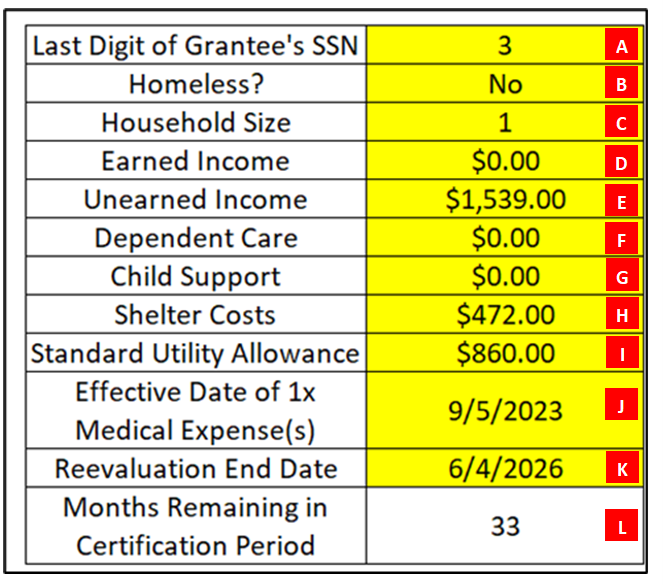
- A. Enter the last digit of the grantee’s SSN. You must enter this because it determines when cyclical months begin and end, which is necessary information for determining how long to prorate a non-recurring expense.
- B. Indicate whether the household is homeless. This is a Yes/No dropdown. Leave blank or select “No” if not homeless.
- C. Enter the household size. This must equal the calculated AU size. Example: If a household of 3 includes someone who was disqualified for an IPV, enter “2.”
- D. Enter the combined total earned income for the entire household. Leave blank or enter “$0” if there is no earned income.
- E. Enter the combined total unearned income for the entire household. Leave blank or enter “$0” if there is no unearned income.
- F. Enter the total dependent care costs for the entire household. Leave blank or enter “$0” if there are no dependent care costs.
- G. Enter the total legally obligated child support costs for the entire household. Leave blank or enter “$0” if there are no legally obligated child support costs.
- H. Enter the total shelter costs for the entire household. Example: If the mortgage is $450 per month, taxes are $300 per quarter, and home insurance is $600 per year, you must enter $600 (i.e., $450 + $300/3 + $600/12). Leave blank or enter “$0” if there are no shelter costs.
- I. Enter the Standard Utility Allowance. Select from one of three dropdown options, which will equal the current SUA for heating/cooling, non-heating, or phone. (Note that the SUA amount displayed in this screenshot was accurate as of the 2022 COLA that was effective 10/1/2022 – 9/30/2023, and therefore does not reflect the current SUA amounts. However, the SUA figures in the actual spreadsheet are updated with each COLA.)
- J. Enter the effective date of the non-recurring medical expense. At application, this will usually be the application date. At recertification or IR, the Start Date will be the effective date of the new certification period (following the completion of a recertification) or the first day of the second half of the certification period (following the completion of the IR). At case maintenance, this will be the first day of the next cyclical month.
- K. Enter the reevaluation end date. Refer to Certification Type Overview to determine the length of the household’s certification period.
-
Important: Non-recurring medical expenses may not be averaged past the end of the certification period. ExampleExample
-
- L. By entering the effective date of the non-recurring medical expense and the reevaluation end date, the number of months remaining in the certification period will automatically appear.
- View/HideView/Hide
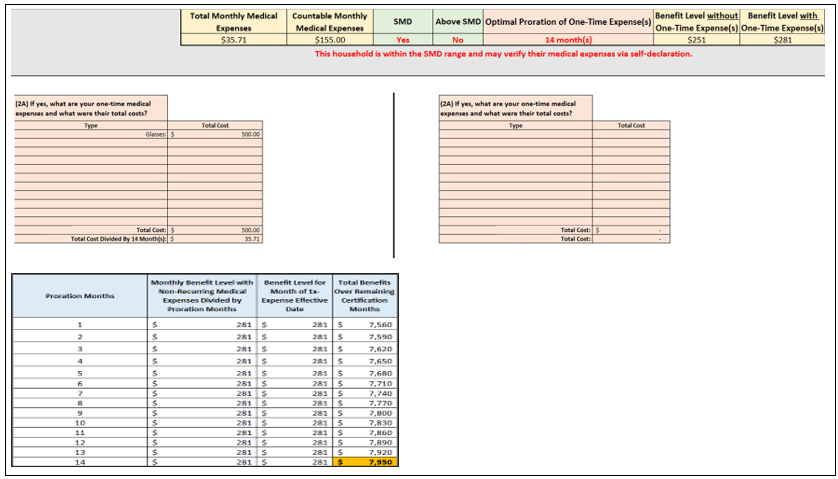
- The spreadsheet will then automatically calculate the best number of proration months. The result will appear at the top of the spreadsheet under the field Optimal Proration of 1x Expense(s) and in a table below the spreadsheet. View/HideView/Hide
Averaging Example
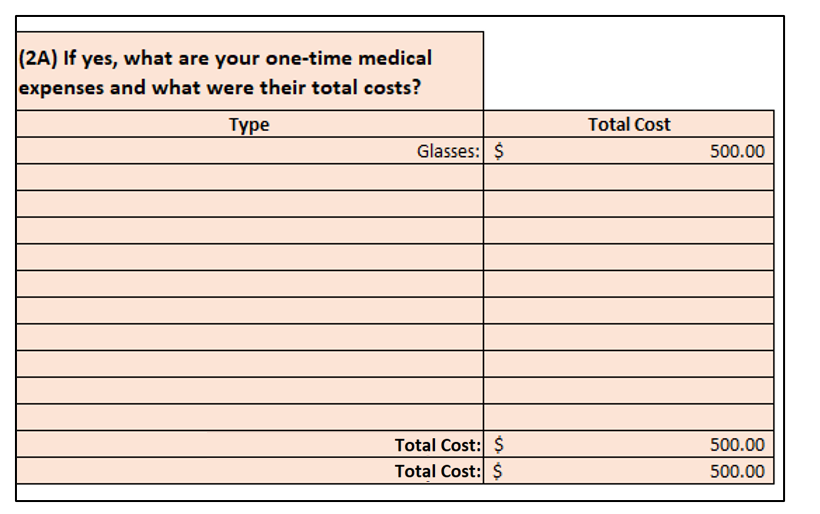
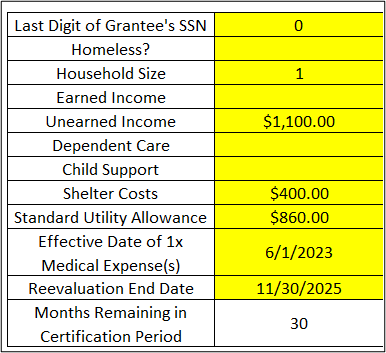
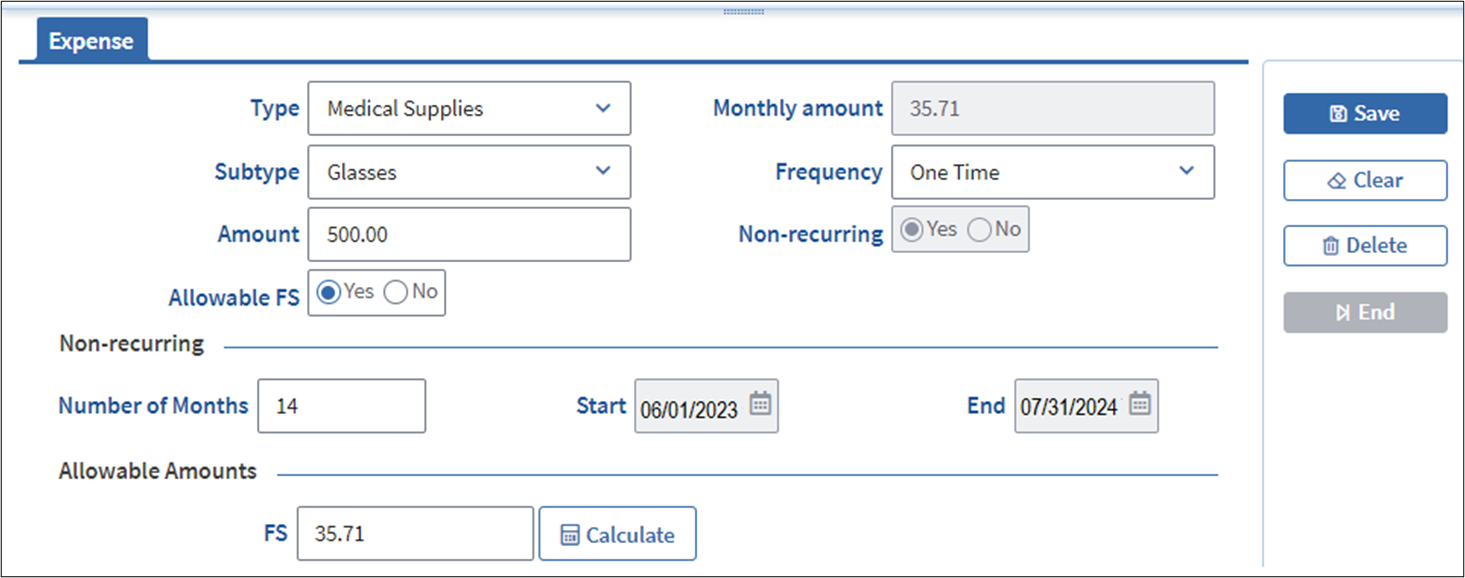
Household of one. Client is 65 years old. The last digit of their SSN is “0.” Client was initially certified as an EDSAP household with a reevaluation end date of November 30, 2025. Client receives monthly RSDI in the amount of $1,100.00, pays $400.00 for rent and is credited for the Heating/Cooling SUA. Client reports and verifies a one-time medical expense that will be effective in BEACON on June 1, 2023. The one-time expense is an eyeglass expense of $500.00.
Based on this example, the following entries are to be made under Question 2A: View/HideView/Hide
The following entries must be made in the table at the bottom of the Optimal Proration Tool: View/HideView/Hide
This result is that the $500 eyeglass expense must be divided by 14 months: View/HideView/Hide
You must make the following entries in BEACON: View/HideView/Hide
If a Household Will Receive Max Benefits Regardless of Non-Recurring Expense(s)
Sometimes, a household with non-recurring medical expenses will qualify for the maximum SNAP allotment for their household size even if the non-recurring medical expenses are not counted. If this occurs, you must prorate the non-recurring medical expense(s) to apply the SMD for the longest period of time within the certification period. This way, if the household’s circumstances change (e.g., decrease in shelter expenses), the medical expense on file can potentially mitigate the adverse action.
Important: This does not apply to expedited periods. For more information, see the Counting Non-Recurring Expenses During Expedited Periods section below.
For non-expedited periods, if you enter a non-recurring medical expense(s) in the Optimal Proration Tool and the tool calculates that the household will receive their maximum SNAP allotment regardless of the non-recurring expense, the Optimal Proration of One-Time Expense(s) field will display the divisor that brings the monthly cost closest to (but not under) $35.50 per month. The tool will also display the message: “This household will qualify for the maximum SNAP allotment even if the non-recurring medical expenses are not counted.”
See the sample below: View/HideView/Hide
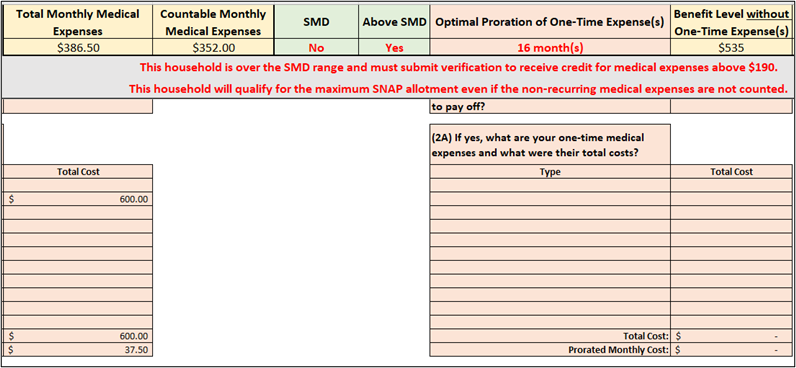
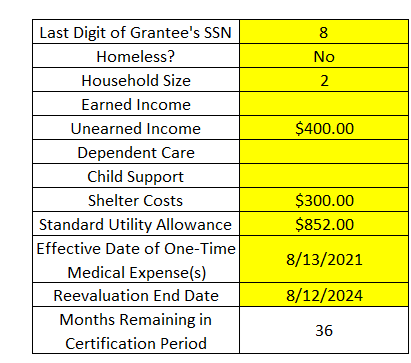
In this sample, there are 36 months left in the certification period, and the household has a non-recurring medical expense of $600. However, the household will receive the maximum SNAP allotment even if the non-recurring medical expense is not counted. Based on the months remaining in the certification period, the longest amount of time for which the $600 non-recurring expense can produce the SMD is 16 months (i.e., $37.50 per month, as more than 16 months will bring the monthly total under $35).
Note: If you have macros enabled, a pop-up will display saying the following:
This household will qualify for the maximum SNAP allotment even if the non-recurring medical expenses are not counted.
However, to credit the SMD for the longest period of time, enter the non-recurring medical expenses for 16 month(s). This way, if the household's circumstances change over the next 16 months, they will still get the SMD.
For more information, see Enabling Macros in the Optimal Proration Tool.
Counting Non-Recurring Expenses During Expedited Periods
If a SNAP applicant is claiming a non-recurring expense and they qualify for expedited benefits, you must credit them with the non-recurring expense for the expedited benefit period. Prior to approving the expedited benefits, you must do the following:
Note: If you know that the household will qualify for the maximum SNAP amount for their household size even if non-recurring medical expenses are not credited, then you do not have to count the non-recurring expense for the expedited period. If this does not apply and you will credit the non-recurring expense for the expedited period, it is recommended that you use a piece of paper to work through these steps and record the results of each calculation step.
- Use the Optimal Proration Tool to determine the optimal number of proration months.
- Divide the total non-recurring expense amount by the optimal number of proration months (determined in Step 1).
- Enter the result of Step 2 in the field for Amount.
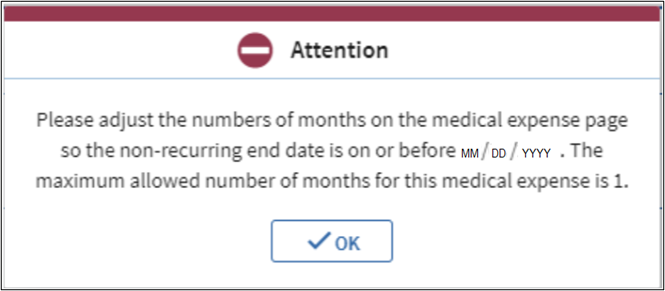
- Enter “1” for in the field for Number of Months.
- If you do not, BEACON will generate the following pop-up message: View/HideView/Hide
- If you do not, BEACON will generate the following pop-up message: View/HideView/Hide
- If the applicant provides the missing verifications and is subsequently approved for SNAP benefits after the expedited period, you must do the following:
- Subtract the result of Step 2 (the total non-recurring expense divided by optimal number of proration months) from the total non-recurring expense amount.
- Enter the result of Step 5 in the field for Amount.
- Subtract 1 from the total non-recurring expense divided by optimal number of proration months.
- Enter the result of Step 7 in the Number of Months field.
Example
Joe (he/him) is 70 years old and his SSN ends in “0.” Joe filed for SNAP on February 3, 2024. Joe’s only income is $1,550 per month in RSDI, and he has no liquid assets. Joe’s rent is $700 and he is responsible for all utilities. Joe says he also has a one-time expense of $650 for a medical procedure. Since Joe is an EDSAP client, the optimal proration of his one-time expense over the 36-month certification period is 18 months. Joe qualifies for expedited benefits because his total income is $1,550, and his rent + SUA is $1,552.
- Use the Optimal Proration Tool to determine the optimal number of proration months.
- The optimal proration of the $650 expense is 18 months. View/HideView/Hide
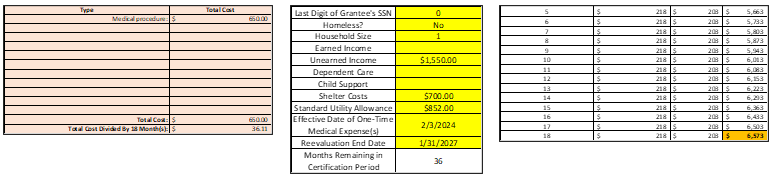
- The optimal proration of the $650 expense is 18 months. View/HideView/Hide
- Divide the total non-recurring expense amount by the optimal number of proration months (determined in Step 1).
- As displayed in the Optimal Proration Tool, $650/18 = $36.11
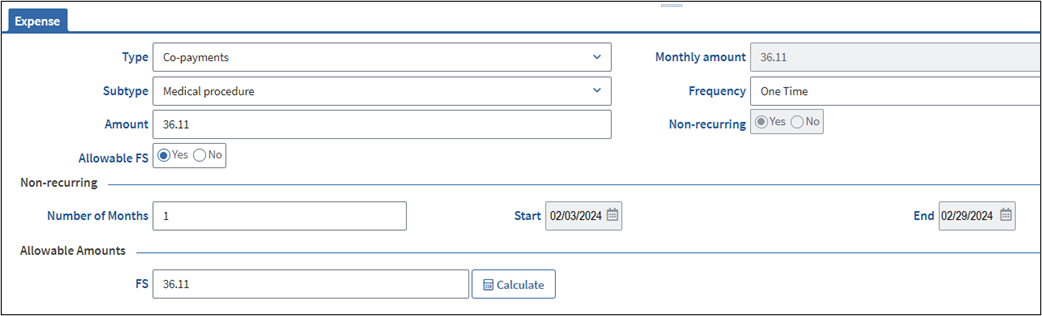
- Enter the result of Step 2 in the Amount field.
- $36.11 is to be entered for Amount.
- Enter “1” for in the field for Number of Months. View/HideView/Hide
- Joe subsequently provides the outstanding verification before the 30th day of his application period.
- Subtract the result of Step 2 (the total non-recurring expense divided by optimal number of proration months) from the total non-recurring expense amount.
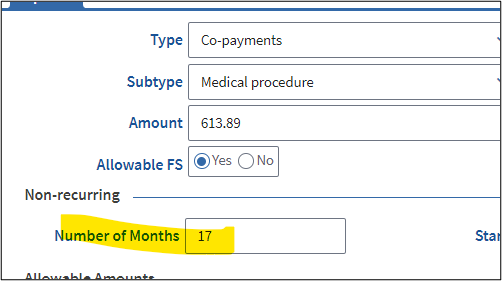
- $650 - $36.11 = $613.89
- Enter the result of Step 5 in the Amount field.
- Take the total non-recurring expense divided by the optimal number of proration months, and subtract 1.
- 18 – 1 = 17 Months
- Enter the result of Step 7 in the Number of Months field. View/HideView/Hide
Processing New Non-Recurring Expenses with Non-Recurring Expenses on File
During case maintenance, if a household is currently receiving credit for a non-recurring expense and they submit a new non-recurring expense, you must apply the steps per the following example.
Example
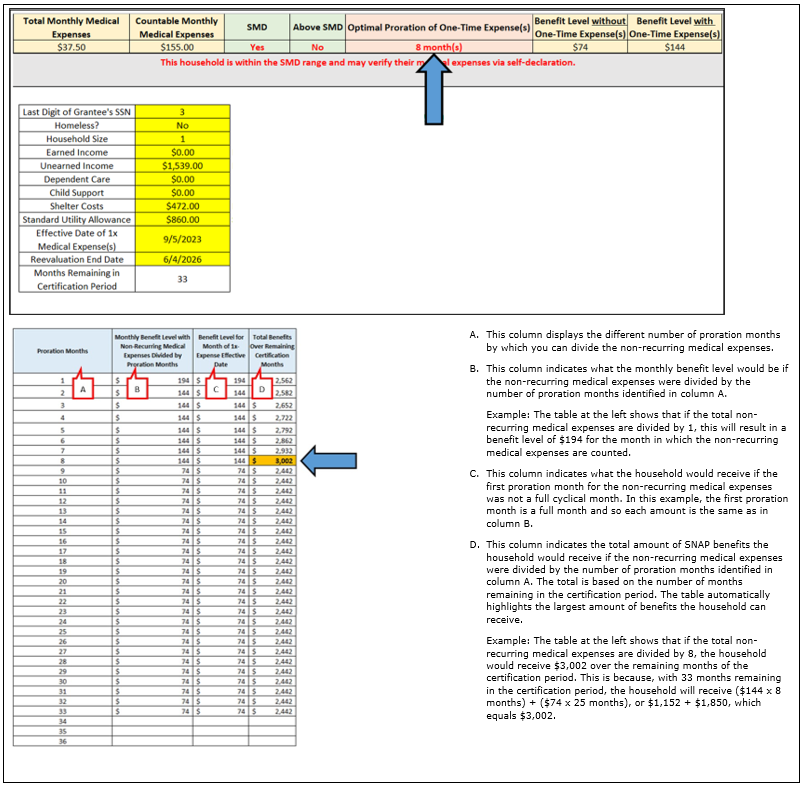
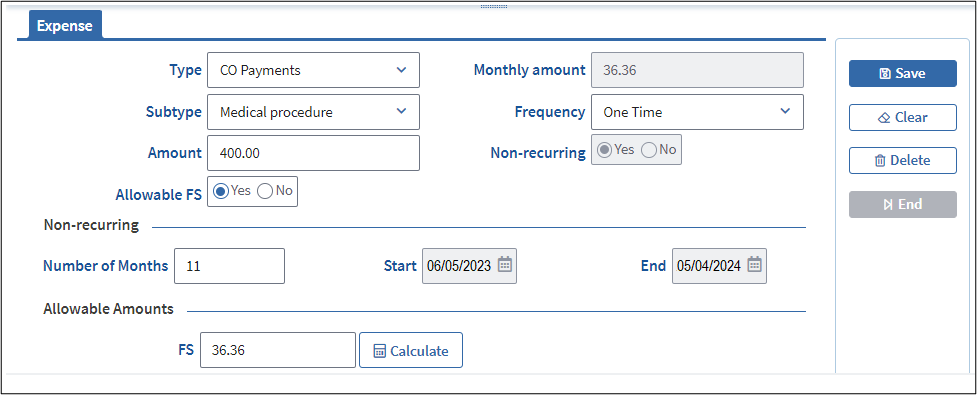
Jane (she/her) is 65 years old and receives $144 per month in SNAP benefits as a household of 1. Jane was approved for SNAP with a certification period from June 5, 2023, through June 4, 2026. She was credited with a one-time medical procedure for $400, which was divided by 11 months and credited until May 4, 2024. The monthly proration amount of the one-time expense is $36.36 (i.e., $400 divided by 11). View/HideView/Hide
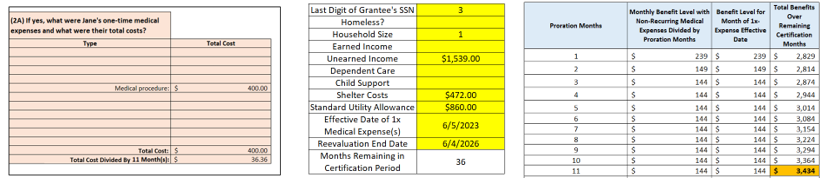
In August, Jane submits a one-time bill for eyeglasses totaling $125. This new non-recurring medical expense will be effective on September 5, 2023.
- Check the number of months for which the existing non-recurring medical expense(s) has been credited so far.
- When the new expense is credited for September, Jane’s one-time bill for the medical procedure will have been credited from June 5 through September 4, a total of three months.
- Multiply the result of Step 1 by the monthly proration amount of the existing non-recurring medical expense(s). In this example, the monthly proration amount of the existing non-recurring expense is $400 divided by 11 months, or $36.36.
- $36.36 x 3 months = $109.08
- Subtract the result of Step 2 from the total amount of the existing non-recurring medical expense(s).
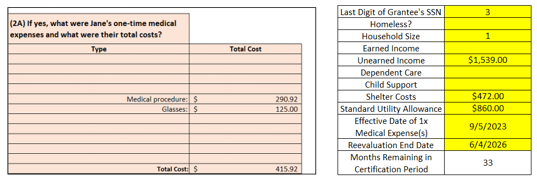
- $400 - $109.08 = $290.92
- Change the amount of the existing non-recurring medical expenses to the result of Step 3.
- You must change the amount of the one-time medical procedure in BEACON to $290.92
- Enter the total amount of the new non-recurring medical expense following the steps in the Entering Non-Recurring Medical Expenses section of this page.
- You must create a separate record in BEACON for the eyeglasses and enter the full amount of $125. View/HideView/Hide
- You must create a separate record in BEACON for the eyeglasses and enter the full amount of $125. View/HideView/Hide
- Follow the steps in the Using the Optimal Proration Tool section of this page to determine the best average for the new non-recurring expense amount over the remaining months of the certification period.
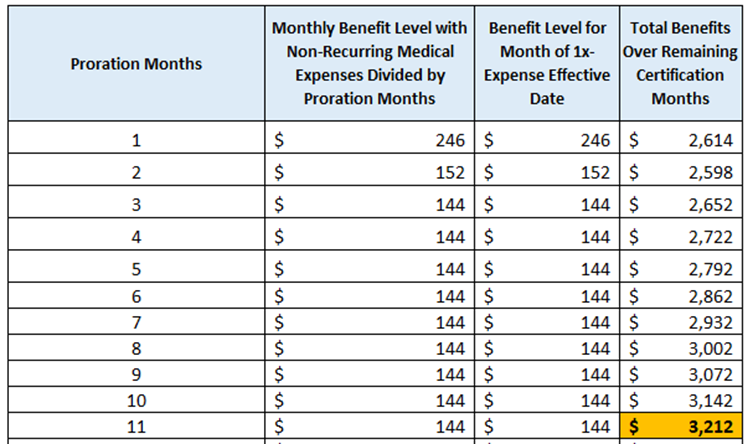
- In this case, the best proration for $290.92 + $125 over the remaining 33 months of the certification period (from September 5, 2023, through June 4, 2026) is 11 months, or $37.81 per month. BEACON will automatically remove both non-recurring expenses for August 2024. View/HideView/Hide
- In this case, the best proration for $290.92 + $125 over the remaining 33 months of the certification period (from September 5, 2023, through June 4, 2026) is 11 months, or $37.81 per month. BEACON will automatically remove both non-recurring expenses for August 2024. View/HideView/Hide
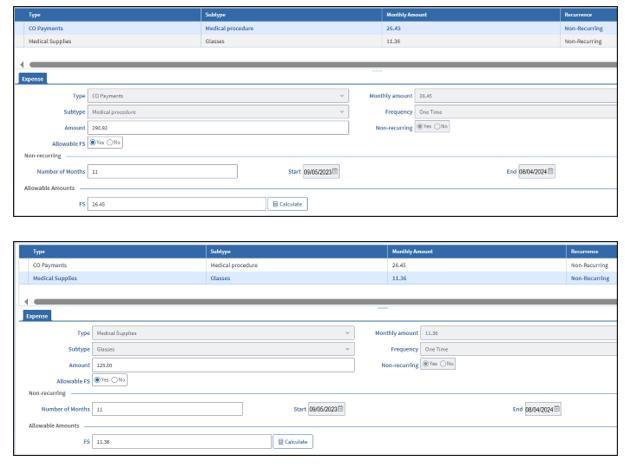
- Make separate entries in BEACON for the Medical procedure and Glasses. For both items, enter “11” for Number of Months: View/HideView/Hide
Client Selection of Different Proration Options
When determining the optimal proration of a non-recurring medical expense, you must always enter the amount that will result in the client getting the most benefits. However, if the client subsequently contacts DTA and says that they want the non-recurring medical expense to be prorated differently, you must do what the client prefers (e.g., if the client would rather have higher monthly benefits for a shorter time instead of lower monthly benefits for a longer time).
In this scenario, you must utilize the Optimal Proration Tool to determine and inform the client about their options.
When a Client Makes a Later Request for New Proration
If you already prorated a non-recurring medical expense and the client requests a different proration several months after it was credited, you must follow these steps:
- Multiple the monthly proration amount (of the non-recurring expense) by the number of months for which it was already credited.
- Subtract the result of Step 1 from the full value of the non-recurring expense.
- Enter the result of Step 2 in the Optimal Proration Tool to determine the best way to prorate the uncredited value of the non-recurring expense over the remaining months of the certification period.
- Inform the client of their options and let the client choose the number of proration months.
Example
Arthur (he/his), whose SSN ends in “0,” applied for SNAP benefits on 2/1/24. Arthur is a household of 1, and his only income is RSDI for $1,250 per month. His rent is $400 per month and he pays all utilities separately. Arthur submits a one-time bill of $2,000 for dentures. The proration that allows Arthur the highest credit for the $2,000 bill is 36 months, i.e., $55.56 per month. Arthur’s SNAP case gets approved at $263 per month and certified for 36 months. Four months later, Arthur contacts DTA to ask that the one-time expense be divided by a smaller number of months, because he wants more SNAP benefits over a shorter period. The FAW must follow these steps:
- $55.56 (i.e., $2,000/36) x 4 months = $222.24
- $2,000 – ($55.56 x 4 months) = $2,000 - $222.24 = $1,777.76
- Enter $1,777.76 into the Optimal Proration Tool: View/HideView/Hide
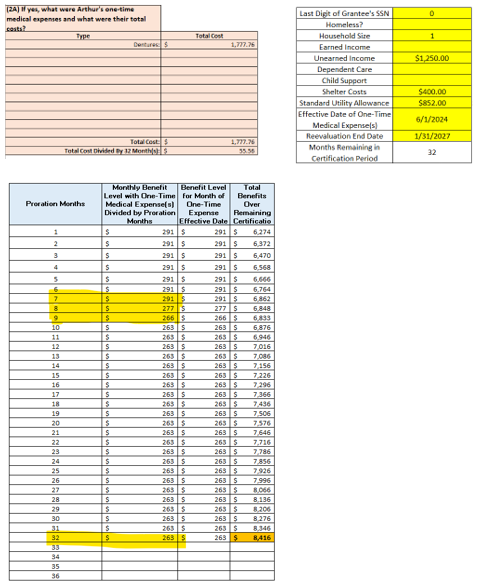
- Inform Arthur that dividing by the number of months remaining in the certification period will still give him the most SNAP benefits, but that he also has the option to get $291 (the maximum allotment for 7 months), $277 over the next 8 months, or $266 over the next 9 months.
SMD vs. Actuals Based on Proration Option
If the client’s proration request brings their total monthly medical expenses above $190, you must clearly advise the client that documentary evidence will be required before we allow the proration. You must also explain that only a self-declaration is required if they choose a proration that makes their total monthly medical expenses less than or equal to $190. See Standard Medical Deduction Waiver.
Deferring Credit to Next Certification Period
If there are only a few months left in the certification period and the household submits a non-recurring medical expense, you must consider whether the client would benefit more from applying the expense over a higher number of months in the next certification period, rather than over the few remaining months in the current certification period.
In this scenario, you must ask the client what their preference is, and make it clear that these expenses may be applied at the next recertification. The client must also be told that they must respond and complete their next recertification so that these medical expenses may be applied to the next certification period.
Action: DTA Connect – Medical Expense Non-recurring
During case maintenance, if a client uses DTA Connect to report non-recurring medical costs, BEACON will create the Action, DTA Connect – Medical Expense Non-recurring, for a FAW to review. If you receive the DTA Connect – Medical Expense Non-recurring action, you must follow these steps:
- Enter the client’s ECF and open the Medical Expense page.
- Review the non-recurring medical expense that the client reported on DTA Connect. The bottom of the Medical Expense page will display that the item was entered by “WebAppCa.” The page will display the type and amount of the non-recurring medical expense that the client reported on DTA Connect. This information will also be available in the DTA Connect datasheet, which is accessible from the Client Communication page in BEACON.
- Use the procedures in the Using the Optimal Proration Tool and/or Processing New Non-Recurring Expenses with Non-Recurring Expenses on File section(s) of this page to determine the best number of months over which to prorate the non-recurring medical expense(s) that the client reported on DTA Connect.
- Enter the result of Step 3 in the Number of Months field in the Medical Expense page.
- If the result of Step 3 makes the household’s total medical expenses less than equal to $190 per month; wrap the case, recalculate the benefits, and write a detailed narrative.
- If the result of Step 3 causes the household’s total medical expenses to go above $190 per month, proceed to the next step.
- Check whether the household is already receiving the maximum SNAP allotment for their household size.
- If the household is already receiving the maximum SNAP allotment for their household size, attempt to cold call the client two times. If both calls are unsuccessful; write a narrative, do not send a VC-1, and disposition the Action.
- If one of the calls is successful, explain to the client that:
- they must submit medical expense verification to be fully credited for what they reported on DTA Connect;
- they will not benefit from verifying medical expenses at this time due to already receiving max benefits; and
- they can still submit the verification if they want the information on record to potentially offset future changes that would otherwise decrease their benefit level.
- Write a narrative and do not send a VC-1.
- If the household is not already receiving the maximum SNAP allotment for their household size, proceed to the next step.
- If one of the calls is successful, explain to the client that:
- Check if the household is already receiving a medical deduction (i.e., SMD or Actuals).
- If the household is already receiving the SMD, send an optional VC-1 for all medical expenses.
- Write a narrative confirming that the client is already receiving the medical deduction and will be credited with additional medical expenses if they submit the optional verification.
-
Reminder: If the household is already credited with medical expenses above $190 per month, you only need to request proof of the new non-recurring expense that the client reported on DTA Connect. In this scenario, the verification of all other medical expenses should be on record.
- If the household is not already receiving the SMD, proceed to the next step.
- Send an optional VC-1 for all medical expenses.
- Mark as verified (via self-declaration) any portion of the medical expenses that are less than or equal $190 per month. If applicable, use the SMD Verified procedures detailed in Standard Medical Deduction Waiver.
- Wrap the case and recalculate the benefits to credit the household with the SMD.
- If the client subsequently follows up with the verification, the FAW who receives the Action to review the documents must add them to the BEACON record (based on the medical information displayed on the verification), mark the outstanding items as verified, and recalculate the benefits.
Last Update: September 24, 2026
|
|
|
||
| Digital Accessibility Statement | Privacy Policy | Site Policies | Public Records Requests |
|
© 2026 Commonwealth of Massachusetts. Mass.gov is a registered service mark of the Commonwealth of Massachusetts. |
|||

