An official website of the Commonwealth of Massachusetts Here's how you knowHere's how you know

Replacing a Check EAEDC
Certain clients receive EAEDC benefits by check. See Checks – EAEDC. Occasionally these checks are lost, stolen, destroyed or forgotten and expire after 90 days. If one of these circumstances occurs, a client may request a replacement check.
Before submitting a request to replace a check on behalf of a client:
- If the check is less than 90 days old and if the check is not received by the client, wait four days from the issuance date to determine if it is just a late delivery or if it needs to be replaced
If the check is more than 90 days old (stale dated), the director or designee must approve or deny the replacement.
- If the check is not returned to the Department, the director or designee may approve the replacement request or may deny the replacement. If denied, the client must be issued an NFL-5 – Notice of Denial of Application with the denial reason.
- Situations when the director or designee may approve the replacement request include, but are not limited to, temporary absence, hospitalization, or an emergency that would prevent the client from cashing his or her check within 90 days.
- If the check is uncashed and returned to the Department, the director or designee must approve the replacement.
Check Replacement Request Procedures
If a client calls to report their check for EAEDC benefits is lost, stolen, destroyed or stale dated (90 days past its expiration date).
The case manager must generate a centrally printed VC-1 and a Request for a Replacement Check (FCB-1) form. The form will be populated with the client’s name, address, AP ID and program
- Go to the Verification tab
- Go to the User-Entered function and select New. The User Entered Verification popup will appear
- Select the grantee from the Client drop-down
- Select Request for a Replacement Check from the Element drop-down
- Click Save to save your edits and add the optional verification to the VC-1
- Close the User Entered Verification popup
- On the Verification tab, select the Print VC-1 button. The Print Documents popup will appear
- Select the grantee receiving EAEDC. The Value will say Request for a Replacement Check
- Select the client receiving EAEDC on the Verification Checklist
- Select the User Entered Verification of Request for a Replacement Check
- Select Central as the Print Destination
- Select Generate. A message will state “Your request for Central Printing has been accepted.” This will send the FCB-1 to the client
- Click OK, then close the Print Documents popup
- Write a detailed Narrative explaining the actions taken
Important: When selecting Request for a Replacement Check from the Element drop-down, the following will be grayed out:
Value drop-down;
Details field; and
All Programs.
The Documents of Evidence field will be unavailable.
- Upon receipt, the client must complete and return the form, including the check amount, date, number, and the reason the check must be replaced. If they want an invoice (a voucher for food or shelter while awaiting the replacement check) the client must check this box on the form. The client must sign the FCB-1 and return it
- If the check was cashed by another person, the client’s case manager will notify the Benefit Issuance Unit (BIU) at DTA-DL-BenefitIssuance@MassMail.State.MA.US. BIU will mail the client a form that needs to be filled out and a pre-addressed stamped envelope. The client must return the completed form to the BIU
- after receiving the scanned FCB-1, the case manager or other TAO staff must forward it to the designated supervisor, director or assistant director who must email the scanned document to the BIU, DTA-DL-BenefitIssuance@MassMail.State.MA.US
- the BIU approves or denies the request using the Check Replacement Request page. Replacement requests are denied if the original check has been cashed, or if it has already been replaced. The BIU will stop payment on every original check that is replaced.
- If the BIU approves the request, the replacement check will be processed within 12 days. The case manager will not be notified
- If the BIU denies the request, they must notify the case manager via email. The case manager must record the denial of the replacement request in the Narrative and mail a Notice of Denial of Application (NFL-5) to the client.
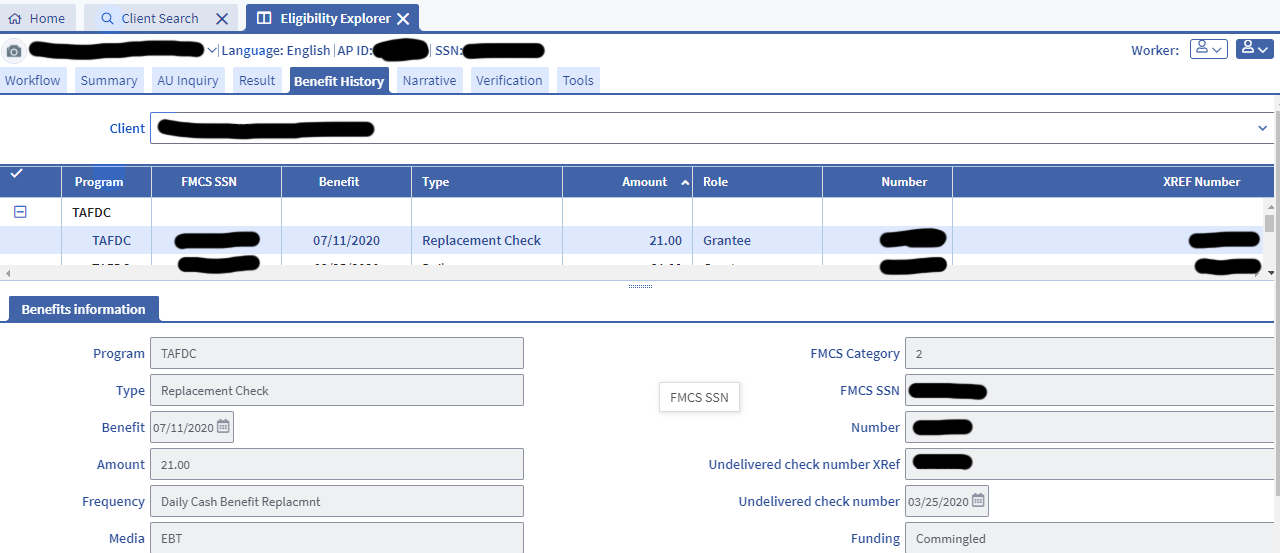
Case managers can identify replacement checks and data about the checks on the Benefit History tab, which is found in the Eligibility Explorer tab.
After selecting the Benefit History tab, click the relevant Replacement check. In the Benefits information tab at the bottom of the Benefit History tab, the Undelivered Check Number XRef field will display the check number of the original check if it has been replaced. The Undelivered Check Number field will have the date of replacement if the check was replaced. The Number field has the number of the replacement check. The Benefit field shows the date of the replacement check. View/HideView/Hide
Last Update: April 1, 2021
|
|
|
||
| Digital Accessibility Statement | Privacy Policy | Site Policies | Public Records Requests |
|
© 2026 Commonwealth of Massachusetts. Mass.gov is a registered service mark of the Commonwealth of Massachusetts. |
|||

