An official website of the Commonwealth of Massachusetts Here's how you knowHere's how you know

How to Read a Social Security Card
When a new person is added to BEACON, their Social Security Number must be verified by SVES. If you are having trouble finding a match, requesting a copy of a client’s Social Security (SS) card can help ensure name and SSN information are entered accurately.
Reminder: Social Security Cards are not required to verify SSN. They can be used to verify Identity for a grantee, however. Social Security Cards can only be specifically requested when there is a problem verifying the SSN with SVES.
Reading a Social Security Card
Social Security cards display information as it exists in the Social Security Administration database. They display the person’s Social Security Number, First name (the “given name”), and Last name (the “family name” or “surname”). Entering these names on the Assessed Person page as they appear on the Social Security card will help ensure a match through SVES. View/HideView/Hide
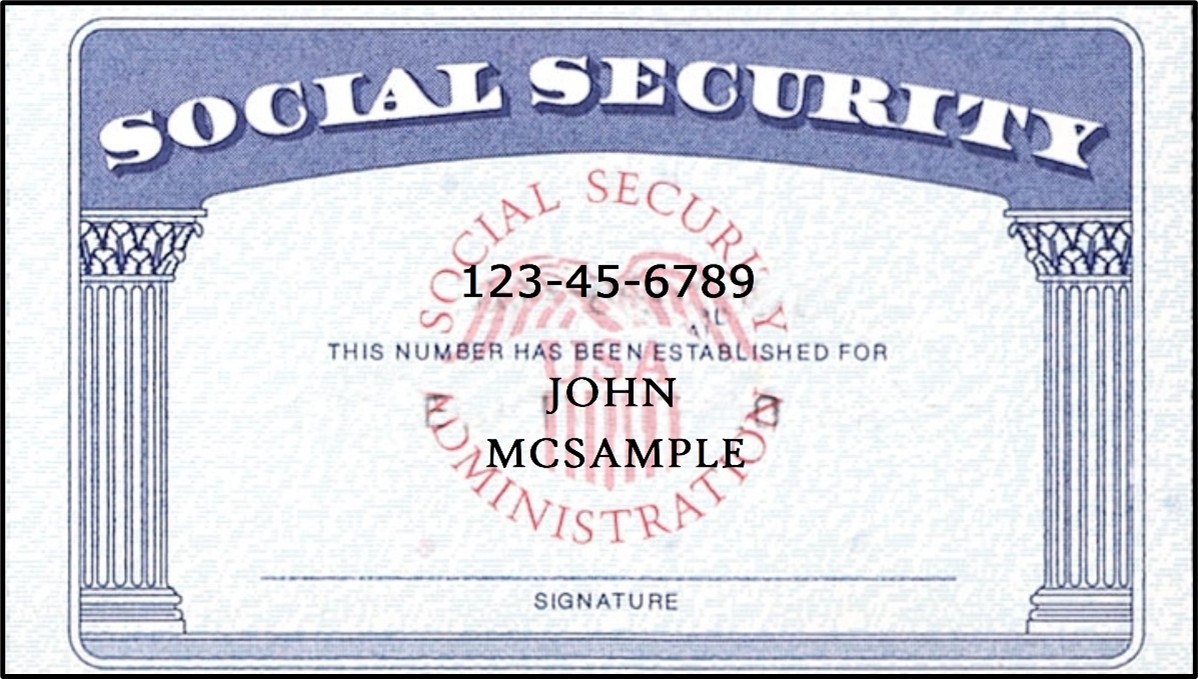
BEACON sends the Name, Date of Birth, and SSN information that is entered into the Assessed Person page to SVES to obtain a match. If this information does not match SSA data, then a mismatch code will be returned. Many times, this is due to a name mismatch.
First, check the Social Security Number in BEACON against the card for any typos. Then, compare the names on the card to the names in BEACON.
Social Security Card Name Rules
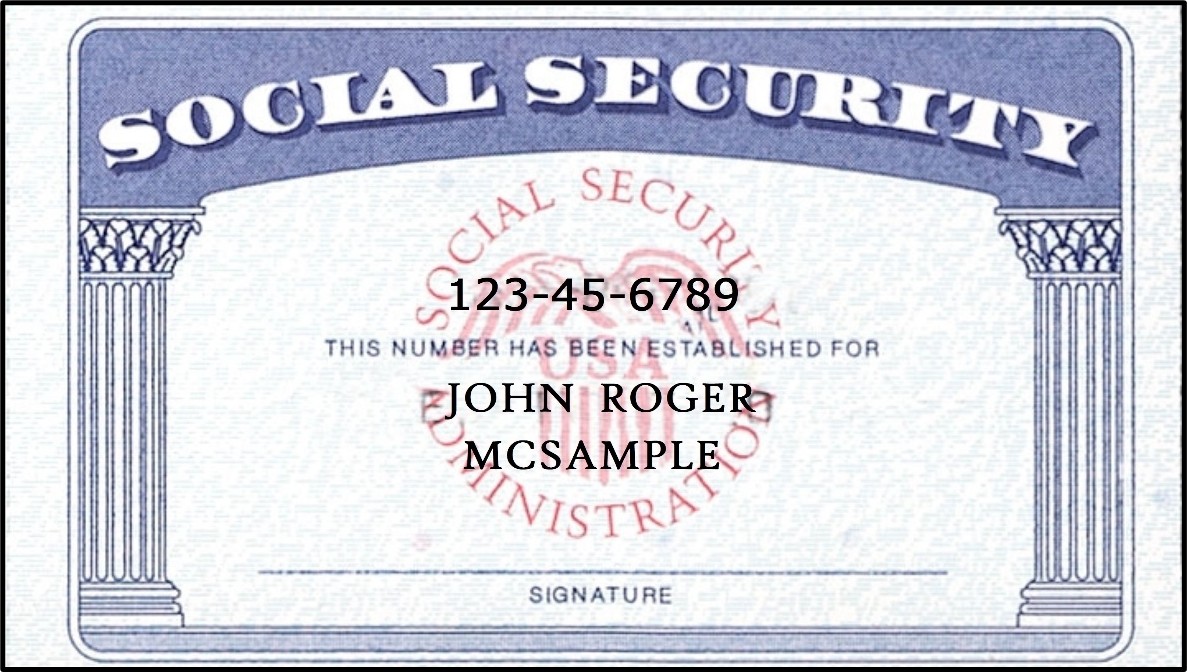
The Social Security Administration prints names on their cards in a certain way. Each card has two lines for names. The top line will always be for the cardholder’s given name, and any middle names. The bottom line will always be used exclusively for the last name(s). In BEACON, the last name must be all names listed on the bottom line of a client’s SS card.
Many clients have three names, usually a given, middle, and last name. The SSA prints middle names, but these are not used as part of the SVES match process. They are grouped together on the top line with any given names. Unless another source indicates that the client has more than one given name, use only the first name as the given name.
Examples
Most of the time, this is straightforward. Below are some visual examples to demonstrate how checking an SS card may clarify incorrect assumptions about what a client’s name is. View/HideView/Hide
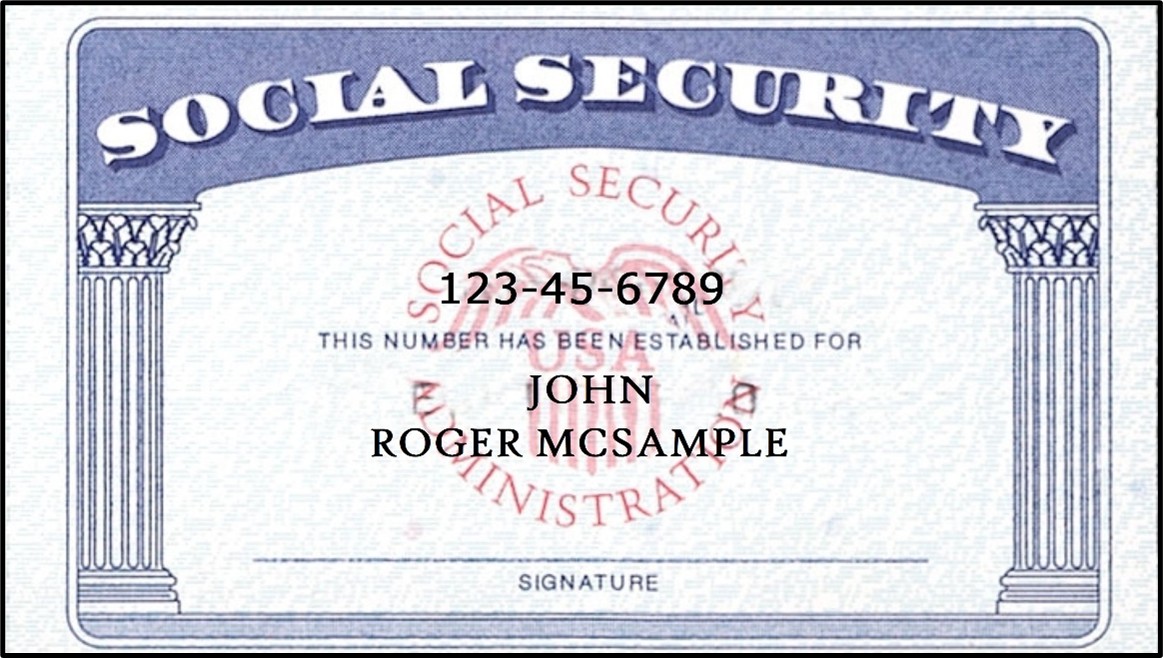
However, many clients have three names, with two last names and no middle name. All last names will be grouped on the bottom line. View/HideView/Hide
Many clients have more than three names. Sometimes, these are multiple first or middle names. Sometimes, these are multiple last names. View/HideView/Hide
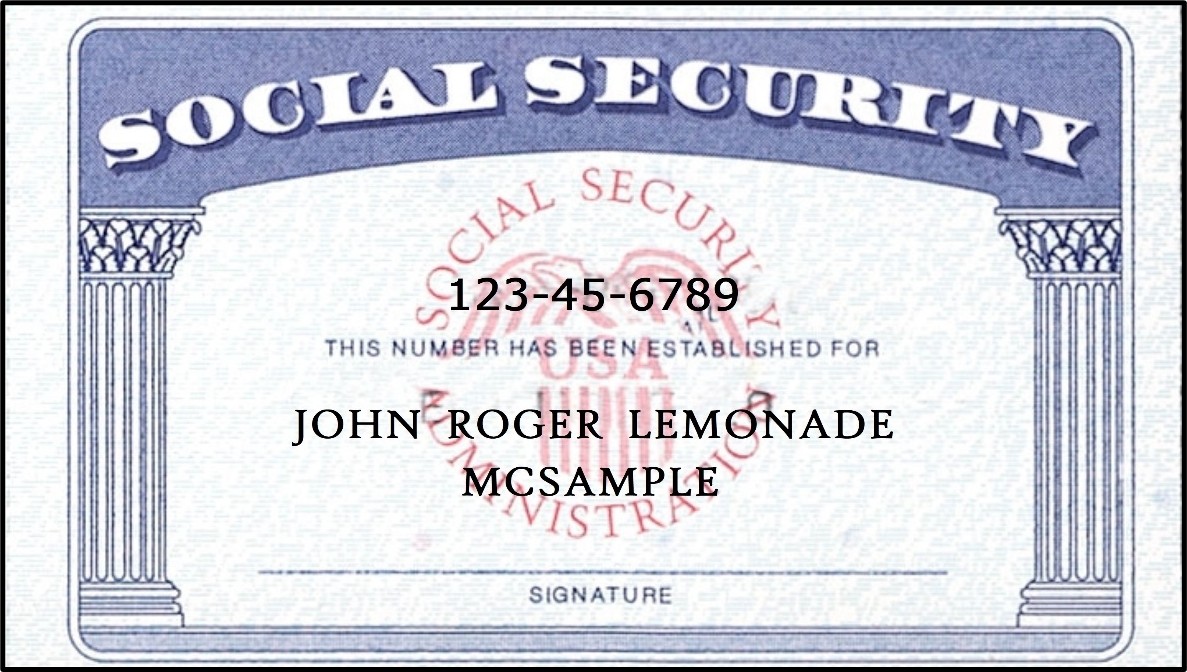
Enter all names that are on the bottom line into the Last Name field in BEACON exactly as it appears on the card. View/HideView/Hide
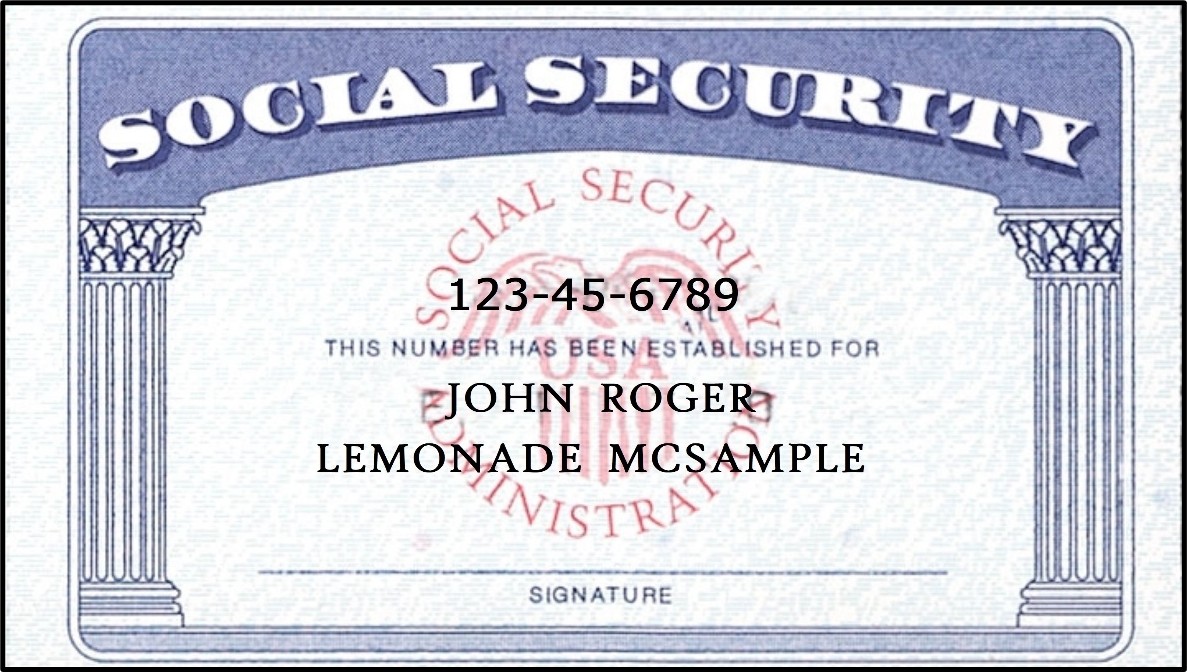
Note: The exception to this is for clients with hyphenated last names. BEACON does not support hyphens (-) in the last name field, so if a hyphen appears on an SS card, it must NOT be included.
Rarely, a client may have more than two last names. Only last names appear on the bottom line of the card; these must all be entered into BEACON under the Last Name field. View/HideView/Hide
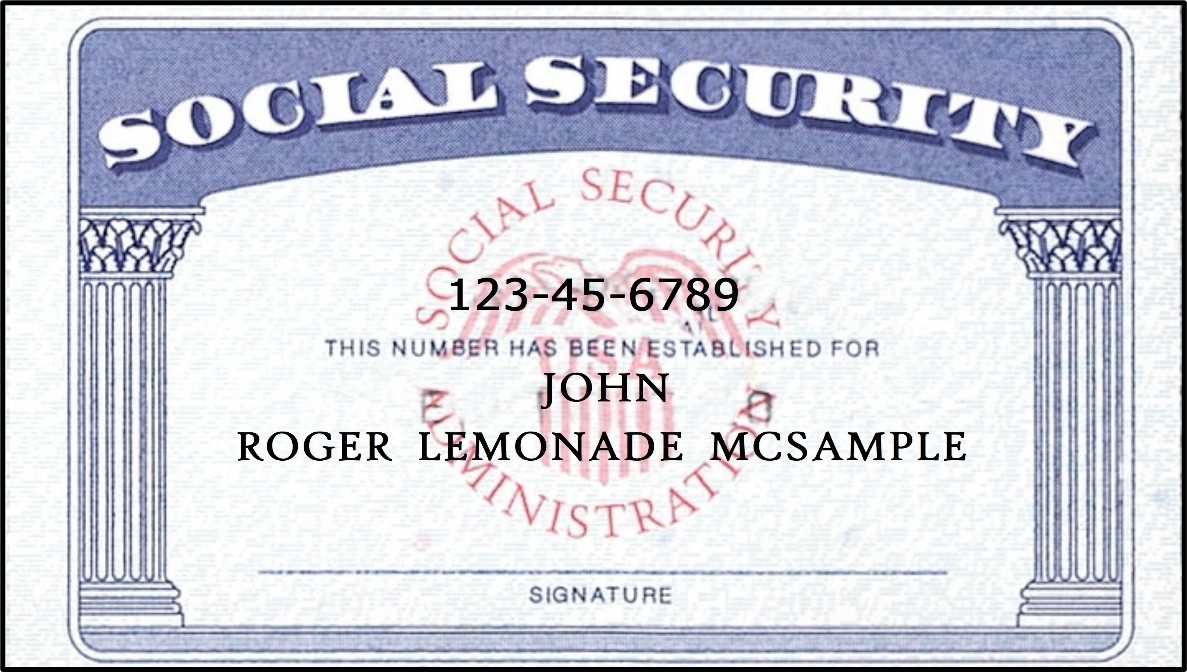
Note: The SSA has a 26-character limit for each line on a Social Security card. However, BEACON has a 20-character limit for the name fields. In the above example, BEACON would only show “Roger Lemonade McSam” as a last name. This is correct. SVES will still match this entry.
Other Information
In addition to name and SSN, SS cards may also have a date listed in the bottom corner. This is the date that this particular card was issued. It is not necessarily the date the SSN was issued. When a card is reprinted, replaced, or updated, this date will change. In most cases, this information is not important to verifying an SSN.
Related Topics
Troubleshooting SSN Mismatches
Social Security Number Policy and Procedures
Last Update: May 5, 2026
|
|
|
||
| Digital Accessibility Statement | Privacy Policy | Site Policies | Public Records Requests |
|
© 2026 Commonwealth of Massachusetts. Mass.gov is a registered service mark of the Commonwealth of Massachusetts. |
|||

