An official website of the Commonwealth of Massachusetts Here's how you knowHere's how you know

Client Communications
Communication History Page
The Department uses multiple methods of communication to give clients information about their benefits, case status and provide important reminders. The Client Communication tab in BEACON is used to track all outgoing client communications in a single location. This tool replaces the former Document History tab which only displayed notices sent to clients. The Client Communication tab allows users to search for and view all outgoing client communications. This tab does not track phone conversations or in-person communication.
Important: All Department communications are displayed on this page. If a client reports a suspicious communication, staff must confirm on this page whether the communication was in fact from the Department. If it is not, a referral must be made to the Program Integrity Unit with details of the incident.
Types of Client Communication
A client can receive communication from the Department through:
- Text messages
- Emails
- Paper notices
- DTA Connect Alerts
- Automated calls
The types of communication the client receives depends on whether the client opts into or out of each method of communication. The Department automatically sends all automated messages and resource campaign messages (email and text) in Spanish, Portuguese, Haitian Creole, Chinese (Simplified), and Vietnamese if their BEACON case file lists one of these as their primary language.
Note: Individual email communication is also available as an ADA Accommodation for clients with disabilities that require additional support in accessing and retaining DTA benefits. Procedures can be found at ADA Accommodation Client Email Communication.
Text Messaging
Clients who provide a valid phone number will automatically be opted into text messaging. However, clients can opt-out of text messaging at any time by:
- Updating their preferences on DTA Connect,
- Replying “Opt Out” if they receive a text message,
- Telling DTA by phone (call 877-382-2363) or in writing, or
- Checking opt-out on certain forms that the Department mails to them.
Important: Clients who block access to online services will still receive texts and emails. Clients must additionally request to opt-out of text messaging and/or emails.
If you receive a client request to opt out of text messaging, you must opt them out by selecting the appropriate reason for opting out in the Phone window in BEACON: view/hideview/hide
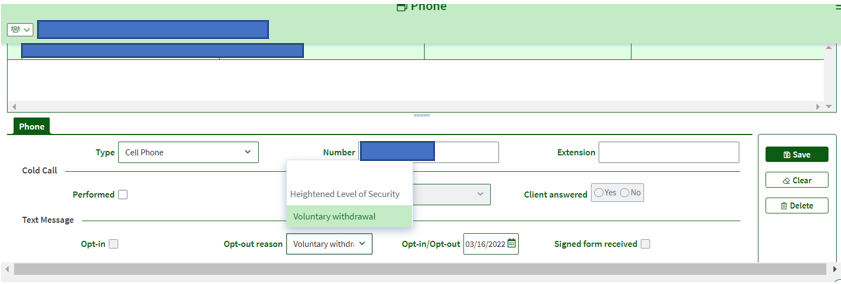
Important: When a client requests Heightened Level of Security (HLS) on their case, they will not receive text messages or emails. In addition, these cases will also have online services automatically blocked. Once HLS is selected, it will override the settings listed in BEACON, but will not update the opting-out for texts and emails.
The Phone page in BEACON will not show an Opt-out reason since the client did not deliberately opt-out, but the status of HLS overrides all settings in BEACON.
If the client opts out of text messaging but then changes their mind, they can update their preferences on DTA Connect, by calling the DTA Assistance Line or by submitting a request in writing. Staff must go into the Phone screen in BEACON and opt the client back into text messaging by checking Opt-in.
Important: Written confirmation is not required for a client to opt back in or opt-out of text messaging.
The Department only sends text messages from 382-674. If a client enquires about a text message they have received, and it is not listed in the Client Communication tab, confirm with the client if the text message was sent from the number 382-674. If this is not the number listed as the contact, tell the client to ignore the message, as it was not sent from DTA. The client may want to save the correct number to avoid confusion in the future. Additionally, you can encourage the client to report the phone number to 1-800-372-8399.
How to Access the Client Communication Page
The Client Communication tab is a standalone page that can be launched from many places within BEACON, including the Client Search tab, the ECF Tools tab, and the AR Referral Search.
- From the launch page (e.g. Client Search), select the client for whom you would like to initiate a communication history search.
- Click the Client Communication icon
 from the launch page; the Client Communication tab will be displayed at the top of BEACON.
 - There are several filters that can be used to target a search for a specific type of communications, such as:
- The Client field will be defaulted to the client searched for from the launch page. You can select any other member of the same household by clicking the drop-down list in the Client field. The search results will display all communications for the selected client.
- The Worker field will be defaulted to blank so that it is not prefiltered. Staff can select a worker name. The search will display all notices associated with the selected worker.
- The From date field defaults to 60 days before the current date. This restricts search results to communications that were created on or after the From date. Staff can change to any date that is not in the future to review communications beyond 60 days.
- The To date field defaults to the current system date, restricting search results to communications that were created on or before the To date. Staff can change to any date that is not in the future.
- The Communication field will default to Notice. If staff need to search client communications for another communication type, they will need to filter to the appropriate communication type (i.e., DTA Connect Alert, Email, DTA Assistance Line, Notice and Text) and the results will display all communications for the selected type. Staff can also select the blank dropdown option to search all client communications.
- The Document field will default to blank so that no filtering will take place. The user can select a document type and the notices returned by the search will only be for the selected type. (Note that the Document filter has no effect on communication types other than Notice since other communication types are not physical documents).
- Click the Search button to search for Documents and/or Communications that fit the search criteria.
- Once you select a document or communication type to review, the item will be presented in a popup detail page.
Last Update: April 24, 2025
|
|
|
||
| Digital Accessibility Statement | Privacy Policy | Site Policies | Public Records Requests |
|
© 2026 Commonwealth of Massachusetts. Mass.gov is a registered service mark of the Commonwealth of Massachusetts. |
|||

