An official website of the Commonwealth of Massachusetts Here's how you knowHere's how you know

Registering Clients in BEACON
Overview
All individuals who enter a Transitional Assistance Office (TAO) must be registered in BEACON, regardless of whether they meet with a DTA staff member. Upon entry to the TAO, all visitors must be greeted and registered. This information is crucial to helping us meet client needs and must be as accurate as possible.
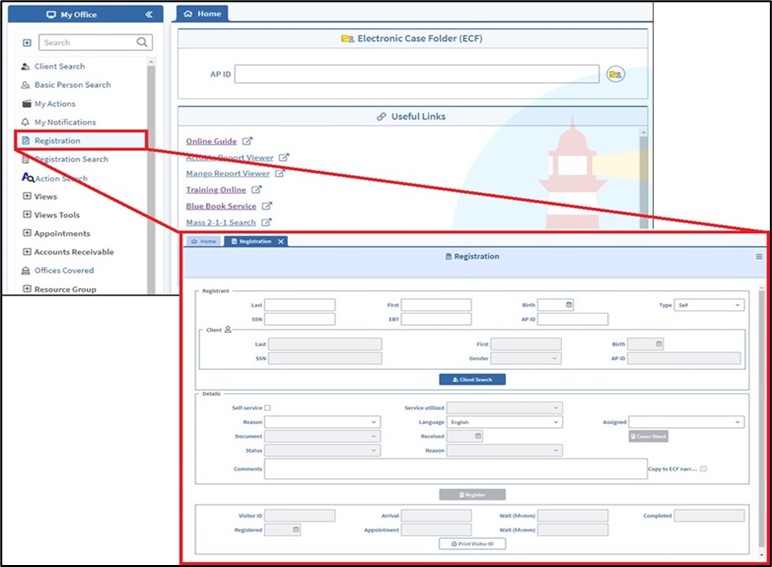
Clients are registered on the Registration page. Staff can search for the client by their Assessed Person Identification Number (APID), Name, or Social Security Number (SSN). They can and then choose a registration reason, and language, and include any useful comments.
Figure 1: BEACON Registration Page. View/HideView/Hide
Staff Assisted Registration
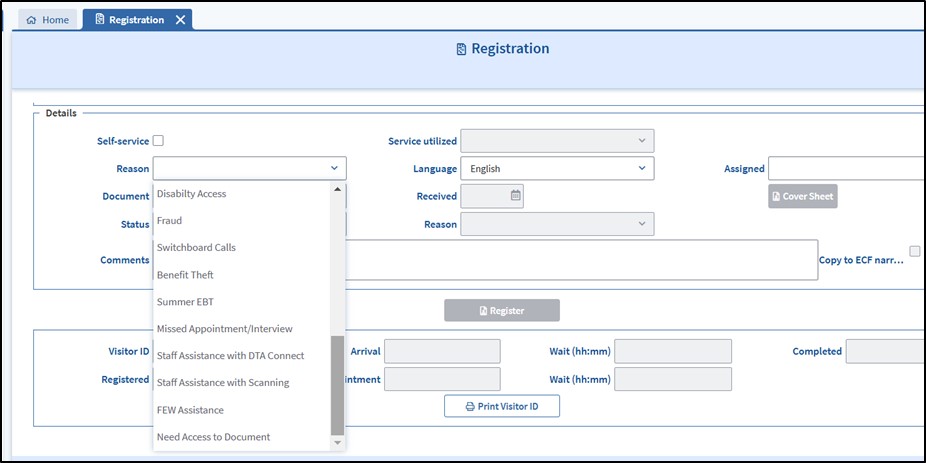
Staff registering clients must select a Reason from the drop-down menu on the Registration page. The list of reasons has been updated to include a wider variety of registration options. Please note, self-service options do not appear on the Reason drop-down list unless the Self-service checkbox is clicked.
By default, the Reason drop down list will show staff assisted reasons. If the client must meet with a staff member, then use this drop down and choose the option that best fits the client’s reason for their visit; a list of Reasons and their descriptions is given below
Figure 2: Reason drop down list of BEACON Registration page. View/HideView/Hide
If a client is registered under a staff assisted reason, the Registration page will prompt front-end staff to assign the registration to a staff member. If the task can be quickly completed from the reception area, staff may assign the registration to themselves or another available front-end staff person.
Additionally, front-end staff will have the capability to assign the registration to all other staff assigned to that TAO regardless of role:
- First Available Worker (FAW)
- Economic Assistance (EA) Case Manager
- Full Engagement Worker (FEW)
- Self Sufficiency Specialist (SSS)
- Domestic Violence (DV) Specialist
- TAO Supervisor
- Client Assistance Coordinator (CAC)
- Supplemental Nutrition Assistance Program (SNAP) Supervisor
- Economic Assistance (EA) Supervisor
- Mixed Supervisor
- TAO Managers (Director and Assistant Directors)
- Other Administrative Office Staff connected to that location
Registrations may be assigned to staff working onsite or remotely, regardless of their current queue (if applicable).
Staff must sign into BEACON promptly at the start of their workday and set their status to Available. This will update the Assigned drop-down list in the Registration page with the applicable staff selections. The front-end team must pick the appropriate staff member based on the nature of the client’s visit.
If staff are not unavailable to assist clients (i.e. they are no longer working, at lunch, attending a training, etc.) they must sign out of BEACON. Their names will no longer appear on the Assigned drop-down list in the Registration page. Staff must be mindful of communicating with the front-end teams if they are going to be unavailable during expected scheduled hours.
Reception Coordinators and TAO Managers will direct their front-end teams to register clients to staff regardless of work location or queue (if applicable) to ensure that in-office clients are being assisted timely.
Clients should be directed to an empty TAO interview room and must be assisted face to face if assigned to an onsite staff person or to await a phone/virtual meeting call if assigned to a staff person working from a remote location. The front-end team must include the room number and phone number of the interview room in the Comments section of the Registration for the assigned staff person to reference.
Registration Notifications and Reminders
All DTA staff have been granted access to the My Notifications page in BEACON. When staff are assigned to provide in-person or remote support to registered clients, they will receive the following pop-up message in BEACON, “You have notification(s).”
Staff may also view their assigned Registrations from the My Notifications page in the My Office tab.
Figure 3: BEACON My Notifications Page. View/HideView/Hide
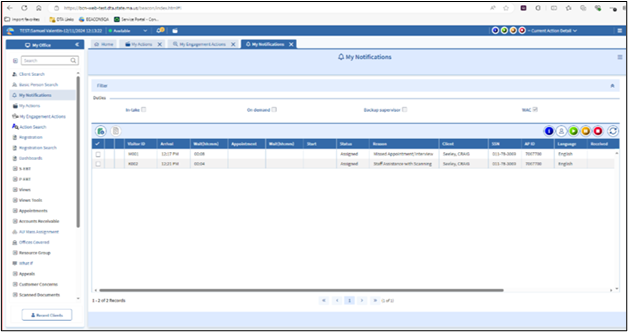
To disposition these tasks, you must select the applicable notification and press the green button to begin work on the case, the orange button if you need to momentarily pause the task, and the red button once the case work has been completed.
Do not click the blue research button. This button does not initiate, pause, or end the assigned notification
Note: For the time being, after being assigned and starting a notification, FAW staff must create an action from the My Actions page in the My Office tab to receive credit for assisting a registered client. FAW do not need to switch from their assigned queue to create this action. The action must be completed and dispositioned before the notification can be ended in the My Notifications page. A future IT enhancement is being programmed to automatically create actions once a notification is started.
If a notification is not started within 15 minutes of being assigned, staff will receive the following reminder message in BEACON, “You have a notification with a wait time of 15 minutes or more. Please reach out to your supervisor if you are experiencing a slight delay.” You are expected to keep lines of communication open between you and your supervisor, so they are kept in the loop with your progress in addressing the client.
If a notification is not started within 30 minutes of being assigned, the staff member’s supervisor will receive the following alert, “The following user(s) have notification(s) with a wait time greater than 30 minutes: {Staff Member’s Name}” These alerts will generate for supervisors until the notification is addressed for the day. Supervisors can also reference the Waiting/Being Served list under the Registrants view to see which of their unit members are currently assigned to assist clients.
Supervisors may reach out to staff to see if additional support is needed and/or discuss whether the original Registration should be reassigned to someone else if their staff is unable to assist the client within a reasonable amount of time. In this situation, TAO Supervisors must email the Reception Coordinator to re-register the client to an available staff member according to their local office procedures.
If the staff member’s Supervisor is not signed into BEACON at the time the alert is created, the message will route to the TAO Management team for follow up. To ensure that alert messages are routed correctly, certain updates need to be made to staff profiles from the TAO Staff Details page in BEACON. This page can be accessed by:
- Going to the My Office tab in BEACON.
- Scroll down to TAO staff.
- Select TAO Staff List.
- Select applicable staff record from the staff list generated.
- Click Worker Info button in upper left-hand corner of staff list generated.
- The TAO Staff Details page will open for that selected individual.
- Scroll down to the Specialties section and unclick “Backup supervisor” checkbox.
- Click Save.
No supervisors are to have the “Backup supervisor” box checked, but all TAO Managers must have this selected in BEACON. In doing so, this will allow alert messages to route to TAO Managers if a staff person’s primary Supervisor is not available and will prevent other supervisors from getting alerts for all TAO staff.
Note: EA case managers may receive an “Appointment Change Request” notification if a client requests a rescheduled appointment date through DTA Connect. Requests made after business hours will be held by BEACON and notifications will be created and appear on an EA case manager’s My Notifications view at the start of the next business day.
Self-Service Registration
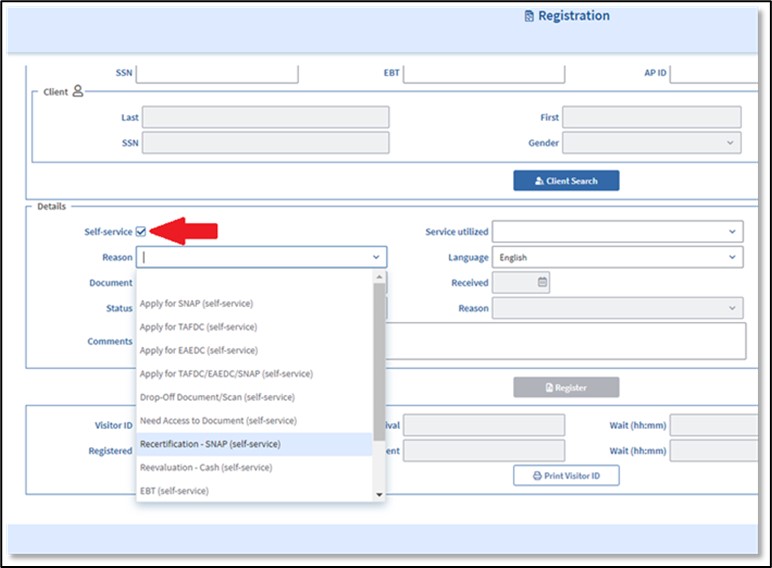
Clients using self-service tools must be registered in BEACON just like any other client. To select self-service reasons, staff must first click the Self-service check box, which will update the Reason drop-down to show self-service options, and then select the appropriate reason for the client’s visit.
All local offices provide self-service tools for clients to use for DTA business. Front-end staff must advise clients about the availability of these options and help clients to use these tools; however, if a staff member devotes focused attention on guiding a client through the use of self-service tools, then this should not be tracked as self-service. Update the registration to the default, staff assisted option.
Figure 4: Self-service drop-down list in BEACON Registration page. View/HideView/Hide
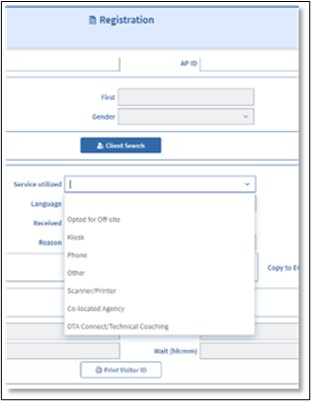
If using a self-service tool, then staff must also select an item in the Service utilized drop-down menu. The services that can be selected are:
- Opted for Off-Site
- Kiosk
- Phone
- Other
- Scanner/Printer
- Co-located Agency
- DTA Connect/Technical Coaching
Figure 5: Service Utilized drop-down list in BEACON Registration page. View/HideView/Hide
Reminder: All TAO staff must be alert to situations where it appears a client is having difficulty with a department service, activity, rule, or requirement because of a disability. See Recognizing an ADA Accommodation Request.
Registration Reasons
The following chart can be used as a reference guide for all available registrations reasons and the situations they are intended to cover.
| Registration Reason | When To Use It |
|---|---|
| Appeal Hearing | Client comes in for a scheduled Appeal Hearing and is registered to the Appeals Liaison or staff person representing the Department at the appeal. |
| Application - EAEDC | Client asks to apply for EAEDC and is registered to be seen either by an onsite staff member or put into an interview room and is connected with someone remotely. |
| Application - SNAP | Client asks to apply for SNAP and is registered to be seen either by an onsite staff member or put into an interview room and is connected with someone remotely. |
| Application - TAFDC | Client asks to apply for TAFDC and is registered to be seen either by an onsite staff member or put into an interview room and is connected with someone remotely. |
| Application - TAFDC/EAEDC/SNAP | Client asks to apply for an EA Program and SNAP and is registered to be seen either by an onsite staff member or put into an interview room and is connected with someone remotely. |
| Apply for EAEDC (self-service) | Client asks to apply for EAEDC, and either does so through the Kiosk, or chooses to do it on their own offsite. |
| Apply for SNAP (self-service) | Client asks to apply for SNAP, and either does so through the Kiosk, chooses to do it on their own offsite, or scans in an application if the Kiosk is down. |
| Apply for TAFDC(self-service) | Client asks to apply for TAFDC, and either does so through the Kiosk, or chooses to do it on their own offsite. |
| Apply for TAFDC/EAEDC/SNAP (self-service) | Client asks to apply for an EA Program and SNAP, and either does so through the Kiosk, or chooses to do it on their own offsite. |
| Appointment | Client comes in for a scheduled appointment and is registered to be seen either by an onsite staff member or put into an interview room and is connected with someone remotely. |
| Benefit Theft | Client comes in to report a suspected loss of benefits through skimming, phishing, card cloning, or other similar fraudulent methods. May be seeking replacement benefits if eligible. |
| Case Maintenance | Client requests to see a staff member to report a change and is registered to be seen either by an onsite staff member or put into an interview room and is connected with someone remotely. |
| Disability Access | Client comes in specifically requesting to speak with a CAC or requesting an accommodation. |
| Domestic Violence |
Client comes in specifically requesting to see or speak with a DV Specialist. Note: Staff must continue to email the applicable DV Unit Regional Distribution List in addition to registering the client to see the TAO’s assigned DV Specialist. This will ensure the client is properly supported if the TAO’s assigned DV Specialist is not immediately available to follow up with them. |
| Drop-off Document | Client comes in with documents and hands them to DTA staff, and DTA staff scan them in using a cover page. |
| Drop-off Document/Scan (self-service) | Client comes in with documents to submit to DTA and uses the scanners in the lobby to do so themselves. |
| EBT | Client is registered to be issued an EBT Card onsite, or to re-pin their card onsite. |
| FEW Assistance | Client comes in specifically requesting to speak with a FEW about Pathways to Work, Child Care, Orientation, and/or any other supports to comply with work rules. |
| Fraud | Client comes in to report Fraud or to speak with someone from the Program Integrity Unit. |
| Missed Appointment/Interview | Client comes in to follow up on a missed appointment or scheduled interview. |
| Need Access to Document | Client comes in requesting access to a document, such as an Income Verification Letter, Non-Work SSN Letter, Department Notice, Verification Checklist, Recertification, copies of verifications on file, etc. Staff member must access and print document on behalf of client or assist client with accessing/viewing document through DTA Connect. |
| Other Agency (self-service) |
Any client who comes in and is looking for services from another agency. If that agency is co-located with DTA, for Service Utilized select:
Note: If they are looking for HLC (formerly DHCD) enter HLC in the Comments section. |
| Question/Inquiry | Client comes in with a question that does not fall under any of the other categories and is registered to be seen either by an onsite staff member or put into an interview room and is connected with someone remotely. |
| Recertification - SNAP | Client comes in to recertify for SNAP and is registered to be seen either by an onsite staff member or put into an interview room and is connected with someone remotely. |
| Recertification - SNAP (self-service) |
Client comes in to recertify for SNAP, and either:
|
| Recertification - Cash | Client comes in to complete their reevaluation for TAFDC or EAEDC and is registered to be seen either by an onsite staff member or is put into an interview room and is connected with someone remotely. |
| Staff Assistance with DTA Connect | Client comes in seeking staff support with DTA Connect. Staff member provides coaching and assistance to client with downloading, account set up, navigating through the application, uploading verifications, etc. |
| Staff Assistance with Scanning | Client comes in seeking staff support with making copies or scanning documents directly to the DPC. |
| Summer EBT | Client comes in seeking staff support with accessing their Summer EBT benefits or to ask questions about their eligibility. |
| Summer EBT (self-service) | Client comes in to use kiosks to check on their Summer EBT eligibility. |
| Switchboard Calls | For front-end staff who receive calls through the TAO main phone line or retrieve voicemail messages left on that line. If able to answer the question or provide information directly, front-end staff are to register to themselves. Otherwise, the action must be registered to the applicable staff for follow up. |
Steps for Registering Visitors
Click the double arrow icon on the left side of the BEACON screen to open the My Office tab.
- Click the double arrow icon on the left side of the BEACON screen to open the My Office tab.
- Click Registration.
- Enter the client’s information in the Registrant section of the Registration page.
- Click Client Search. The Registration Client Search popup page will open.
- If the client is known to BEACON, select the client from the resulting client list. The Registration Client Search popup page will close, and the client’s demographic information will populate on the Registration page.
- If the client is not known, click New. The Registration Client Search popup page will close. The information that was previously entered in the Registrant section of the Registration page will be used to register the client.
- In the Details section, select the Reason for the client’s visit from the drop-down list.
- If the client is utilizing self-service tools at the TAO, check the Self-Service box above Details. The Reason drop-down list will display different options depending on whether the client is utilizing self-service tools.
- The registrant will automatically default to their assigned case manager if they have one. If the case manager is not available, the registrant must be manually assigned to another staff person based on your TAO’s procedures for rotation/duty.
- Registrants who are in to see other staff such as a FEW or DV Specialist will need to be assigned manually to the correct person from the drop-list.
-
Note: Cash applications are to be assigned in rotation to cash case managers who have been configured as intake workers in BEACON. Cash clients who must be seen by a duty worker are automatically assigned to on-site cash case managers in the duty rotation.
-
- If the client is not known, the language field will be set to English. If the client’s primary language is not English, select the chosen language from the drop-down list. If a client is known, the Language field on the Registration page will populate with the language saved in the client’s Assessed Person page.
- When appropriate, type comments about the registration in the Comments box. Comments must be entered when it is necessary to relay information about the registration that is not captured via the standard registration process to the person to whom the Action or Notification will be assigned.
- The “Copy to ECF Narrative” checkbox will be checked by default for self-service. Staff must indicate actions taken and save to the narrative.
- When registered for Other Agency, you must enter the agency name.
- Click Register.
- The confirmation message: “Registration successful” will appear which includes the Visitor ID. Click OK.
- The message popup box will close, and the registrant’s status will be set to Waiting.
Steps for Re-Registering an In-Person Client Upon Completion of an Action or Notification
To re-register an in-person client from either the Notification Details page or the Action Details page (depending on case manager role):
- After completing the assigned Action or Notification, click Re-register. The Registration page will open and the client’s identifying information and language preference will populate.
- In the Details section, select the Reason for the client’s visit from the drop-down list.
- If the registered client needs to be manually assigned to a specific TAO staff person, click the drop-down menu next to the Assigned field. A list of TAO staff will drop down. Select the name of the worker from the staff list. The popup page will close and the selected person’s name will populate in the assigned field.
- If no selection is made in the assigned field, the registered client will be assigned to the appropriate queue, case manager, EBT clerk, or other appropriate staff person based upon the reason for the registration.
- When appropriate, type comments about the registration in the Comments box. Comments should be entered when it is necessary to relay information to the person to whom the Action or Notification will be assigned.
- Click Register.
- The confirmation message: “Registration successful” will display. The message also includes the Visitor ID. Click OK.
- The message popup box will close and the registrant’s status will be set to Waiting.
- Close the Visitor ID page.
- Close the Registration page.
Registering TAO Main Line (Switchboard) Calls
All calls to the TAO main line must be registered using the Reason of Switchboard Calls. This applies to both live answered calls as well as voicemails retrieved. This ensures that all calls are appropriately recorded and eliminates additional tracking of these inquiries.
Calls and voicemails that are responded to by the staff person assigned to the switchboard are to be self-assigned. This may include things like a call asking about the hours a TAO is open or returning the voicemail of someone asking how they can apply for benefits.
Calls that are for a specific case manager or staff person are to be registered to that individual (or the covering staff person if they are out that day). Inquiries that need to be newly assigned or followed up on are to be registered to a staff person in that role/program according to the TAO’s established procedures. For example, if a TAFDC client calls and expresses that they have a question about their case, the call would be registered to their assigned case manager. If a client is calling and seeking to do a telephonic application for SNAP, they would be registered to a FAW according to their TAO’s rotation. When registering the call, staff must provide details in the comment section as to the nature of the call and important details. This could include what time it is safe to call for a client seeking DV services or that a client is interested in training in the healthcare field for a FEW.
Last Update: February 27, 2025
|
|
|
||
| Digital Accessibility Statement | Privacy Policy | Site Policies | Public Records Requests |
|
© 2026 Commonwealth of Massachusetts. Mass.gov is a registered service mark of the Commonwealth of Massachusetts. |
|||

